 HikariSub
The Automation panel
See the loaded scripts and their macros, run them, give them shortcuts, and read the log of each run.
The Automation panel lists every loaded script with its macros. From it you load, reload and edit scripts, run macros, give them shortcuts, and read what each run wrote to its log. How loading and running work is in Running scripts.
Opening the panel
- Automation › Show panel
- View › Panels › Automation › Show
- Shift+click a macro in the Automation menu, which opens the panel ready to record that macro's shortcut.
The panel opens where it was last in this layout, or else in the column to the right of the Grid (see Where a panel opens). Like any panel, you can drag it elsewhere or float it. It has no key of its own.
At the top, Scripts and Runs switch between the two views. Runs shows how many runs it keeps, such as Runs 4. Beside them are four buttons:
| Button | Does |
|---|---|
| Load script… | Loads a script for the current subtitle file, or reloads it if it is already a subtitle script |
| Refresh autoload scripts | Reloads the autoload scripts and loads new ones |
| Rerun last macro | Runs the last macro again, with its dialogs |
| Repeat last run | Runs the last macro again with the same answers |
The ⋯ button on the panel's tab has Load script… and Refresh autoload scripts too, and:
- Shortcuts in Settings…, which opens File › Settings › Hotkeys on the macros' shortcuts.
- Clear runs, which empties the Runs view.
Scripts
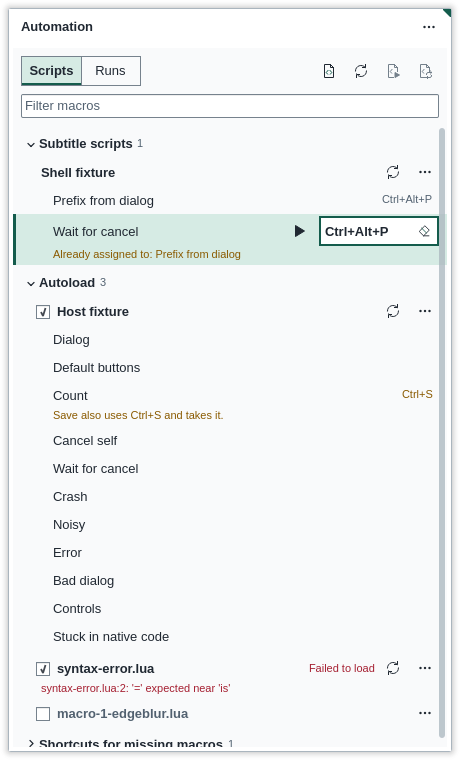
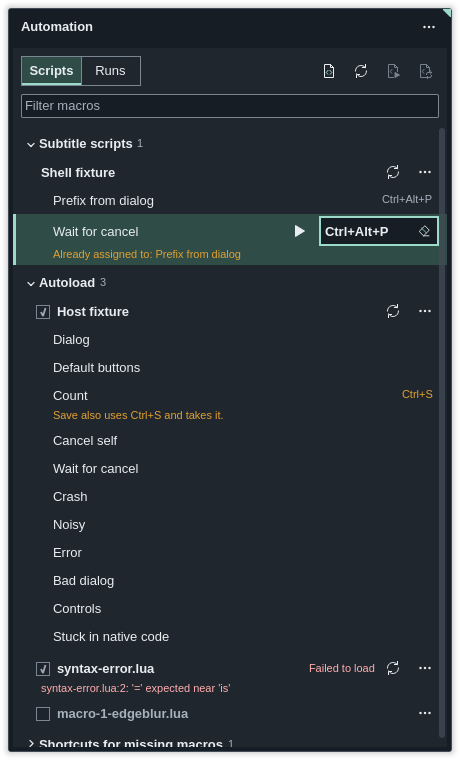
The scripts are in two sections, each of which folds:
- Subtitle scripts: the scripts you loaded with Load script…, or that a subtitle file names. There is one list for the whole program, not one per file.
- Autoload: the scripts loaded at start.
When the current file names scripts that are not loaded, a bar above them says "This file names scripts:" and their names, with "Loading a script runs its code." Hover it for the paths. Load loads them, after asking you first unless they're in a trusted folder.
Filter macros shows only the macros whose name matches what you type. Down moves from it into the list.
Script rows
Each script shows its name in bold; hover it for the script's description. Beside the name may be its state:
| State | Means |
|---|---|
| Loading | Its top level is running |
| Running | One of its macros is running |
| Failed to load | The script has an error. The row shows it, starting with the file name and line, such as myscript.lua:12: '=' expected near 'end'; Show full error shows all of it |
| Stopped | Its process ended. Reload it to use it again; nothing is rerun by itself |
Reload loads the script again from its file. The ⋯ button on the row also has:
- Edit script, which opens the file in your script editor. The first time, or with Shift held, HikariSub asks which program to use, in Select a script editor.
- Unload, which takes the script out of the list, and its macros out of the menu. The script's path stays in the header of a subtitle file that names it.
An autoload script has a box before its name, Load at start. Untick it to turn the script off: it unloads, and it stays off at the next start and on Refresh autoload scripts. Its name shows muted, without Reload. Tick the box to load it again. The box is greyed out while the script loads or one of its macros runs. Subtitle scripts have no box.
This is how to turn off a bundled script you don't use. Deleting its file doesn't work: a bundled file you delete comes back at the next start.
Macro rows
Under each script are its macros. To run one, press its Run button, double-click it, or select it and press Enter. Right-click a macro, or press the Menu key, for Run, Set shortcut… and Clear shortcut.
| Key | Does |
|---|---|
| Up, Down | Move through the macros |
| Enter | Run the macro |
| F2 | Record a shortcut for the macro |
| Menu | Open the macro's menu |
Shortcuts
Each macro row shows its keys, or Add shortcut when it has none. To record one, click that button, press F2, or choose Set shortcut…. The button reads Press a shortcut:
- Press the keys, such as Ctrl+Alt+P. If another command has them, the row says "Already assigned to:" and its name.
- Press Enter to save, or Esc to cancel. Clicking elsewhere cancels too.
Saving keys that another command has asks first, in Reassign shortcut: Reassign moves the keys to the macro, and Cancel keeps them where they are. Keep both is offered when the other command's key works in another place, so both can have it.
Macro keys work everywhere in the program. A Global command with the same keys wins, and the macro's row warns, for example "Save also uses Ctrl+S and takes it."
These are the same shortcuts that File › Settings › Hotkeys lists under Automation shortcuts. See Hotkeys.
Shortcuts for missing macros
A shortcut is kept when its macro is not loaded. The section Shortcuts for missing macros, folded at first, lists each one with the reason:
- No loaded script has this macro
- Several loaded scripts have this file name
- The script has no such macro
- The script or its macro changed
- Not a macro shortcut
Remove shortcut deletes it. A shortcut works again by itself once its script loads.
Runs
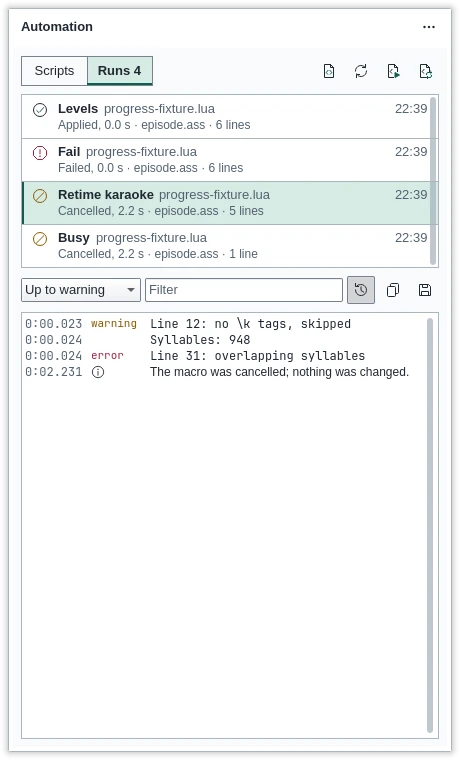
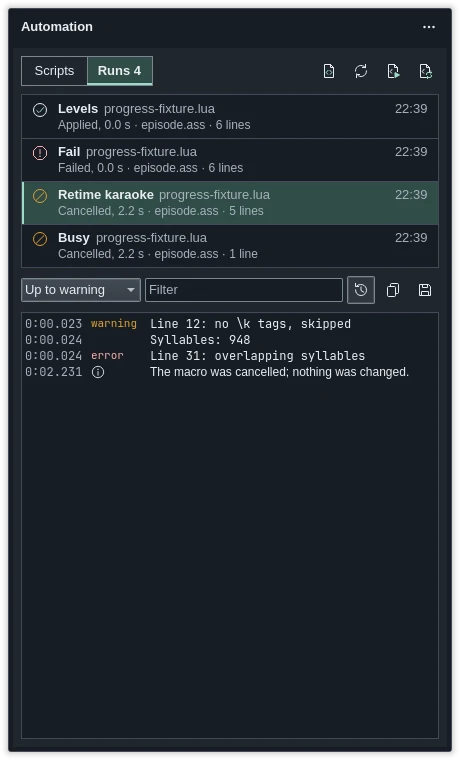
Runs keeps the last 20 macro runs of the session, newest first. The run under way shows on the progress card; it joins the list when it ends. The card's Open in panel opens a run here.
Each run shows its macro, its script, its file and when it started, then how it ended: Applied, Applied, problems named, Cancelled or Failed. Then come how long it took and how many lines it logged.
Select a run to read its log below:
| Control | Does |
|---|---|
| Level | Shows lines up to a level: Up to fatal, Up to error, Up to warning, Up to hint, Up to debug or All levels |
| Filter | Shows only lines containing the text. Esc clears it |
| Show times | Shows when each line was written, from the start of the run |
| Copy | Copies the lines shown |
| Save… | Saves the lines shown to a .log or .txt file |
Beside the filter, a count such as 4 of 6 gives the lines shown out of all. Lines without a level always show, and so do HikariSub's own lines, such as an error or how the run ended. Scripts' lines above File › Settings › Automation › Lua trace level, 3 at first, are not kept: raise it to 4 or 5 to see debug and trace lines under Up to debug and All levels.
A run keeps up to 10,000 lines. Runs are kept until you quit or choose Clear runs; nothing is written to disk unless you use Save….