 HikariSub
Fix minor errors
Keep a list of find-and-replace rules for small, repeated mistakes, and run the ones you choose over a file or every open tab.
The Fix minor errors panel keeps a list of rules, each a find-and-replace with a regular expression: a space before a comma, a doubled space, two dots that should be three. Turn on the rules you want, then find their matches and fix them all, or only the ones you tick.
The rules stay from one session to the next, so you build the list once and run it on every file.
Opening the panel
Open it with Edit › Fix minor errors (experimental), which shows or hides it, or from View › Panels › Fix minor errors. It docks at the right of the window.
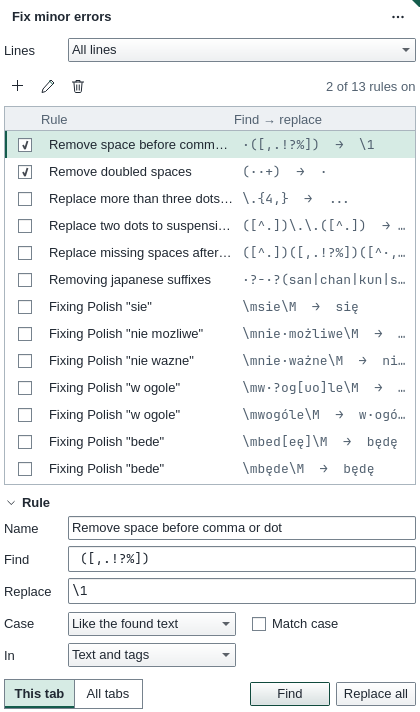
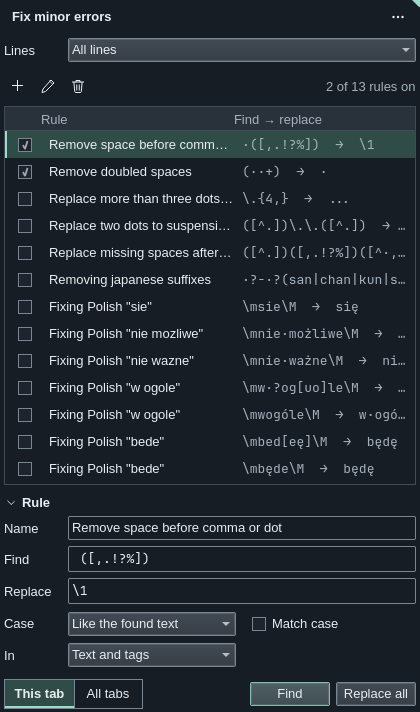
From top to bottom: which lines to search, the list of rules, the Rule section to edit one, and the buttons that run them.
The rules
Tick a rule to turn it on. The count above the list, such as 2 of 13 rules on, says how many will run. In the list, spaces in the patterns show as ·, and an empty replacement as (nothing).
HikariSub comes with these rules, all off at first:
- Remove space before comma or dot
- Remove doubled spaces
- Replace more than three dots with a suspension point and Replace two dots to suspension point, which both make
.... Rules brought over from an earlier version'sRules.txtkeep the first one's old name, Replace more then three dots to suspension point - Replace missing spaces after dot or comma
- Removing japanese suffixes, such as
-sanand-chan - Seven rules for common Polish mistakes, such as
sieforsię
Making a rule
Click a rule to load it into the Rule section. Change the fields, then press the pencil, Update rule, to save them into that rule. To make a new one, fill in the fields and press +, Add rule. A new rule starts off. The bin, Delete rule, deletes the chosen rule.
| Field | Is |
|---|---|
| Name | What the list shows |
| Find | A regular expression |
| Replace | What replaces each match. Leave it empty to delete the match |
| Case | The case of the replacement: Like the found text, Unchanged, Lower case or Upper case |
| Match case | Off, the pattern matches capitals and small letters alike |
| In | Where to look: Text and tags, Tags only (inside {…}) or Text only |
Like the found text follows the match: if it has several capitals, the replacement is written in capitals; if it has one, the replacement starts with a capital.
Patterns
In Find, . is any character, \d a digit, (…) a group and | either side. \m and \M mark the start and the end of a word, as in the Polish rules. In Replace, \1 to \9 put back a group: Remove space before comma or dot finds ([,.!?%]) and replaces it with \1.
The patterns work as they did in HikariSub 0.0.x, so old rules keep working. A pattern with a mistake isn't run, and a notice gives the error.
Choosing the lines
Lines chooses which lines of each file are searched:
| Choice | Searches |
|---|---|
| All lines | Every line |
| Selected lines | The lines selected in the Grid |
| From the selected line | From the first selected line to the end |
| According to the selected styles | Lines of the styles you name |
For styles, type their names in Styles, separated by commas, or pick them with Choose styles. Spaces around a name are ignored.
Hidden lines are skipped. A line with a translation has its translation searched instead of its original text.
This tab searches the file you are editing, and All tabs every open file. A file open only as a reference is never changed.
Finding and replacing
Replace all fixes every match of the rules that are on, at once, without showing them first.
Find lists the matches first, in a Results section under the rules, with how many it found: 3 errors in 1 file.
- Each file has a heading with its path. Tick or untick it for all its matches, and fold it with Hide the finds.
- Each match shows its line number and the text, with the match highlighted. Double-click it to go to that line, with the match selected in the Line editor.
- All and None tick or untick every match.
- Replace checked fixes the ticked matches.
Replace checked works once for each search; press Find again before you replace more. If a line was edited after the search, it is left alone and a notice says so. Close the results goes back to the rules. While the results are open, the rules can't be changed.
Each replace is one undo step in each file it changes, named Fixing minor errors: Ctrl+Z in that file takes it back.
The rules file
The rules are kept in rules.toml in your user folder, with which ones are on. An earlier version's Rules.txt is converted into it once, and kept as Rules.txt.old. HikariSub reads it the first time the panel opens, and writes it when you close HikariSub. If the file is missing, the rules above are used.
Moving from legacy brings in the rules of HikariSub 0.0.x. When an old Rules.txt is converted, a rule in it that can't be read is named in a notice. A rules.toml that can't be read is handled as the settings files are.
Keys
Fix minor errors (experimental) has no key at first. Give it one in File › Settings › Hotkeys; see Hotkeys. F1 in the panel opens this page.
Grammar
Check the grammar of English lines with Harper as you type and across the whole file, fix or skip each finding, and choose the rules it uses.
Subtitle comparison
Compare the file you are editing with another open file, the reference, or its own copy on disk, and see in the Grid which lines differ.