 HikariSub
Reporting problems
Crash and freeze reports, the Report an issue window, where to report a problem with HikariSub or this guide, and what to put in a report.
After a crash or a freeze, HikariSub offers a report at the next start, and you choose whether it goes. Help › Report an issue fills in a GitHub issue for you. In both, you can read everything that would go before it goes.
Where to report
Problems are reported as issues on GitHub, which needs a GitHub account. Before you write one, search the open issues: someone may have reported it already.
| Problem with | Report it at |
|---|---|
| HikariSub itself | Help › Report an issue, or github.com/altqx/hikari/issues |
| A page of this guide | Report a problem at the bottom of the page |
| This website | github.com/altqx/hikari-site/issues |
Crash and freeze reports
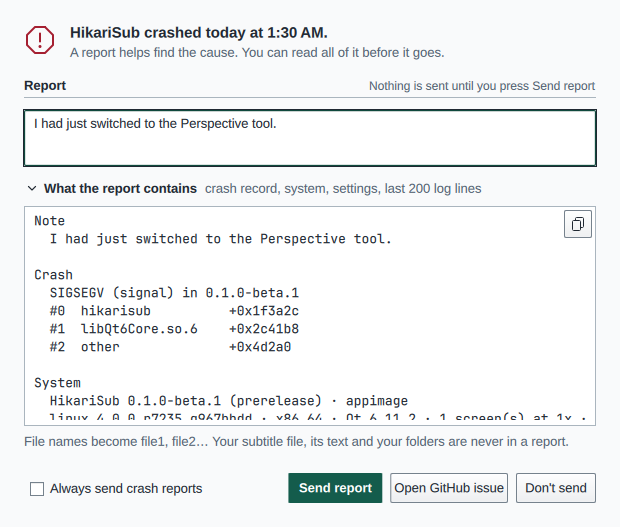
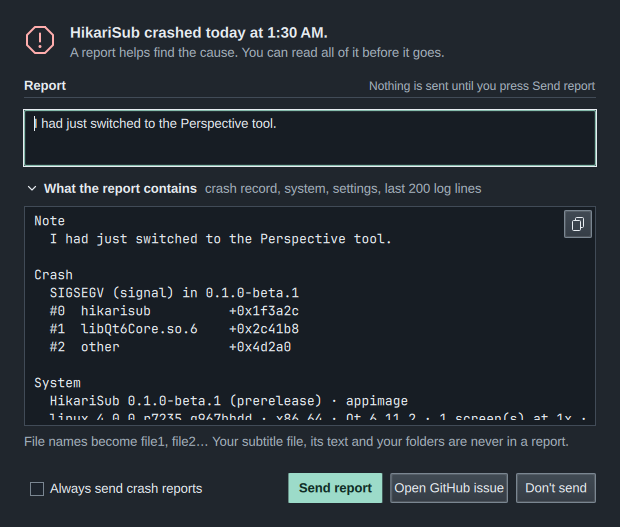
HikariSub keeps a small record when it crashes, and when its window stops responding. At the next start, the record becomes a report, and a window offers it over the Home page:
| Window | Opens |
|---|---|
| HikariSub closed unexpectedly | At the start after a crash |
| HikariSub stopped responding | At the start after HikariSub was closed while it was frozen |
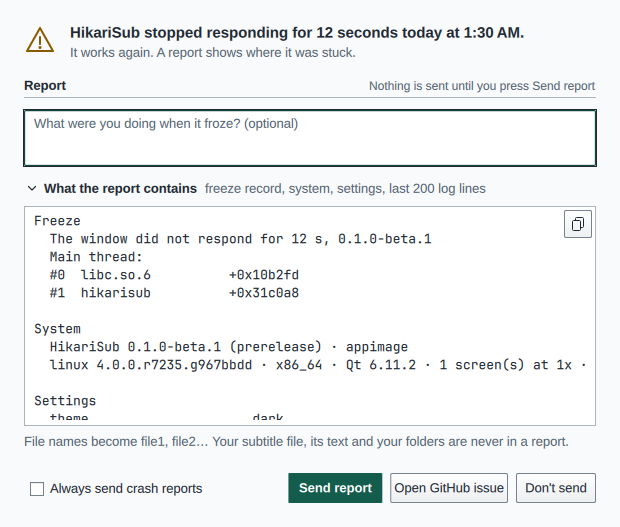
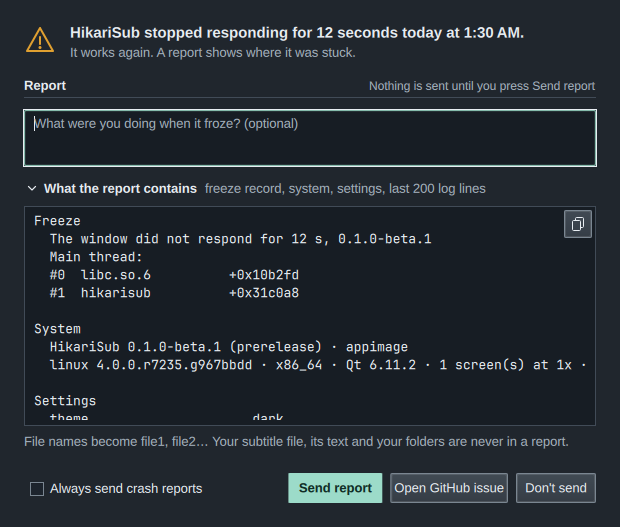
| Report a freeze | From Report… on the notice of a freeze HikariSub came back from |
The first line says when it happened, such as "HikariSub crashed today at 14:32."
What the window shows
- Your work, when your last session didn't close properly. It is the same offer as on the Home page: Restore session opens the documents of the last session again, and Autosaves… opens the Autosaves window. Closing the report window leaves the offer on the Home page. See After a crash.
- Report: a box for a note, such as "What were you doing when it closed?". The note is optional, takes up to 4,000 characters, and goes in as you typed it.
- What the report contains, folded. Open it to read the whole report as it would go, note included. The copy button at its top right copies it.
What a report holds
- The record: the error, the version, and up to 32 stack frames, each a module and an offset. The error is the signal on Linux, such as
SIGSEGV, the exception on Windows, such asEXCEPTION_ACCESS_VIOLATION, or for a freeze how many seconds the window didn't respond. A module is named only when it is one of HikariSub's files or the system's; any other module isother. The record is not a crash dump: it holds no memory, no file names and no text. - The system: the HikariSub version, channel and package, your system and its version, the architecture, the Qt version, the screens and their scale, and the layout.
- The settings, from a fixed list: theme, whether it follows the system, title bar, language, subtitle renderer, video player, audio output, spellchecker and its language, grammar check, autosave, usage data and Always send crash reports. Never a folder, a font or a name.
- The Log: its last 200 lines, from the run that crashed or froze.
The Log lines are changed before they go into a report:
| In the Log | In the report |
|---|---|
| The name of a file, open or not | file1.ass, file2.mkv…, numbered in the order they come, the extension kept |
| A quoted font name | ‹font› |
| Quoted text, or the text of a Line in an open file | ‹text› |
| A path | ‹folder› |
So that a report has the Log of a run that crashed, HikariSub keeps the Log's last 200 lines, already changed this way, in its cache folder. Your subtitle file, its text and your folders are never in a report.
Sending it or not
| Button | Does |
|---|---|
| Send report | Sends the report once, with your note. A notice says "Crash report sent. Thank you." What is sent lists what goes |
| Open GitHub issue | Opens a new Bug issue in your browser with the same text, your note as What happened. Check it there, add what you can, and create the issue |
| Don't send, Esc or × | Drops the report. Nothing is sent |
Send report works whether anonymous usage data is on or off. Only release packages have it: a build from source, a fork's build or a test build has no Send report, and Open GitHub issue still works there.
While usage data is on, the record alone, without your note or the Log, is queued with the usage data anyway, at the start or when HikariSub comes back from a freeze, whichever button you press.
When the report doesn't go:
- Send report failed: a notice says "The crash report could not be sent", with Try again and Open GitHub issue. The report is kept for the next start. Nothing tries again in the background.
- The report is too long for a link: it goes to the clipboard, and the Bug form opens with only its title. Paste the report into the form.
- No browser opened: a notice says "The browser did not open", the issue is on the clipboard, and the report window stays open. Paste the issue into a new issue on GitHub.
Always send crash reports
Always send crash reports, beside the report window's buttons, sends each report without asking. It is the same setting as File › Settings › Updates and privacy › Privacy › Always send crash reports, and it is off by default.
When it is on, the report goes without its window and without a note: at the start after a crash, or after HikariSub was closed while frozen, and when HikariSub comes back from a freeze. A notice then says "HikariSub closed unexpectedly. A crash report was sent." (or, for a freeze, "A freeze report was sent."). Show report on it shows what was sent, and Settings opens the setting. If the report couldn't be sent, the notice says so and the report is kept for the next start.
Like Send report, it works with usage data on or off, and only in release packages: other builds show it neither in the report window nor in Settings.
Freezes
HikariSub checks every second that its window still answers. After 10 seconds without an answer, it records where it was stuck, and updates the record every 5 seconds while it stays stuck.
- If it answers again, a warning notice says "HikariSub stopped responding for 12 seconds" and asks "It works again. Send a report of where it was stuck?" Report… opens the Report a freeze window, which works as the crash window does. The notice stays until you close it with its ×.
- If you close HikariSub while it is frozen, the next start offers the report in the HikariSub stopped responding window.
Report an issue
Help › Report an issue, or Report an issue in Help › About, opens the Report an issue window. It fills in one of HikariSub's issue forms on GitHub. HikariSub sends nothing itself: your browser takes the issue to GitHub, and you create it there, which needs a GitHub account.
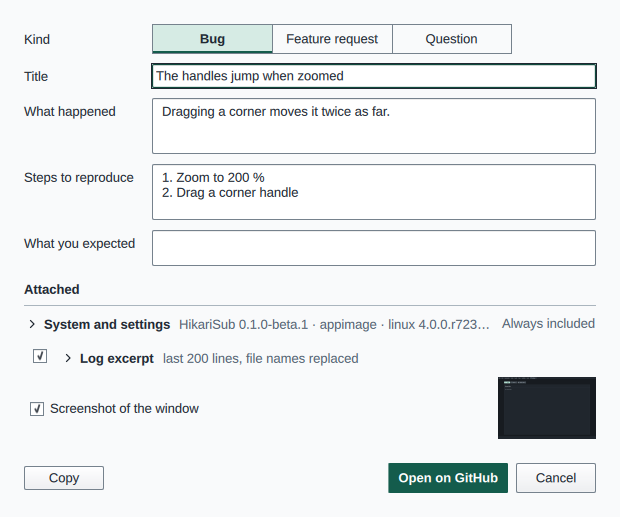
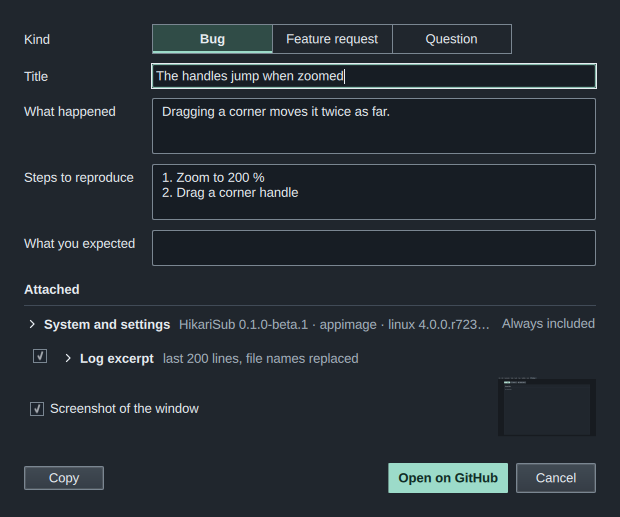
Choose the Kind, then fill in the Title and the fields of that kind:
| Kind | Fields |
|---|---|
| Bug | What happened, Steps to reproduce, What you expected |
| Feature request | What you'd like, What it would help with |
| Question | Your question |
Open on GitHub works once the title and the first field are filled in.
What is attached
| Under Attached | Goes |
|---|---|
| System and settings | Always. Open it to read it: the version, package and system, and the same settings as in a crash report |
| Log excerpt | For a bug, ticked at first. The Log's last 200 lines from when the window opened, with file names replaced as in a crash report. Untick it to leave it out |
| Screenshot of the window | For a bug, ticked at first. A picture of HikariSub's window as it was when you opened the form, with a thumbnail beside it. It shows the window as it is, your subtitles included, so untick it if that is private |
| Subtitle file | For a bug, only when you tick it. The current tab's subtitle file, saved on disk, as a .zip. A file over 64 MB is left out |
Open on GitHub
Open on GitHub opens the matching form in your browser, filled in. The window then shows Finish on GitHub, with what a link can't carry:
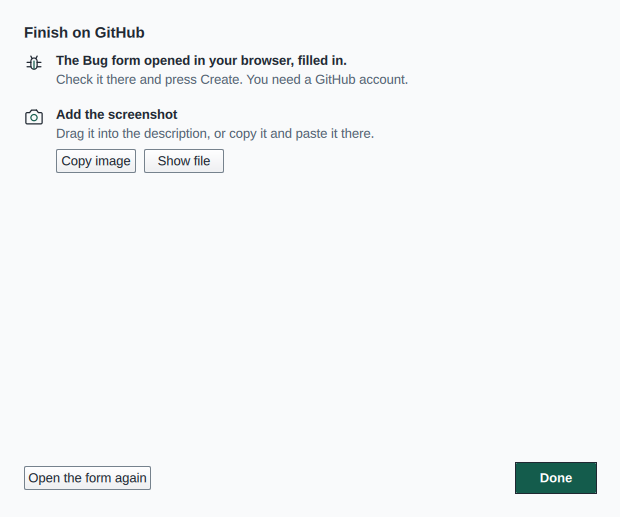
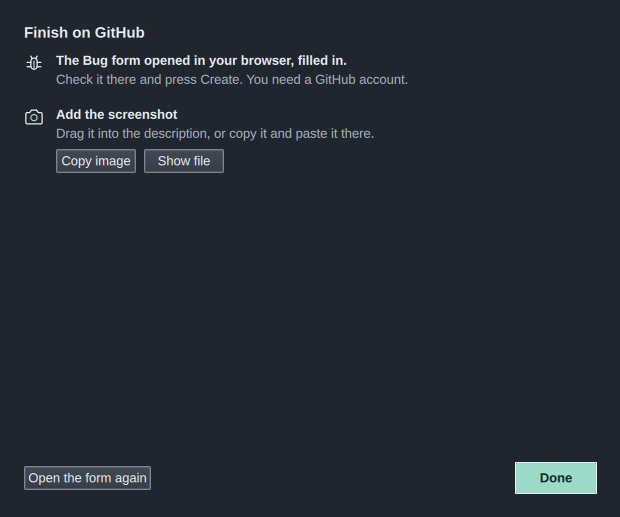
- The form opened in your browser, filled in. Check it there and create the issue. If the issue is too long for a link, it is on the clipboard instead, and GitHub opens an empty form: paste into its first field. Copy again copies it again.
- Add the screenshot: drag it into the description, or press Copy image and paste it there. Show file shows the image in its folder.
- Add the subtitle file: Show file shows the
.zip; drag it into the description.
Open the form again opens the form once more. The screenshot and the .zip are kept in the cache folder, in reports/issue, until you press Done or close the window.
Copy, beside the buttons, puts the whole issue on the clipboard as Markdown instead, with the system and settings and the Log excerpt, to paste wherever you like.
If no browser opens, a notice says "The browser did not open", and the issue is on the clipboard to paste into a new issue on GitHub.
On GitHub itself, New issue offers the same forms.
From a guide page
Every guide page ends with Report a problem. It opens a new issue in HikariSub's issue list, titled "Guide:" followed by the page's title, with the page's address already in it. Say what is wrong or missing, and submit it. Edit this page on GitHub, beside it, lets you propose the fix yourself.
What to include
Report one problem per issue. Report an issue adds your version, system and settings for you, and for a bug the Log excerpt. Otherwise, include as much of this as you can:
- The version and package. Help › About shows both, such as
0.1.0 (deb), and the Copy version button beside them copies them. Or runhikarisub --version, which names the package a little differently, such asnsis-userfor the Windows setup (see Command line). - Your system. Windows 10 or 11, or your Linux distribution and its version.
- The steps. What you did, what you expected, and what happened instead. Exact steps from opening HikariSub are best.
- The file. Attach the subtitle file, or a small part of it that shows the problem; in Report an issue, tick Subtitle file. If the video matters, say what kind it is rather than attaching it.
- The Log. Report an issue attaches its last 200 lines. To copy it yourself, open View › Log, then Copy copies the entries shown, or select one entry and press Ctrl+C.
The Log panel starts empty each time HikariSub starts. Report the problem, or copy the Log, before you close HikariSub or start it again.
A script problem
Add the script, or its name and where you got it, and the run's log: in the Automation panel's Runs view, Copy or Save… the lines of that run. A script's run log is not in the Log excerpt.
A crash or a freeze
Answer the report window at the next start: Open GitHub issue makes the issue for you, or Send report sends it with your note. The record has no file names or text, so the note matters: say what you were doing just before it closed or froze. On Linux, your system may also have kept a core dump of the crash; that is up to your system, not HikariSub.