 HikariSub
Running scripts
Load automation scripts, run their macros from the Automation menu, answer their dialogs and follow each run to its end.
Automation scripts are Lua or MoonScript files that add macros: commands that change the subtitles, such as adding a gradient or retiming karaoke. HikariSub runs the Automation 4 scripts written for Aegisub, and comes with a set of its own. This page is about using scripts; to write one, see Writing scripts.
You can run macros from the Automation menu or from the Automation panel, which also shows each script's state and the log of every run.
The Automation menu
| Item | Does |
|---|---|
| Load script… | Loads a .lua or .moon file for the current subtitle file |
| Refresh autoload scripts | Reloads the autoload scripts, and loads any new ones |
| Run the last loaded script | Runs the first macro of the last script added to this subtitle file |
| Rerun last macro | Runs the last macro again, with its dialogs |
| Repeat last run | Runs the last macro again with the same answers, without its dialogs when they are unchanged |
| Cancel macro | Shown only while a macro runs |
| Show panel | Opens the Automation panel |
Below these come the macros of every loaded script, in the order they were loaded. A / in a macro's name makes submenus: Typesetting/Move shows as Typesetting › Move, and macros whose names start the same share a submenu. The Automation panel, shortcuts and Settings › Hotkeys keep the full name. The macros are greyed out while a macro runs. Shift+click a macro to give it a shortcut instead of running it.
None of the items has a key at first. Load script, Refresh autoload scripts, Run the last loaded script and Repeat last run can have one: see Hotkeys.
Opening the menu also loads the scripts the current file names, after asking you, and reloads any loaded script whose file changed on disk.
Loading scripts
There are two kinds of script:
- Autoload scripts load when HikariSub starts and are there for every file. HikariSub comes with some, among them the karaoke templater, Aegisub-Motion, the DependencyControl Toolbox and gradient, edgeblur and strip-tags macros. To turn one off, untick its box in the Automation panel. To add your own, see Where scripts live.
- Subtitle scripts belong to a subtitle file. Load one with Automation › Load script…, the same button in the Automation panel, or by dropping
.luaor.moonfiles on the window.
Loading a subtitle script also writes its path into the file's Automation Scripts header, so it loads with the file next time. That change is an undo step, Changing the subtitle header.
Loading a script runs its code. Scripts are not sandboxed: they can read and write files and run programs with your permissions. Load only scripts you trust.
Scripts a subtitle file names
When you open a file that names scripts not yet loaded, the Automation panel says so and offers Load. Nothing loads until you press it, open the Automation menu, choose Run the last loaded script or use Load script….
From 0.1.0-beta.3, HikariSub then asks first, once for each file in a session: "This subtitle file wants to run 2 scripts on your computer." The question lists each script's full path, up to eight, and Details has the rest. You can choose:
- Load: load them for this file until you quit HikariSub.
- Don't load, the default, or Esc: leave them unloaded. HikariSub doesn't ask again for this file until you restart it, but the panel's Load asks again.
- Always trust scripts in this folder: load them, and from then on load scripts from that folder without asking.
Trusted folders are listed in File › Settings › Automation › Trusted script folders, where Remove stops trusting one. Scripts in HikariSub's own script folders and in your autoload folder never ask. A script you pick yourself with Load script… loads without asking.
Update from beta.1 or beta.2
0.1.0-beta.1 and 0.1.0-beta.2 load the scripts a subtitle file names without asking. That's a security issue: opening a file from someone else could run their code. Update to 0.1.0-beta.3 or later. See the advisory, GHSA-g2j7-9r6j-r28v.
If a script fails to load, its row in the Automation panel reads Failed to load, with the error.
Scripts that only add export filters load, but add nothing: HikariSub has no export filters.
Reloading scripts
A script is reloaded:
- when you press Reload on its row in the Automation panel;
- when you load a subtitle script again with Load script…, which leaves the file's header as it is;
- by Automation › Refresh autoload scripts, for the autoload scripts;
- by itself, when its file changed on disk and you open the Automation menu or choose Run the last loaded script.
Each script runs in a process of its own. A reload starts a new one, so the script's top level runs again and anything it kept from earlier runs is lost. A script can't be reloaded while one of its macros runs.
If a script's process ends, by a crash for example, only that script stops. Its row reads Stopped until you reload it.
Running a macro
Choose the macro in the Automation menu, run it from the Automation panel, or press its shortcut. Only one macro runs at a time.
Before it starts, the line you are editing in the Line editor is committed. If it can't be, or no file is open, the macro doesn't start and a notice says why.
While the macro runs, its subtitle file is read-only. Your other open files can still be edited.
A script can check that a macro may run on the lines you selected. That check runs each time you run the macro; the menu doesn't grey out macros. If the check says no, the run ends with "Its validation did not let it run; nothing was changed."
When the macro ends, its changes go into the file as one undo step, named *Automation: * and the macro's name. A macro that fails or is cancelled changes nothing. Nor does one whose file was changed, reloaded or closed while it ran: the card says "nothing was changed".
Some scripts need the file's script resolution. If the file has none, HikariSub asks for it. File › Settings › Video › Set a missing script resolution from the video without asking takes the video's size instead.
The progress card
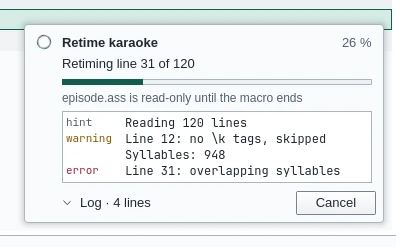
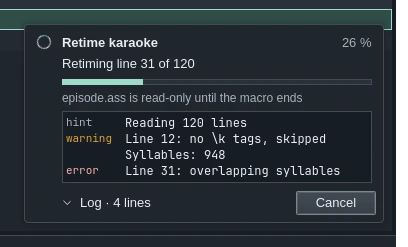
When a macro starts, a slim notice with its name and a bar appears in the corner where notices show. After about a second, or as soon as the script writes to its log, it grows into a card with:
- the macro's name, its task and how far it has got;
- which file is read-only until the macro ends;
- the log, which Log folds and unfolds;
- Open in panel, which shows the run in the Automation panel's Runs;
- Cancel.
Cancel asks the script to stop. Most stop at once, but a script that is busy in a long loop may not notice. If it hasn't stopped after three seconds, the card says "The script has not stopped yet. Force stop ends its helper; nothing is changed." and offers Force stop. Nothing is ever stopped without you asking; reload the script afterwards to use it again.
When the macro ends, the card's title says how: just the name when the changes were applied, or cancelled, failed or named problems. The card stays until you close it when it has something to read: a log, problems, or an error. A run that applied its changes and logged nothing leaves no card.
The card never takes the keyboard by itself. F6 reaches it, and Esc leaves it.
Running a macro again
- Rerun last macro runs the last macro again on the lines selected now, as if you had chosen it from the menu. Its dialogs show as usual.
- Repeat last run runs it again with the same answers. Each dialog that is the same as last time is answered for you, without showing. A dialog that changed is shown, filled with your last answers, with a note saying why. Questions, which have only buttons, are asked again.
Repeat last run remembers the last run that ended without a dialog cancelled, until you quit. The menu item names the macro and the button you pressed, such as Repeat last run: Gradient, as Apply with the same answers. If the script was unloaded, the macro can't be repeated.
Run the last loaded script runs the first macro of the last script added to this file, reloading it first if its file changed. If the file names no scripts, it says "This subtitle file does not have any scripts added". If the script failed to load, it shows the error and opens the script in your editor. If it loaded but has no macros, as a library has none, a notice says "name has no macros to run". Asked for by its key while another macro runs, it waits for that one to end.
A script's dialog
Many macros ask for settings first in a dialog of their own. Its title is the macro's name, and its controls are the script's.
- You can resize the dialog. HikariSub remembers its size and place for each script and dialog. A dialog too tall for the screen scrolls, and its buttons stay in view.
- The strip above the buttons shows the hint of the control under the pointer, or of the focused one. For a number it also gives the range, such as "10 to 500".
- A number field takes any typing. A value out of range is brought into the range when you leave the field, and the strip says so first: "5000 becomes 500 when you leave the field." The arrows, the mouse wheel, Up, Down, Page Up and Page Down step it.
- A colour has a swatch, which opens the colour picker, and a field that takes
#RRGGBB,RRGGBBor&HBBGGRR&. - A list of more than 10 items filters as you type.
The keys are the same on every platform:
| Key | Does |
|---|---|
| Tab | Moves through the controls row by row, then the buttons |
| Enter | Presses the focused button, else the script's default one. In a multi-line text box, Ctrl+Enter |
| Space | Ticks a check box or presses a button |
| Alt+letter | Presses the button, ticks the box or goes to the field whose label has that letter underlined. The letters show while Alt is held |
| Esc | Closes the dialog without pressing a button |
Closing the window is the same as Esc. F1, or the ? in the title bar, opens this page.
Answers and presets
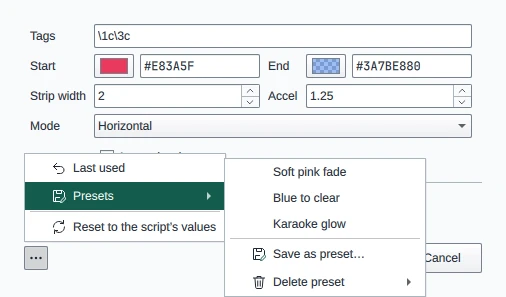
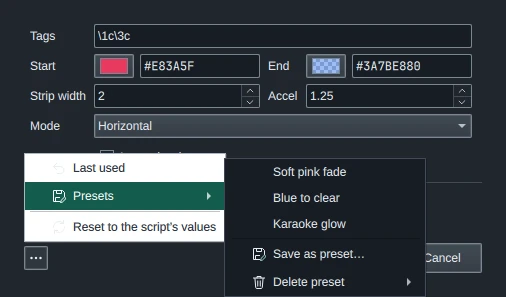
The ⋯ button at the bottom left, Answers and presets, has:
- Last used, which fills in the answers you gave last time.
- Presets, the answers you saved for this dialog. Save as preset… saves the ones shown under a name; a name in use asks to Replace it. Delete preset asks first.
- Reset to the script's values.
These only change what the dialog shows; nothing runs until you press one of its buttons.
A control whose value differs from the script's has a thin coloured bar beside it. Hover it to see the script's value, and click it to put that value back.
Dialogs open with the script's values. Turn on File › Settings › Automation › Fill in my last answers to open them with your last answers instead; a value the script works out itself, from the selection say, still wins. Clear last answers… on the same page forgets the answers of every dialog, and turns Repeat last run off until a macro runs again. Presets are kept.
Shortcuts for macros
Any macro can have a key. Set it in the Automation panel: press Add shortcut on the macro's row, or Shift+click the macro in the Automation menu, then press the keys. Macro keys work everywhere in the program. See Shortcuts in the Automation panel guide, and Macro keys.
File › Settings › Hotkeys lists them under the Automation shortcuts filter. Import legacy hotkeys… on that page brings in the macro keys of HikariSub 0.0.x.
Settings
File › Settings › Automation has:
| Setting | Does |
|---|---|
| Fill in my last answers | Script dialogs open with your last answers. Off at first |
| Clear last answers… | Forgets the answers given in every script dialog |
| Lua trace level | The highest level of aegisub.debug.out and aegisub.log message kept, from 0 to 5; 3, hints, at first. A change reloads the loaded scripts, except one whose macro is running |
The Settings reference lists them all.