 HikariSub
Layouts
Arrange the panels, switch between the built-in layouts, and save your own.
The window is made of panels: Video, Audio, the Line editor, the Grid and others. You can move them, stack them as tabs, float them in windows of their own, or close them. A layout is one arrangement of them.
Each tab has its own layout, so a file you translate and a file you time can be set up differently side by side. Moving panels never changes your subtitles and adds no undo step.
The built-in layouts
- Editing, the default: Video and Audio side by side, the Line editor under the Audio, and the Grid along the bottom.
- Timing: Editing without the Video.
- Translation: Editing without the Audio. Choosing it asks whether to turn on Translation mode for the file.
- Typesetting: a large Video with the Styles panel beside it, and the Line editor beside a short Grid below.
- Karaoke: the Video with the Template editor beside it, the Line editor as the tab behind it. The Audio panel spans the window's whole width under them, so a line's syllables get the whole waveform, and a short Grid sits at the bottom. Choosing it turns on Karaoke mode and folds the generated lines in the Grid.
Choosing a layout keeps the window's size and changes only the current tab.
Karaoke mode and folding
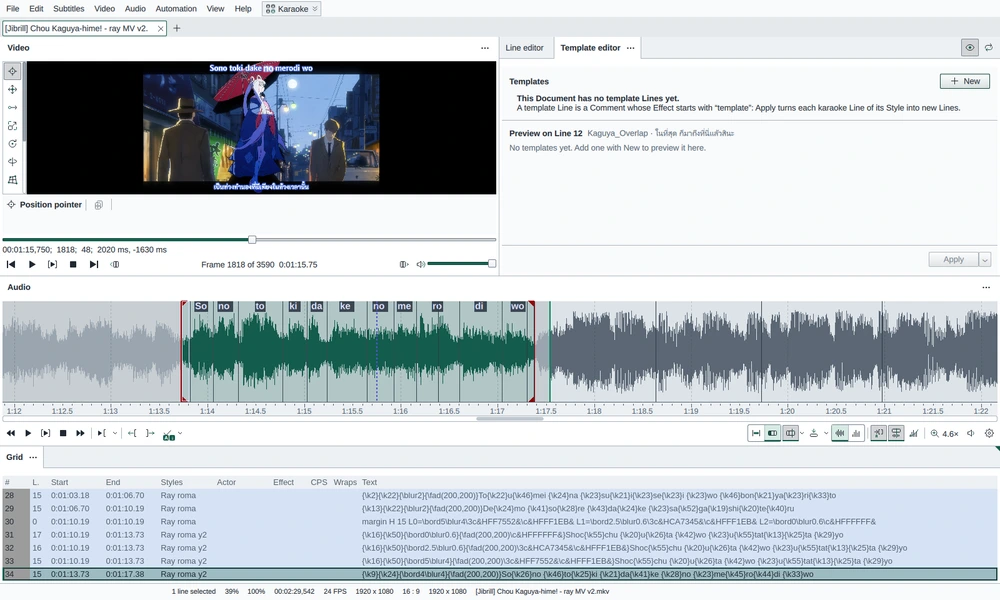
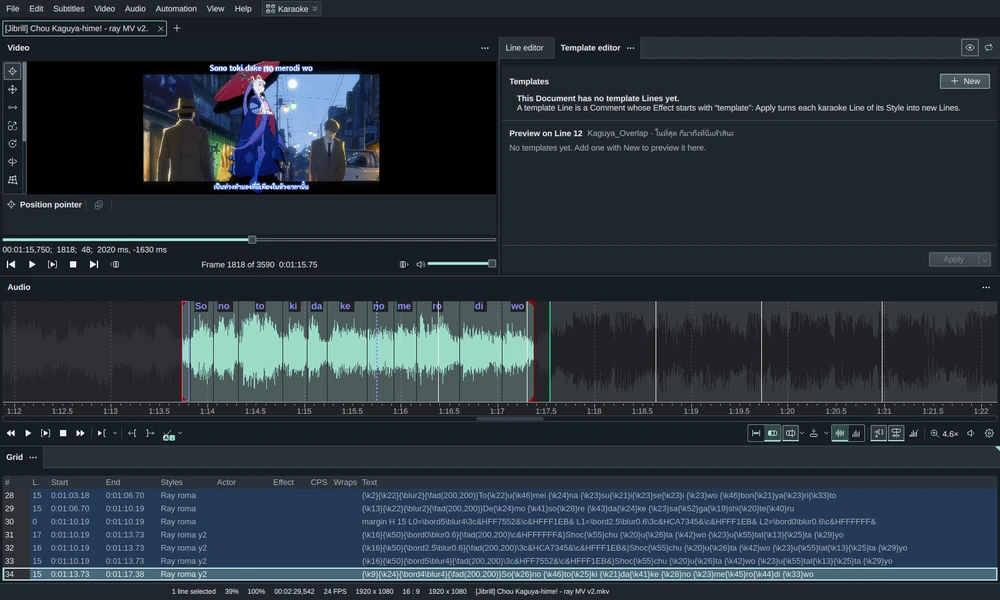
Choosing the Karaoke layout asks nothing and changes nothing in the file. It turns on the Audio panel's Karaoke mode and the Grid's Fold generated lines. A saved layout made from Karaoke does the same.
Choosing another layout afterwards, in this tab or another, turns off again only what Karaoke turned on:
- If Karaoke mode or folding was already on before, it stays on.
- If you switched either one yourself while in the Karaoke layout, it stays as you left it.
The Line | Karaoke switch and Fold generated lines work in any layout. Showing another tab, opening a file and Reset this layout switch neither.
Typing applies itself
In the Karaoke layout, the Line editor applies what you type on its own, with no Enter:
- The text is applied 300 ms after your last keystroke, or at once when the field loses focus, so a click on the karaoke bar or the Grid always works on the text you see.
- The Grid, the karaoke bar and the video follow each time it is applied.
- One burst of typing is one undo step. A pause longer than about a second starts a new step, and so do a line change, Enter, Undo and saving. Until a burst is applied, Ctrl+Z in the field still undoes keystroke by keystroke.
It applies to the text field, and to the Translated text in translation mode. It is always on in the Karaoke layout and has no setting. Every other layout keeps a draft until you press Enter or choose another line.
Choosing a layout
The layout button in the title bar, after the menus, shows the tab's layout. Click it, or use View › Layout:
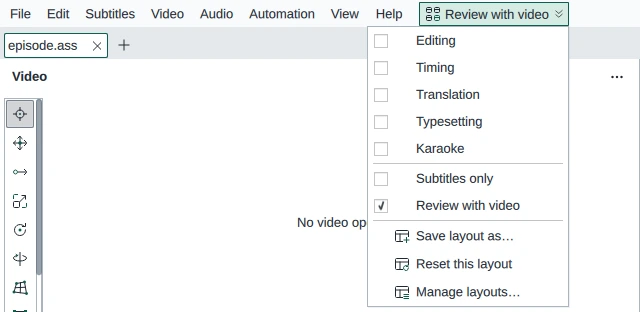
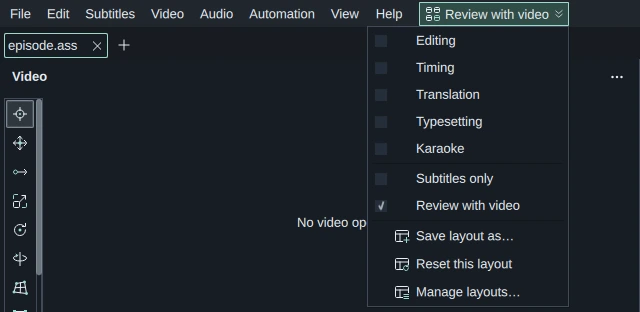
- The built-in layouts, then your saved layouts.
- Save layout as… saves the tab's arrangement under a name.
- Reset this layout puts the tab back the way its layout had it, undoing the moves you made since.
- Manage layouts… renames and deletes saved layouts.
From the keyboard, press Alt or F10 to reach the menus, then the arrow keys to reach the button.
Saving your own
Arrange the panels as you like, then choose Save layout as… and type a name of up to 64 characters. Saving under a name already used replaces that layout; the window warns you and its button reads Replace. The built-in layouts' names can't be used.
A saved layout is a snapshot: moving panels afterwards doesn't change it until you save it again. It can be used from any tab.


In Manage layouts, the pencil, F2 or a double-click renames a layout; Enter keeps the new name and Esc puts the old one back. The bin or Delete deletes it, after asking. Tabs using a deleted layout keep their arrangement.
Moving panels
- Drag a panel's header to move it. A highlight shows where it will land: over another panel's header or middle, it becomes a tab there; near a side, it splits that panel; along the window's edge, it takes the whole edge. Let go anywhere else and it floats.
- Double-click the header to float the panel, or dock a floating one back.
- Drag the line between two panels to resize them.
Each panel's ⋯ button, or a right-click on its header, opens its menu:
- the panel's own options, if it has any
- Move panel…
- Move tab left and Move tab right, for a panel among tabs
- Undock, or Dock for a floating panel
- Close
Closing a panel only hides it. View › Panels shows it again, and can also hide, float or dock any panel.
Where a panel opens
A panel you open comes back where it was last in this tab's layout. A panel that has no place in the layout opens where you can find it, never in an old hidden spot or as a floating window:
- The Log, Spellchecker, Styles, Template editor, Fix minor errors and Original text each have a place of their own, and open there.
- Shift times, Search and Automation open in a column to the right of the Grid. The first one makes the column, and panels opened after it join the column as tabs. The Grid keeps its left edge and gives up width first. With the Grid closed or floating, the column goes along the right edge of the window.
The built-in layouts have no place for Shift times, Search and Automation, so Reset this layout closes them again. Layouts you saved earlier are unchanged.
From the keyboard
View › Move panel… opens a window for the panel you are in. Choose where it goes (Tab with, Left of, Above, Right of, Below or Float), next to which panel, and press Move. Resize sets its width and height in pixels. The window stays open, so you can move several panels in turn.
F6 and Shift+F6 move to the next or previous panel.
Layouts in your files
When you save an ASS file, HikariSub writes the tab's layout into it, in a [Hikari] section that other programs ignore. Opening the file again, here or on another computer, brings the panels back the way you left them. A change of layout alone doesn't mark the file as changed; the next save writes it.
To keep layouts out of your files, turn off File › Settings › Subtitle properties › Save the panel layout in subtitle files. SRT and the other simple formats keep their layout only in the session.
A new tab starts with a copy of the current tab's layout, or with Translation for a file in Translation mode.
If a layout can't be restored
HikariSub saves the window's layout as you work. If it can't be restored at start, for example after an update, a bar shows the Editing layout instead and keeps the old file. View › Restore the previous layout goes back to the layout saved before the last one.