 HikariSub
Fonts
Choose fonts with the font picker, sort them into catalogues, use fonts that aren't installed, and collect the fonts a file needs.
A line's font comes from its style, or from a \fn tag in its text. HikariSub shows each font the way the subtitle renderer will draw it, and tells you when a font isn't there, so that the file looks the same on the viewer's player.
The font picker
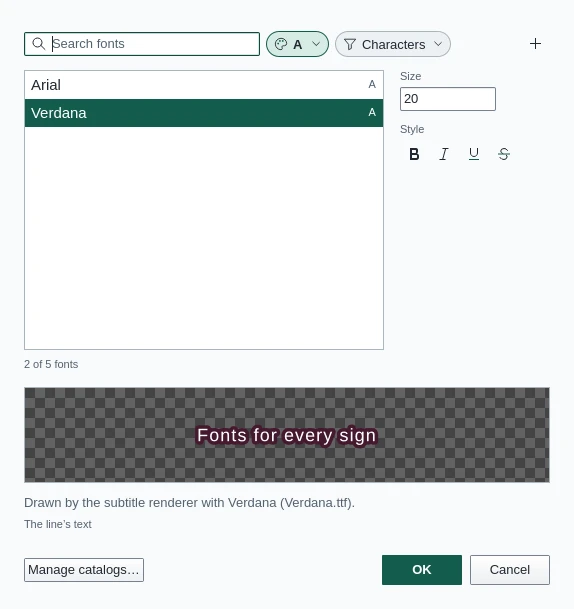
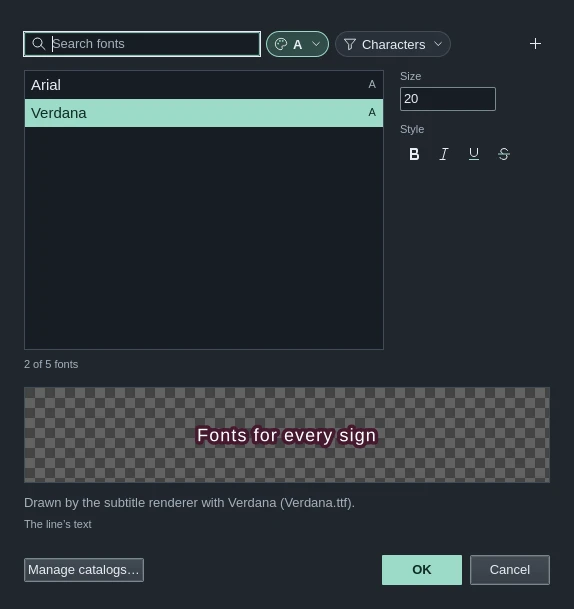
Font selection, the F button in the Line editor's tag strip, opens the picker on the font at the cursor. It has no key at first; give it one in File › Settings › Hotkeys.
- Search fonts narrows the list as you type. Up and Down move in it, Enter is OK, and Ctrl+F goes back to the search.
- Each font is drawn in its own face, with the catalogues that hold it at the end of its row.
- The catalogue chip shows All fonts, Without catalogue, or one catalogue's fonts.
- Characters shows only the fonts that have every character you type, such as the letters of your language.
- Size and the Bold, Italic, Underline and Strikethrough buttons set the rest.
The preview is drawn by the subtitle renderer, with the fonts attached to the file and your Fonts folder: the selected text of the line, else the whole line, else the Preview text. The note under it says which font the renderer used. A warning says when the name isn't installed and the renderer puts another font in its place.
Each change shows in the line at once. OK keeps it; Cancel takes back everything you did in the picker. Only what you changed is written, such as \fnVerdana or \b1, at the cursor or for the selected text. With several lines selected in the Grid, every one of them changes.
A font that isn't installed
When no installed font has the name you type, the list ends with Use “…” anyway. Choose it for a file made on another computer: the name is written as it is, and the warning under the preview shows what this computer will draw instead.
Font catalogues
A catalogue is a named list of fonts, such as "Signs" or "Karaoke", to find yours among hundreds. Catalogues belong to HikariSub, not to a subtitle file, and a font can be in several. There are none at first.
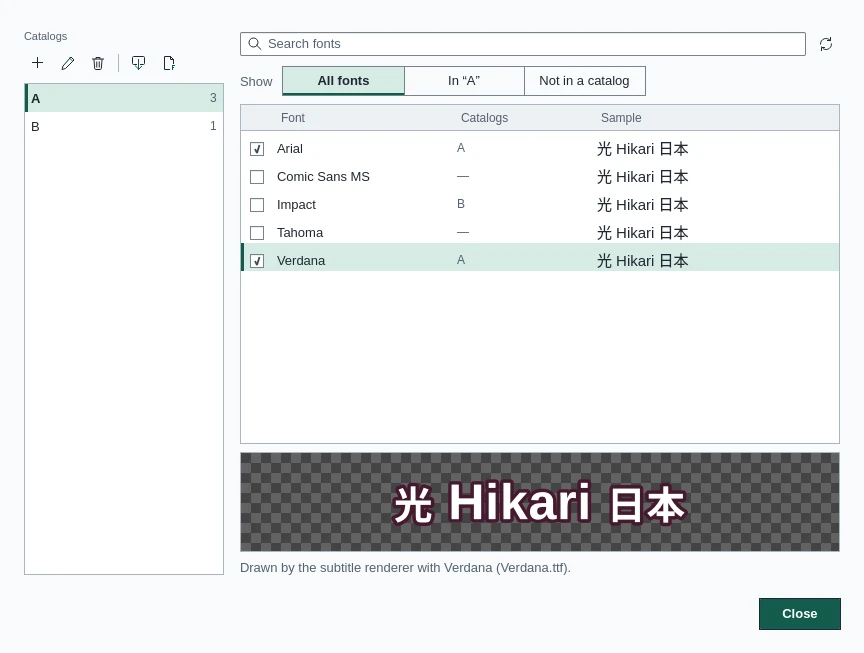
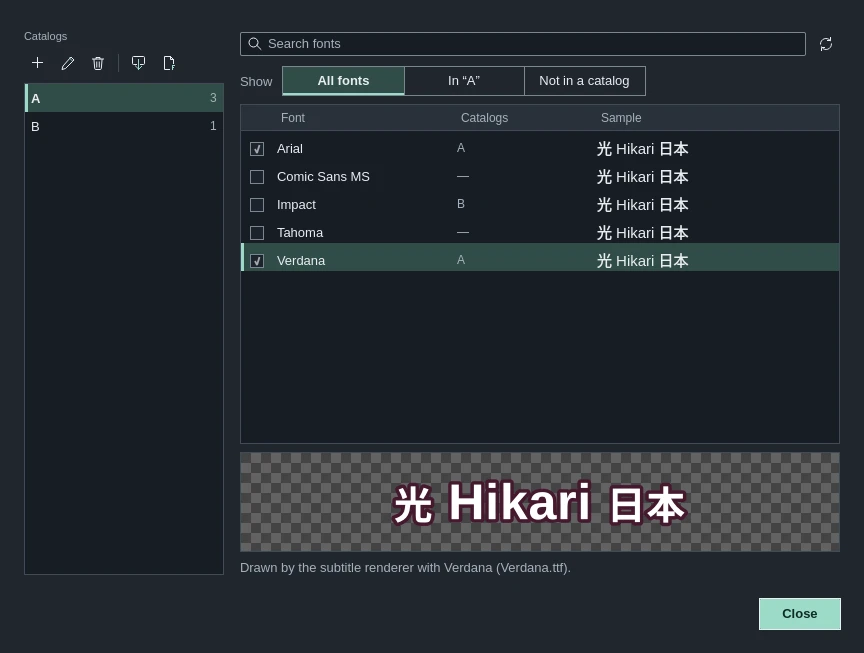
To open Manage font catalogues, use Manage catalogues in the picker, or Manage beside the font in the Style manager.
- On the left, the buttons make a New catalogue, Rename or Delete the chosen one, Load from a file, and Add fonts from subtitles. Deleting a catalogue leaves its fonts installed.
- On the right, the check box beside each font puts it in the chosen catalogue or takes it out. Select several rows, with Ctrl+click or Shift+click, and press Space to do them together.
- Show lists All fonts, the chosen catalogue's, or those Not in a catalogue.
- Refresh fonts reads the installed fonts and your Fonts folder again.
The samples in the list show the Preview text in each font, drawn by your system; the preview under it is drawn by the subtitle renderer.
Renaming a catalogue to another's name offers to Merge the two or Replace the other. Catalogue names ignore case, and font names must match exactly.
From the picker, the + button adds the chosen font to a catalogue, or makes a new one.
Add fonts from subtitles
Add fonts from subtitles puts every font a file uses, in its styles and its \fn tags, into a catalogue. Choose the catalogue, or type a new name, and whether to take the fonts from This file or All open files. Replace the catalogue's fonts empties it first.
Loading catalogues
Load from a file reads catalogues from a fonts.toml file, or a FontCatalogs.txt from HikariSub 0.0.x, such as one a friend sent you. New catalogues are added. If some already exist with other fonts, a window lists them, and lets you Merge, Replace, Rename or Skip each.
Where catalogues are kept
Catalogues are saved in fonts.toml, in the catalogs folder of your user folder, as you change them. The window's footer says Saved after each safety copy, fonts.autosave-0.toml to fonts.autosave-2.toml beside it. An earlier version's FontCatalogs.txt is converted into fonts.toml once, and kept as FontCatalogs.txt.old. Changes to catalogues have no undo.
Your Fonts folder
File › Settings › General › Folders › Fonts folder names a folder of fonts that HikariSub uses without installing them. The .ttf, .otf, .ttc and .pfb files directly in it show in the picker, the catalogues and the Style manager, and the video draws subtitles with them. Fonts attached to the subtitle file come before them.
HikariSub notices when you add or remove a font there, after a second. Problems reading the folder or a file go to the Log panel.
Other players don't have your Fonts folder. Before you share a file that uses its fonts, collect them with the Font collector, or attach them to the file.
The Font collector
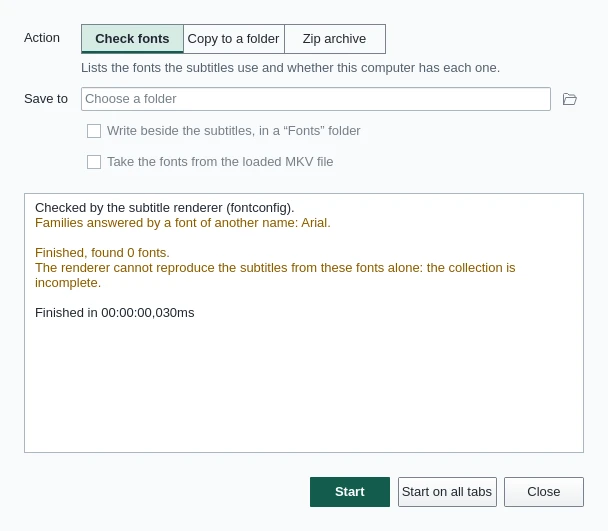
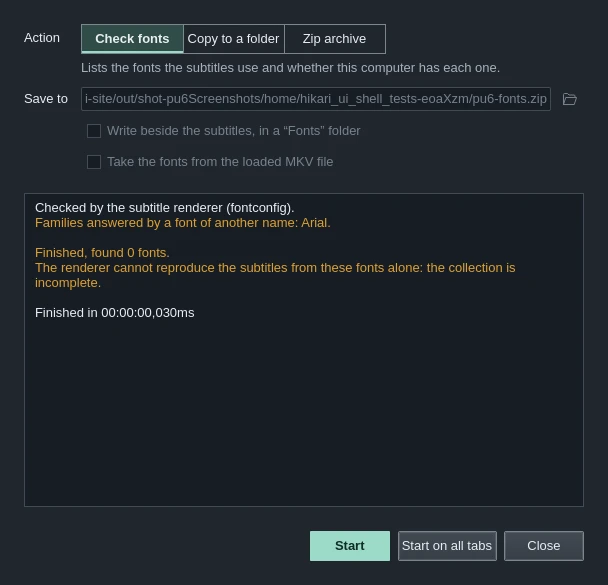
Subtitles › Font collector, also in the Grid's menu, finds the font files an ASS file needs. Action chooses what it does:
| Action | Does |
|---|---|
| Check fonts | Lists the fonts the subtitles use and whether this computer has each one |
| Copy to a folder | Copies each font file the subtitles use into the folder in Save to |
| Zip archive | Puts each font file into a zip archive |
Write beside the subtitles, in a “Fonts” folder saves next to the file instead of in Save to. Take the fonts from the loaded MKV file takes them from the video's attachments.
Start works on the current tab, Start on all tabs on every open tab.
The check is done by the subtitle renderer: it draws the file and notes which font file answered each name, not just whether a font of that name exists. The log lists each font, the styles and lines that use it, and what is wrong:
- A font that isn't found, or whose name is answered by another font.
- A missing bold or italic face.
- Characters the font doesn't have, or that are drawn with a fallback font.
- Whether the collected fonts alone draw every frame the same.
Double-click a line number in the log to go to that line, or a style's name to open it in the Style manager.
Copying and zipping
Start only reviews. A bar under the log then says what it will write, with Copy fonts or Write archive: nothing is written until you press it. When some fonts are missing, tick Copy it, labelled incomplete first, and the folder or archive gets a file named INCOMPLETE - font collection.txt. Show folder opens the folder after.
Stop ends a run part way. It leaves no archive, and labels a folder incomplete. An archive that already exists is replaced only after you agree, and only once the new one is being written.
Perspective
Put a line on a surface seen at an angle by dragging the corners of its box, with a surrounding plane to match a rectangle in the shot.
Split and join
Time a karaoke line on the audio waveform by splitting it into syllables, dragging their boundaries and joining them, with its karaoke tags written as you go.