 HikariSub
DependencyControl
Install, update and remove automation scripts from their feeds with the DependencyControl Toolbox, and fix what goes wrong.
DependencyControl is a package manager for automation scripts. Scripts that use it name the modules they need, and DependencyControl downloads those modules, checks for newer versions and installs them. It reads what is available from feeds: JSON files that script authors publish, often on GitHub.
HikariSub comes with DependencyControl 0.9.1 and its DependencyControl Toolbox 0.9.0, the macros you use to manage scripts. You don't install either. The libraries its scripts use most, such as ASSFoundation, Functional and Aegisub-Motion's modules, come with HikariSub too.
DependencyControl's own messages say "Aegisub"; in HikariSub they mean HikariSub.
The Toolbox macros
The Toolbox is an autoload script, so its macros are always in the Automation menu. They are in its DependencyControl submenu:
| Macro | Does |
|---|---|
| DependencyControl › Install Script | Installs a script or module from a feed |
| DependencyControl › Update Script | Checks for and installs a newer version of an installed script or module |
| DependencyControl › Uninstall Script | Removes an installed script or module |
| DependencyControl › Manage Feeds | Lists the feeds DependencyControl knows, and lets you trust, block or remove them, or add your own |
| DependencyControl › Macro Configuration | Sets a Menu Group and a Custom Update Feed for each script |
| DependencyControl › Package Source Configuration | Chooses where a package's next update comes from, without running one |
| DependencyControl › Global Configuration | DependencyControl's own settings: see Settings |
They run like any macro: the progress card shows what they log, and each run is in the Automation panel's Runs. See Running scripts.
Installing a script
-
Choose Automation › DependencyControl › Install Script.
-
DependencyControl fetches every feed it knows, and the card says "Scanning 21 available feeds..." or how many there are. This needs the internet and can take a minute or more.
-
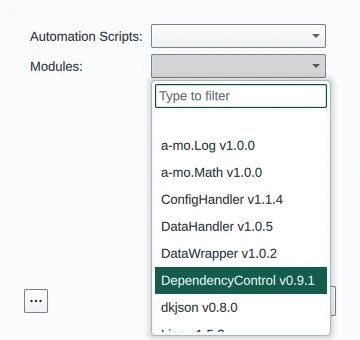
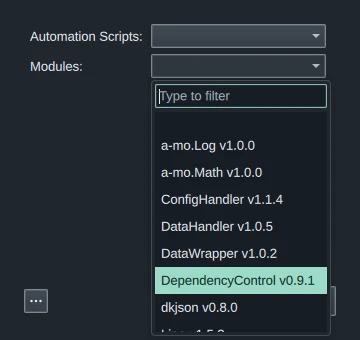
A dialog lists what you can install: Automation Scripts: and Modules:, each as name and version, such as
Abacus v1.1.0. A version that isn't on the feed's default channel shows its channel in brackets. Scripts you already have are not listed. -
Pick a script, a module or one of each, and press OK.
DependencyControl downloads the files, then the modules the script needs, and their own. The log names each one, ending with "Installation of automation script 'Abacus' (v1.1.0) complete." and "Please rescan your autoload directory for the changes to take effect."
-
Choose Automation › Refresh autoload scripts. The new macros appear in the menu.
If the only feed with the package is one DependencyControl doesn't trust, it asks first: "The installation of module '…' can only be satisfied from a feed DependencyControl doesn't trust", with the feed's address. Trust this time installs from it once, Always trust this feed remembers it, Never (block this feed) blocks it, and Cancel stops.
If a package names its own feed but only another feed has it, DependencyControl asks "… can only be satisfied from a feed other than the one it names", naming both feeds. Install from this feed goes ahead; Cancel stops.
Updating scripts
DependencyControl updates scripts by itself. When HikariSub starts, the Toolbox checks every module it knows, and each script that uses DependencyControl checks itself when you run one of its macros. A script is checked at most once every three and a half days (Check interval (s) in Global Configuration). While the start-up check runs, the Toolbox reads Loading in the Automation panel.
To update now, choose Automation › DependencyControl › Update Script, pick the script or module, and press OK. The log ends with "Update of module '…' (v…) complete.", or "The module '…' is up-to-date (v…)." Then choose Automation › Refresh autoload scripts, or reload the script in the Automation panel.
DependencyControl can update every script, the ones that come with HikariSub too, on every copy of HikariSub. HikariSub copies its scripts and modules into your user folder, and an update replaces the copy there. When a later HikariSub brings its own new version of a file DependencyControl updated, the updated file is kept and the Log says so. See Bundled scripts and dictionaries.
An installed package updates only from its own feed, or from the feed its copy came from. Use Package Source Configuration to change where the next update comes from.
To remove a script or module, choose DependencyControl › Uninstall Script and pick it. DependencyControl itself and the modules it needs are not offered. Choose Automation › Refresh autoload scripts afterwards.
Where its files are
DependencyControl keeps everything in your user folder, which Help › Open user folder opens.
| Folder | Holds |
|---|---|
automation/autoload | The scripts it installs, which load at start |
automation/include | The modules it installs |
config | Its settings, l0.DependencyControl.json, and the settings of each script that uses it |
cache/l0.DependencyControl/feeds | The feeds it fetched, kept for the Feed cache lifetime (s) and reused offline |
log | Its log files |
temp | Downloads in progress |
These are the same autoload and include folders that hold the bundled scripts and your own.
Network and certificates
DependencyControl downloads only over http and https.
- On Windows it uses the system's internet settings, with their proxy and certificates.
- On Linux it uses the system's libcurl, which reads the system's certificates. A proxy is set with the
https_proxyandhttp_proxyenvironment variables.
Some scripts download through the DM.DownloadManager module, which comes with HikariSub. On Linux it uses the certificate file named by SSL_CERT_FILE, or else the first of these that exists:
/etc/ssl/certs/ca-certificates.crt(Debian, Ubuntu, Arch)/etc/pki/tls/certs/ca-bundle.crt(Fedora, RHEL)/etc/ssl/ca-bundle.pem(openSUSE)/etc/pki/ca-trust/extracted/pem/tls-ca-bundle.pem/etc/ssl/cert.pem
If your system keeps its certificates elsewhere, start HikariSub with SSL_CERT_FILE set to that file.
Block private hosts, on at first, refuses downloads from your own machine and local network. Turn it off in Global Configuration to use a feed served from there.
When something goes wrong
The run's log on the progress card, or in Runs, says what happened. Some messages:
| Message | Means |
|---|---|
| "Failed to download feed: … (Could not connect to server)", then "no suitable package could be found" | No connection, or a proxy is needed. On Windows: "an internet connection is currently not available" |
| "… can only be satisfied from a feed DependencyControl doesn't trust" | Answer the question, or trust the feed in Manage Feeds |
| "… because you blocked the feed (…)" | Unblock it in Manage Feeds › Block List |
| "Skipped update of … because its entry point (…) is in Aegisub's data automation directory" | The file is only in the program's folder, not in your user folder. Restart HikariSub, which copies the bundled files in, and try again |
| "… another update initiated by … is already running" | Another script is updating. Try again when it ends |
| "… because the updater is disabled" | Update mode is off in Global Configuration |
| "Refusing to download from a private, loopback, or link-local address …" | See Block private hosts above |
| "No download backend available." | Linux: the system has no libcurl. Install your distribution's libcurl package |
| "Please rescan your autoload directory for the changes to take effect." | Not an error: choose Automation › Refresh autoload scripts |
For more detail, read the newest files in the log folder. They keep every line, including the trace lines the card leaves out.
Scripts that use DependencyControl
A script declares itself and the modules it needs with a DependencyControl record. DependencyControl takes the script's name, version and author from its globals, and knows it by script_namespace:
script_name = "Add edgeblur"
script_description = "Adds \\be1 to the selected lines"
script_version = "1.0.0"
script_author = "you"
script_namespace = "you.AddEdgeblur"

local DependencyControl = require("l0.DependencyControl")
local depctrl = DependencyControl{
  feed = "https://example.com/you/DependencyControl.json",
  {
    "aegisub.util",
    {"a-mo.LineCollection", version = "1.3.0",
      feed = "https://raw.githubusercontent.com/TypesettingTools/Aegisub-Motion/DepCtrl/DependencyControl.json"},
  },
}
local util, LineCollection = depctrl:requireModules()

depctrl:registerMacro(function(subs, sel)
  -- ...
end)- A required module is a name, or a table with its name, the lowest
versionit accepts, and thefeedto fetch it from.optional = truelets the script load without it. requireModulesreturns the modules in the same order. A missing or too-old one is installed or updated first, from its feed or the script's.registerMacroregisters the macro with the script's name and description, and checks for updates before each run.
The namespace has at least two parts joined by dots, of letters, digits, - and _. The script's version is a version number such as 1.0.0. For modules, require and the rest of the API, see Writing scripts.
Scripts written for DependencyControl 0.6 keep working. One difference: on a new profile, a script that adds an example preset only when it finds no config of its own, such as lyger's FbfTransform and GradientEverything, starts without that preset.
Settings
DependencyControl › Global Configuration has four groups. A field left at its default keeps following the default. Restore Defaults puts them all back, after asking; your feed lists are kept.
| Group | Settings |
|---|---|
| Updates | Update mode: off, user-requested, dependency-resolution or auto-update (the default). Each allows the ones before it: user-requested updates only when you ask, dependency-resolution also installs modules a script needs. Check interval (s), Update wait (s), Stale-lock timeout (s), the prompt limits, Offer all sources and Block private hosts |
| Feeds | Fetch untrusted feeds (always, never or prompt), the crawl limits, Feed cache lifetime (s), Max feed size (bytes), Feed fetch timeout (s) |
| Logging | Log level (2-5), 3 at first. Write logs to file, and how many, how old and how large the log files may get |
| Paths | Config directory, Log directory and Cache directory, such as ?user/config. ?user is your Automation folder |
Each field's hint, in the strip above the buttons, says what it does.
Macro Configuration sets two things per script. Menu Group puts the script's macros in a submenu of that name in the Automation menu. Custom Update Feed makes the script update only from that feed.