 HikariSub
Files and formats
Open and save subtitle files, convert between formats, set a file's properties and resolution, and get your work back after a crash.
HikariSub works on ASS subtitles, and opens and saves the common simpler formats too. Each file opens in a tab of its own.
Opening
File › Open… (Ctrl+O) opens a subtitle file. The picker opens in the folder you last used and lists:
- Subtitles: ASS, SSA, SRT, SUB, TXT and MPL files.
- Word-timed lyrics: LRC and TTML files, which open as a new ASS file named after them.
- Videos with embedded subtitles: an MKV file's subtitle track opens as subtitles. Load subtitles from an MKV/OGM file, in the Grid's right-click menu, does the same.
HikariSub reads what the file holds rather than trusting its name. A .txt or .sub file can be MicroDVD ({1}{25}text, timed in frames), MPL2 ([10][25]text), TMPlayer (0:00:01:text, start times only) or plain text without times. A file that turns out to be ASS or SRT opens as that.
File › Recently opened subtitles lists the last 20 files. Ctrl+click one to show it in its folder instead. The Home page lists them too.
If the file can't be opened, nothing changes: the tab keeps what it had, and the Log says why.
Subtitles must be UTF-8. Convert a UTF-16 or legacy-charset file to UTF-8 in a text editor before you open it.
When the subtitles name a video, audio or keyframes file, a bar offers to load them. If the video's size differs from the subtitles' resolution, HikariSub asks whether to resample them.
Saving
| Command | Key |
|---|---|
| File › Save | Ctrl+S |
| File › Save as… | Ctrl+Shift+S |
| File › Save all |
A file is saved in the format it is in: an SRT file stays SRT. Save asks for a name when the file is new, when you have converted it to another format, and when Save subtitles using the video name is on and the names differ. The right extension is added if the name lacks it.
Only what you changed is rewritten. Everything else, including sections and lines other programs added, is saved exactly as it was. The file is written beside the old one first and then put in its place, so a failed save never leaves half a file.
On Windows, another program reading the file, such as a virus scanner, the search indexer or a preview, can briefly stop HikariSub from putting the new file in place. From 0.1.0-beta.3, HikariSub keeps trying for up to 3 seconds.
When a save fails, an error notice and the status bar say Save failed; the file on disk is unchanged. The file keeps its last saved version, and your changes stay unsaved in HikariSub. Close the program that has the file open, or wait a moment, and save again. The notice's entry in the Log gives the file's full path.
If the file changed on disk since you opened it, Save stops and a bar offers to Reload it, Compare the two, or Keep mine. A read-only file offers Save as… instead.
Edit › Undo to last save goes back to the saved version, and Edit › History (Ctrl+Shift+H) to any step before or after it.
ASS files also keep the tab's arrangement of panels in a [Hikari] section that other programs ignore. Opening the file again brings the panels back the way you left them. To leave it out, turn off File › Settings › Subtitle properties › Save the panel layout in subtitle files.
Converting
Subtitles › Conversion turns the file into another format:
| Command | Key |
|---|---|
| Convert to ASS | F9 |
| Convert to SRT | F8 |
| Convert to MDVD | |
| Convert to MPL2 | F11 |
| Convert to TMP | Ctrl+F12 |
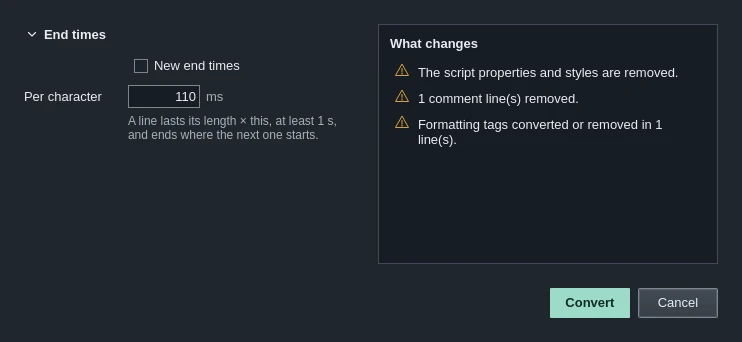
A window shows the options that apply to the new format, and What changes lists what will be lost as you change them, before anything happens.
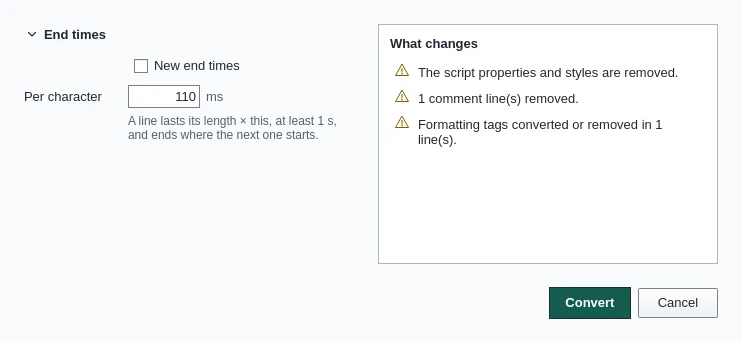
- Style (to ASS): the style every line gets, from a catalogue, and tags to put at the start of every line.
- Resolution (to ASS): the new file's resolution.
- Frame rate (to MicroDVD), which counts frames rather than time. From video takes the open video's.
- End times: New end times gives each line a length from its number of characters, at least one second, up to where the next starts.
Convert does it in one undo step. The next Save asks for a new name, so the original file is kept. File › Settings › Conversion sets the options' defaults. Conversion isn't offered in Translation mode.
The file's properties
Subtitles › ASS file properties edits what an ASS file says about itself:
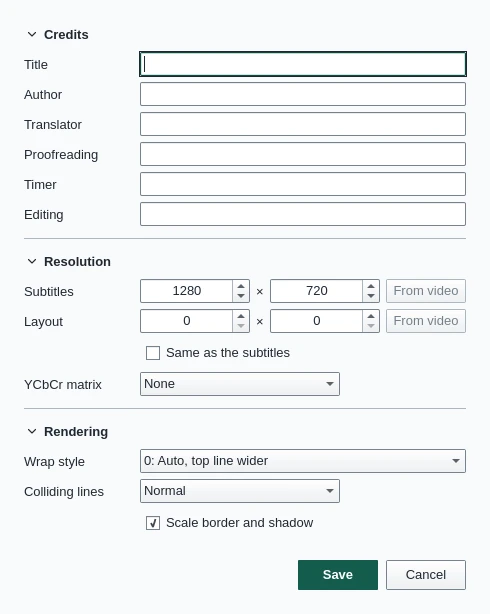
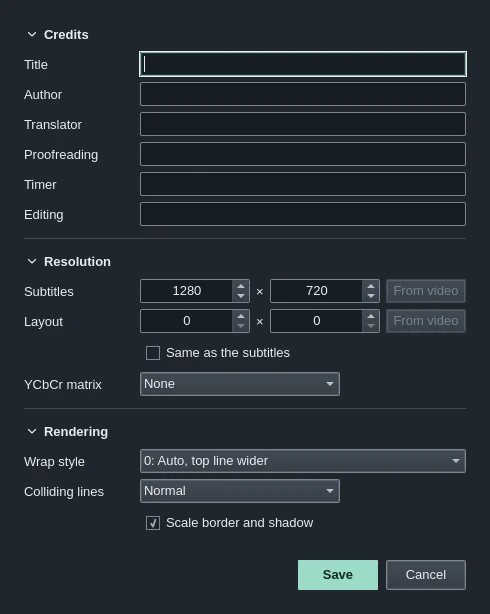
- Credits: the title, and who wrote, translated, checked, timed and edited it.
- Resolution: the size the lines are written for, and the layout size. From video takes the open video's. YCbCr matrix tells players which colours the video uses, so that subtitle colours match it.
- Rendering: how long lines wrap, which way colliding lines stack, and whether borders and shadows scale with the video.
Save writes only what you changed, as one undo step.
Resolution
A subtitle file's positions, sizes and margins are written for its resolution. Subtitles › Resample subtitles scales all of them to another one, for example when the subtitles were made for a 1280 × 720 video and the release is 1920 × 1080.
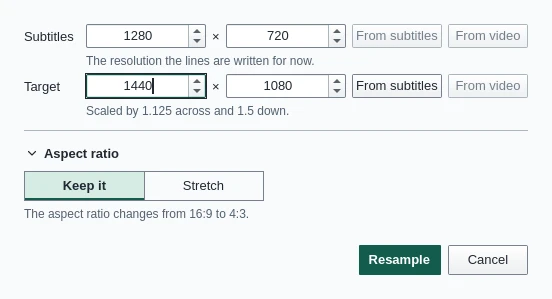
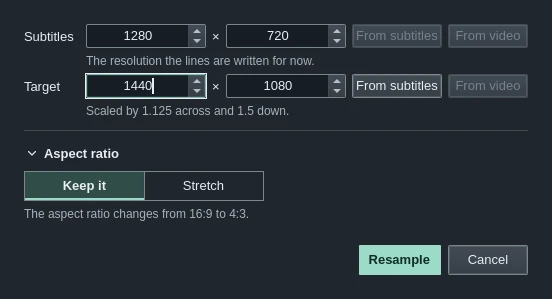
Set Target, or take it From video. When the aspect ratio changes, choose to Keep it, or Stretch the lines to the new shape. Resample scales the styles' sizes, outlines, shadows and margins, the lines' margins, and position, clip, border, shadow and size tags and drawings, in one undo step.
When you open a video of another size, the same choice comes up: Resample, Change resolution only, which sets the new size without scaling anything, or Keep as is.
Tabs
Each open file has its own tab in the row under the menu bar, with its own video, audio and undo history.
| Key | Does |
|---|---|
| Ctrl+T | New tab |
| Ctrl+W | Close the tab |
| Ctrl+PgDn Ctrl+PgUp | Next or previous tab |
Drag a tab to move it, and middle-click it to close it. Right-click it to save, close all tabs, or open the folder of its subtitles, video, audio or keyframes. A dot marks a tab with unsaved changes. Closing the last tab shows the Home page.
A file opens in the current tab when the tab is empty and unchanged. File › Settings › General › Tabs › Always open subtitles in a new tab gives every file a tab of its own. Files opened from your file manager, or while HikariSub is already running, always get a new tab.
File › Remove subtitles from the editor empties the tab, after asking about unsaved changes.
Autosave and recovery
HikariSub keeps copies of changed files as you work, 20 seconds after a change. If it closes without warning, the Home page says so the next time and offers them.
File › Open auto save lists the copies by file and time. Open copy opens one as a new, unsaved file, named "(recovered)": your original file is not touched. Delete older than… clears old ones. The autosaves of HikariSub 0.0.x are listed too, read only: see Moving from legacy.
File › Settings › General › Saving › Autosave files kept sets how many copies of each file are kept, from 2 to 1000000, 3 at first. Copies older than 30 days are deleted, and so are a file's copies once you save and close it.
Sessions
A session is the set of open tabs, with their videos, audio and positions. File › Last session can:
- Load last session, the tabs open when you last quit.
- Load session from file or Save session to file, as a
.hksessionfile. - Ask whether to load the last session when HikariSub starts, or load it without asking.
If a file the session names has moved, a bar offers to Retry, Relink… it, or Remove it.
Load session from file also opens .kls sessions from HikariSub 0.0.x, but HikariSub never writes one: a name you type ending in .kls is saved as .hksession. Opening a .hksession or .kls file from your file manager, or dropping one on the window on its own, loads it the same way.
A session file is JSON, with each tab's files and positions. Its paths are full paths, so a session made on one computer opens the same files only where they have the same paths.
Files on another computer
When a session names files on a network share, such as \\server\subs\ep01.ass, HikariSub asks first: "This session opens files on another computer.", naming the computers. Nothing is contacted until you press Open, and Open reaches only the computers it named. Cancel loads nothing.
The last session
The last session is kept in last-session.json in your user folder. HikariSub versions before it kept LastSession.txt: the first start of a newer version converts it once and keeps it as LastSession.txt.old, and the offer to restore after a crash still works. If last-session.json can't be read, it is kept as last-session.json.broken, the Log names the file and line, and no tabs are restored.