 HikariSub
Audio
Open audio, see it as a waveform or spectrum, play around your lines and time them with the mouse.
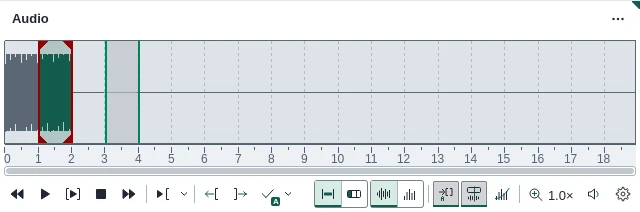
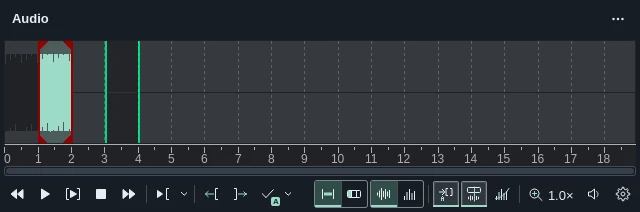
The Audio panel shows the sound as a waveform or a spectrum, with the active line marked on it. You can play any part of it and set a line's times with the mouse. In the Editing layout it sits above the Line editor.
Opening audio
When you open a video that has sound, its audio opens in the panel too, without indexing again. A video without sound closes the panel's audio. A dummy video brings silence as long as itself.
The Audio menu can also open audio on its own:
- Open audio: WAV, W64, FLAC, AC3, AAC, OGG, MP3, MP4, M4A, MKV or AVI. Choose All files to open another kind.
- Recently opened audio: Ctrl+click an entry to show the file in its folder.
- Open audio from video: the open video's sound again, after you opened another file.
- Close audio.
If the file has several audio tracks, Choose the audio track asks which one. Decoded audio is kept in a cache on disk, so the same file opens faster the next time.
What the display shows
- The active line is the bright range, between its start and end boundaries. The lines before and after it are shaded.
- Modified at the top left means the times you set are not yet applied to the line. Negative time means the start is after the end.
- The ruler shows the time, with a line every second. Keyframes from the video show as lines, and the paused video's frame as a dashed line.
- Under the pointer, a line shows the time there.
Waveform | Spectrum switches between the waveform and a spectrogram. With the spectrum on, Speech brings out the frequencies of voices.
Sync with video, on at first, keeps the two together: while the video plays, the audio cursor follows it, and while the audio plays, the paused video shows the frame at the audio's time.
Playing
| Button | Key | Does |
|---|---|---|
| Previous line | Left or Z | Goes to the previous line and plays it |
| Play | Down or S | Plays the selection |
| Play line | Up or R | Plays the whole line |
| Stop | H | Stops. Pressed again, plays on from where it stopped |
| Next line | Right or X | Goes to the next line and plays it |
Playing audio pauses the video first. To move between lines without playing them, turn on Don't play after changing the line in File › Settings › Audio.
Play around plays a short range around the line. Its face plays the range you last chose from its arrow; each range also has a key that plays it without changing the face:
| Range | Key |
|---|---|
| Play 500 ms before the start | Q |
| Play the first 500 ms | E |
| Play the last 500 ms | D |
| Play 500 ms after the end | W |
| Play to the end | T |
| Play before the mark | Num 0 |
| Play after the mark | Num . |
Right-click the ruler to set the mark. Playing around it uses Play around the marker in Settings, 1 second at first.
The speaker button holds the volume, the output device, and the Speed: 25%, 33%, 50%, 75% or 100%, with the pitch kept. [ and ] change the speed. Audio settings… opens the Audio page of Settings.
Output device
Audio plays on the system default output unless you pick a device, in the speaker button's menu or in File › Settings › Audio › Output › Device. Holding the pointer over the speaker button shows the volume and the device playing.
From 0.1.0-beta.3, playback doesn't stop if the device it plays on goes away, for example when you unplug headphones or USB speakers. It moves to the system default and keeps playing. If you had picked that device, a warning says so once, such as "USB Headset is not connected. Audio plays through Speakers." When the device is plugged back in, HikariSub plays on it again. If no output is left at all, the warning says no output device is available.
Timing with the mouse
| Mouse | Does |
|---|---|
| Left click | Sets the start there. Drag on to set the end too |
| Right click | Sets the end there |
| Drag a boundary | Moves the start or the end |
| Alt held on release | Also moves the neighbouring line: the next line's start to this end, or the previous line's end to this start |
| Shift while dragging | Turns snapping on, or off if it is on |
| Ctrl+click or middle click | Moves the video there, without timing |
| Drag the ruler | Scrolls the view |
| Right-click the ruler | Sets the mark |
Times are rounded to the centisecond. Snap to keyframes and Snap to other lines, under File › Settings › Audio, make a boundary jump to a keyframe or another line's boundary near it. Both are off at first.
In (C) moves the start 200 ms earlier and Out (V) the end 300 ms later. Settings sets both amounts.
Applying the times
Commit (Enter or G) writes the times into the line, or into every selected line, as one undo step. It then moves to the next line. On the last line it adds a new, empty line five seconds long after it. Turn off Go to the next line after applying changes to stay on the line instead.
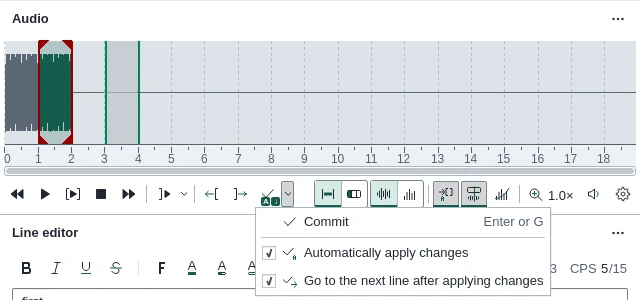
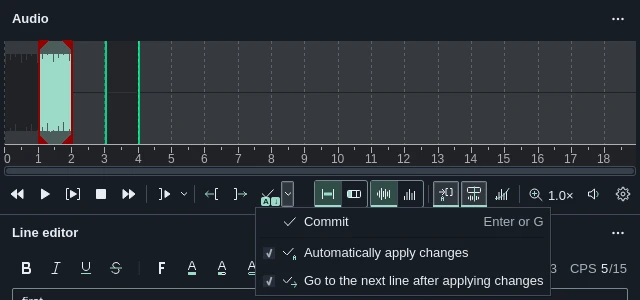
Automatically apply changes, on at first, applies every change you make with the mouse, In and Out at once, so you rarely need Commit. Turn it off to try times first: they wait in the Line editor, the display shows Modified, and Commit applies them. The small A on the Commit button shows that it is on.
A selection that ends before it starts is refused.
Moving around
- The wheel scrolls. Shift+wheel zooms in and out around the pointer, and Ctrl+wheel stretches the waveform up and down.
- A and F scroll left and right.
- The Zoom button shows the zoom, such as 1.0×, and opens sliders for both stretches with Reset zoom.
- Auto-scroll, on at first, scrolls to each line you select.
- When the line is out of view, a Back to line chip shows at the edge it lies past. It, or B, scrolls back to it.
Karaoke
Line | Karaoke switches to Karaoke mode, which splits the line into syllables you time one by one, and adds Auto split and Tap to time to the row. Choosing the Karaoke layout turns it on too, with the Audio panel across the whole window. The karaoke guides cover it.
Keys and the pointer
The Audio panel's keys work while the pointer is over it, without clicking it first. Turn this off with Hotkeys follow the panel under the pointer in Settings. Space plays the video from the Audio panel too.
Most of its keys also work with the pointer over the Grid, except Enter and the arrow keys, which the Grid keeps. So G, Z and X commit and move between lines from the Grid. The Hotkeys reference lists them all.
Arranging the buttons
The gear, Customise the audio panel, chooses what the row shows: the Play around button, each play on its own, Auto-commit, Go to the next line after commit, Go to selection and the zoom and volume sliders. Classic arrangement shows them all, as older versions did, and Default arrangement goes back. When the panel is too narrow, the buttons that don't fit move into its ⋯ menu.
Settings
File › Settings › Audio holds the output device, the audio delay, the lead-in and lead-out, snapping, the karaoke options and the cache. The Settings reference lists them with their defaults.
Its Display section chooses what the display draws: the time beside the cursor, the seconds markers, the selection background, the video position, keyframes, how thick the line boundaries are, and which Inactive lines are shaded: None, Before and after the active or All visible. The display changes as soon as you apply them.