 HikariSub
Settings
How the Settings window works, when changes apply, resetting, and where your settings are kept.
File › Settings opens the Settings window. It reopens on the page you used last. The Settings reference lists every setting with its default; this page is about the window itself.
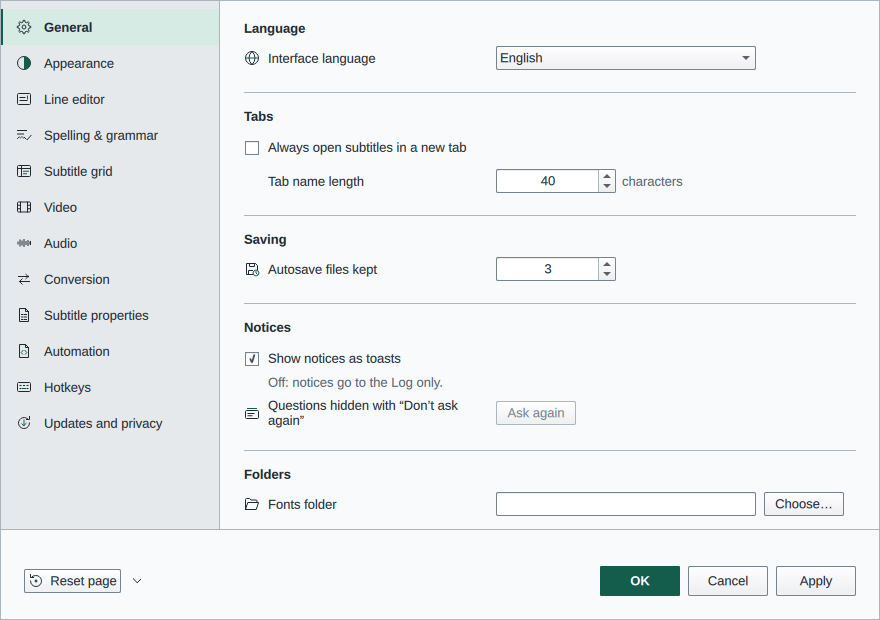
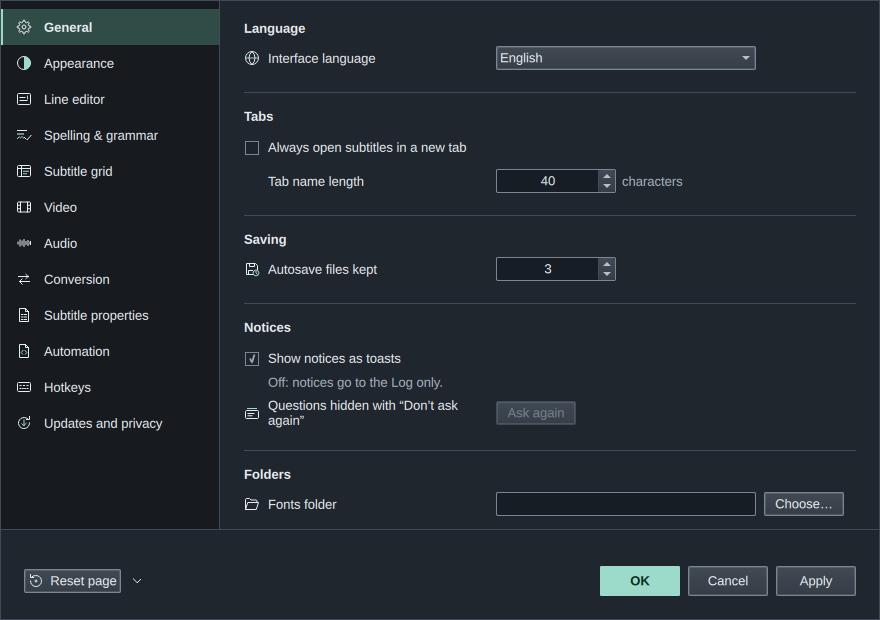
Pages
| Page | Holds |
|---|---|
| General | The interface language, tabs, autosave, notices and folders |
| Appearance | The theme, accent, program font, preview text and title bar |
| Line editor | How the text shows, editing, Translation mode and the tag buttons |
| Spelling & grammar | Spelling and the grammar check with its rule groups |
| Subtitle grid | The active line, columns, counting and new lines |
| Video | Playback, subtitles on the video, decoding and the script resolution |
| Audio | The output device, playback, snapping, karaoke and the cache |
| Conversion | The defaults for converting to other formats |
| Subtitle properties | Saving the panel layout in subtitle files |
| Automation | The Lua trace level, the answers scripts' dialogs keep, and the trusted script folders |
| Hotkeys | Every command's keys: see Hotkeys |
| Updates and privacy | Checking for and installing updates, anonymous usage data, and Always send crash reports |
Some rows show only where they apply: the video player and the audio API only on Windows, for example.
Some panels open their page directly: Audio settings… in the Audio panel's speaker menu, Spelling settings… in the Spellchecker when it finds no dictionary, Grammar settings… in its Grammar mode while grammar check is off, and Shortcuts in Settings… in the Automation panel's menu.
There is no search across all settings; the Hotkeys page has its own.
Preview text
Appearance › Font › Preview text is the text of every style and font sample: the Style manager's preview, the samples in the Styles panel, and the samples and preview in Manage font catalogues. The font picker shows it when there is no selected text or line text to draw. Its note reads "The sample text of the style and font previews."
- The default is
光 Hikari 日本. - A change applies on OK or Apply, to every sample that is open.
- Leave it empty to use the default.
- Editing the text under the Style manager's preview changes this setting too.
- A stored
Podgląd, the old default, reads as光 Hikari 日本, also when Import legacy settings brings it over. Any other text you chose is kept.
When changes apply
Nothing is saved until you press OK, which saves and closes, or Apply, which saves and stays open. Cancel, Esc or closing the window drops every change, resets included. Only the settings you changed are written.
Changes take effect at once, without restarting, the interface language too. The theme and colours even show while you choose them. Where a setting waits for something, its note says so, such as "Applies when the video opens again."
Resetting
- Reset page puts the page you are on back to its defaults.
- Its arrow offers Reset all settings…, which does every page after asking. It leaves your hotkeys and the appearance alone: reset them on their own pages.
Both wait for OK or Apply like any other change, so Cancel undoes them.
Keyboard
Tab moves between the page list and the page, and Up and Down in the list change page. Enter presses OK, or the button you are on. F1, or the ? in the title bar, opens this page.
Where settings are kept
HikariSub keeps one set of settings for each user on the computer, in settings.toml, with your hotkeys in hotkeys.toml. It has no profiles to switch between.
The files are in your user folder, with your scripts, dictionaries and saved layouts. Help › Open user folder opens it.
| Copy | Folder |
|---|---|
| Windows setup | %APPDATA%\HikariSub\ |
| Linux packages | ~/.config/hikarisub/ |
| Portable zip or tar.gz | user, in the folder you unpacked |
Uninstalling or updating HikariSub never deletes your settings. Edit the files only while HikariSub is closed: a running HikariSub writes its own values over them. Settings files explains them, and what happens to a file that has a mistake in it.
Settings from older versions
HikariSub 0.0.x settings are brought in from File › Import legacy settings…, not from this window. Your old settings files are never changed. See Moving from legacy.