 HikariSub
The Getting started window
The setup HikariSub shows at its first start, what each step sets, bringing legacy settings over, and opening it again.
The Getting started window walks through the settings most people change first: the language, the theme, the layout, video and audio, editing, updates and usage data. Each step is a page, and each page says at its foot where its choice lives later, so nothing here is set for good.
When it opens
It opens by itself the first time HikariSub starts, when there are no settings yet. Once you answer it, with Finish or Skip setup, it doesn't open by itself again. If HikariSub is closed before you answer, it opens again at the next start.
To open it later, choose Help › Getting started. It has no key at first; you can give it one in Hotkeys. Opened again, the pages show your settings as they are now.
F1, or the ? in its title bar, opens this page.
Moving through it
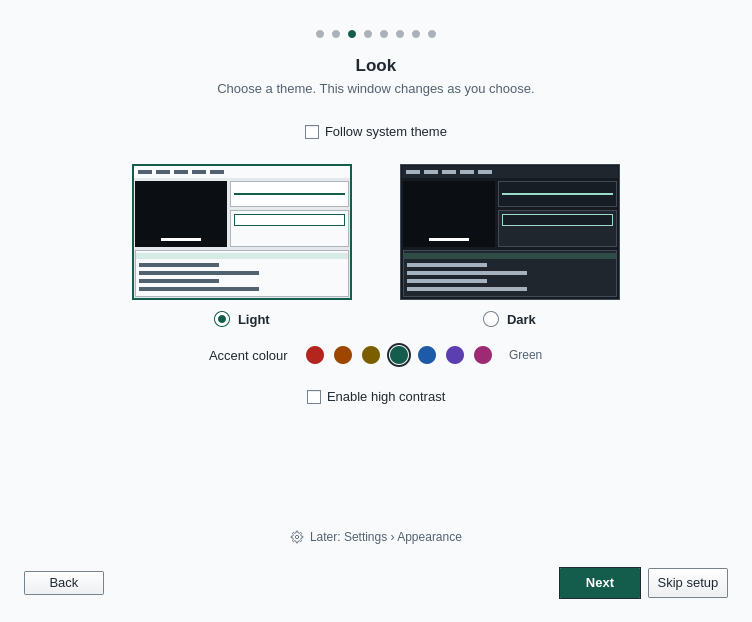
The dots at the top show the step you are on. There are seven steps, or eight when HikariSub finds HikariSub 0.0.x (legacy) on the computer.
- Next goes to the next step. On the last step it becomes Finish.
- Back goes to the step before.
- Skip setup closes the window.
Nothing is saved until Finish. The language and the theme change while you choose them, so you can see them, but they go back if you don't finish.
Finish saves every step's choices and, if you picked a layout, shows your tab in it.
Skip setup, Esc and closing the window all do the same: nothing you chose is saved, and nothing is imported. When the window opened by itself at the first start, a notice says that the default settings are in use and that Help › Getting started opens the setup again.
The steps
Language
The first step, Welcome to HikariSub, lists the interface languages. The window switches to the language you pick, so you can read the rest of it in that language.
Later: File › Settings › General › Language › Interface language.
Import from legacy
This step shows only when HikariSub finds legacy on this computer. It reads its settings and changes nothing in them.
- Import my old settings, chosen at first, shows the legacy settings that differ from HikariSub's, with their legacy value and their value now. The legacy values HikariSub proposes are ticked; tick or untick any. All shows every setting read, and the search field finds one.
- Set up from scratch starts from HikariSub's defaults.
If some legacy files are not UTF-8, choose how to read them under Files that are not UTF-8 are read as: Latin-1 or Windows-1252.
When you import, the next steps start from the imported values. A change you make on a later step wins over the imported value, even if you go back to this step.
At Finish, the steps' own settings are saved at once. The rest of the import is staged and takes effect the next time HikariSub starts, as File › Import legacy settings… does. What can come over, and what can't, is in Moving from legacy. Legacy themes are not imported.
If the import can't be staged, for example because the legacy files changed since they were read, Finish saves nothing and takes you back to this step with the reason. Read again reads the files again.
The window takes the first legacy installation it finds. To import from another, such as a portable copy, use File › Import legacy settings… later, which can also roll an import back.
Later: File › Import legacy settings…
Look
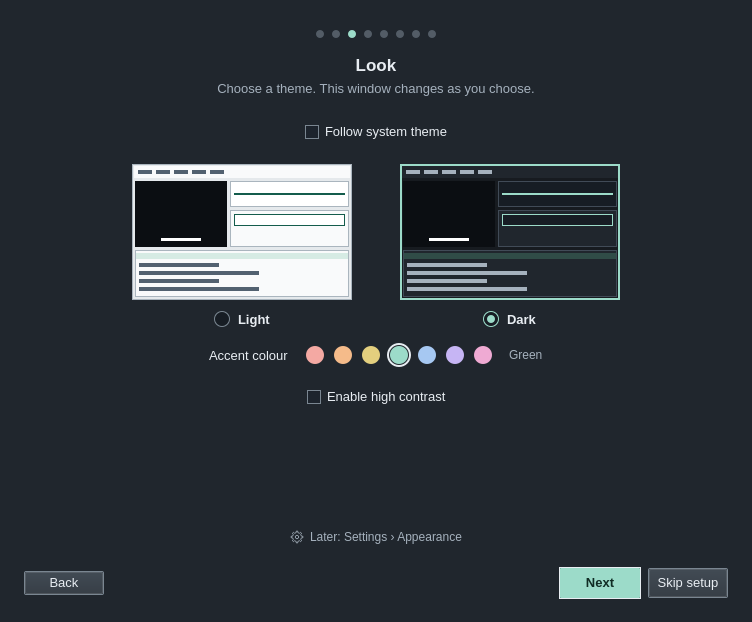
- Follow system theme uses Light or Dark as your system does.
- The two samples, Light and Dark, pick a theme. Picking one turns off Follow system theme.
- Accent colour picks one of seven accents for the theme shown. Light and Dark keep their own.
- Enable high contrast switches to High contrast white, or High contrast black from Dark. Its colours are set in Settings.
- Title bar chooses between HikariSub's title bar and The system's, with a note on which suits your desktop. It shows only where HikariSub can draw its own title bar.
The whole window changes as you choose.
Later: File › Settings › Appearance. See Themes.
What do you mostly do?
This step picks the layout your first tab opens with. Each card shows the layout's arrangement:
| Card | Layout |
|---|---|
| Time | Timing |
| Translate | Translation |
| Typeset | Typesetting |
| Karaoke | Karaoke, which also turns on the Audio panel's Karaoke mode |
Click a card again to unpick it. With none picked, the tab keeps Editing, which has a bit of everything.
Later: View › Layout, or the layout switcher in the title bar.
Video and audio
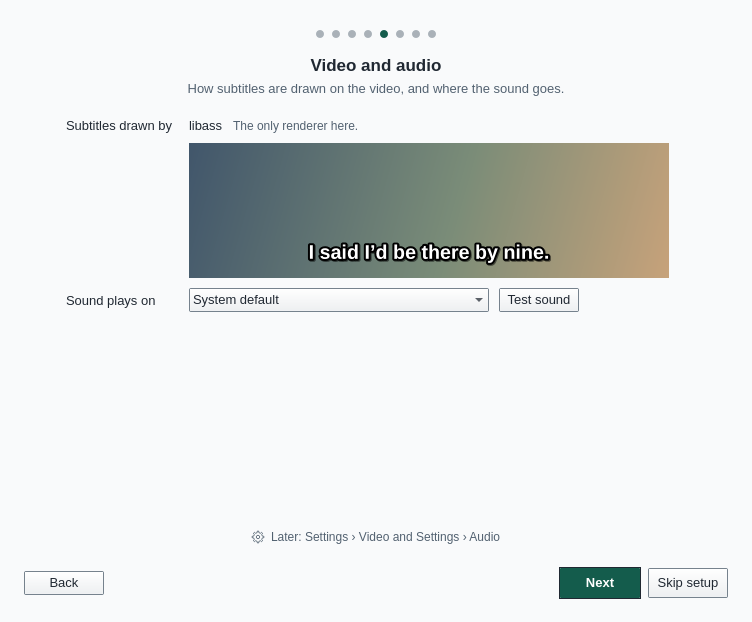
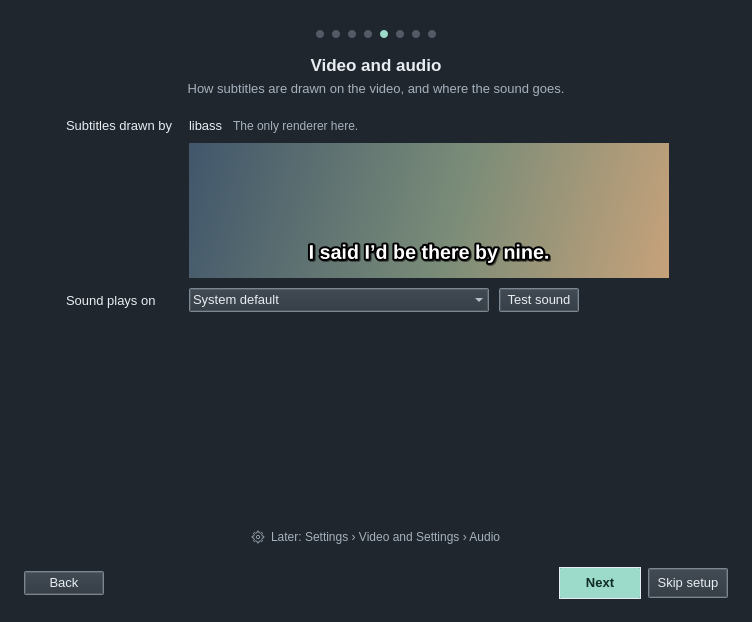
- Subtitles drawn by chooses the subtitle renderer. Where libass is the only one, as on Linux, it says so. The sample frame below is drawn by the renderer chosen.
- Sound plays on chooses the output device. Test sound plays a short tone on it.
Later: File › Settings › Video › Subtitles on video › Subtitle display filter, and File › Settings › Audio › Output › Device.
Editing
- Autosave files kept: how many autosaved copies of each file HikariSub keeps, from 2, 3 at first. See Autosave and recovery.
- Check spelling and the Primary language beside it. The Example line marks its misspelt word when spelling is on and the dictionary is installed.
- Grammar: Off, chosen at first, or the English to check grammar in, with Harper. See Grammar. The Example line shows spelling marks only.
Later: File › Settings › General › Saving, and File › Settings › Spelling & grammar. See Spelling.
Updates and privacy
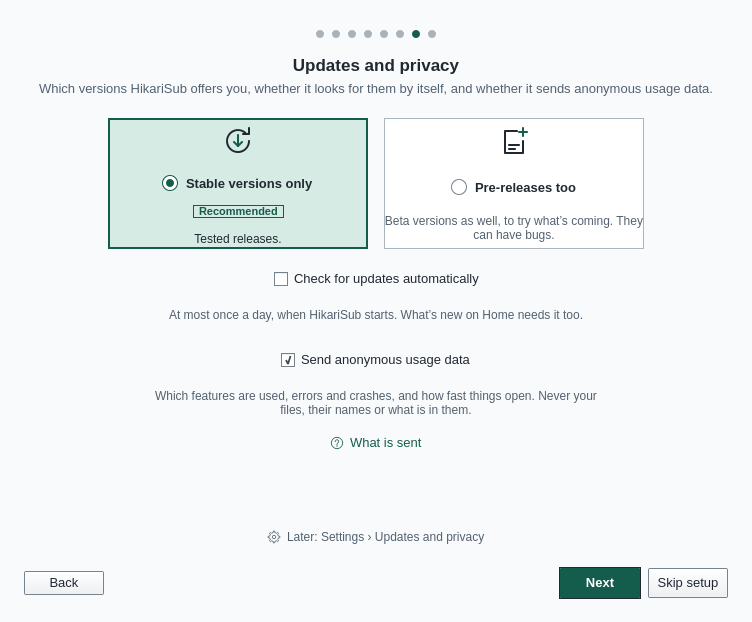
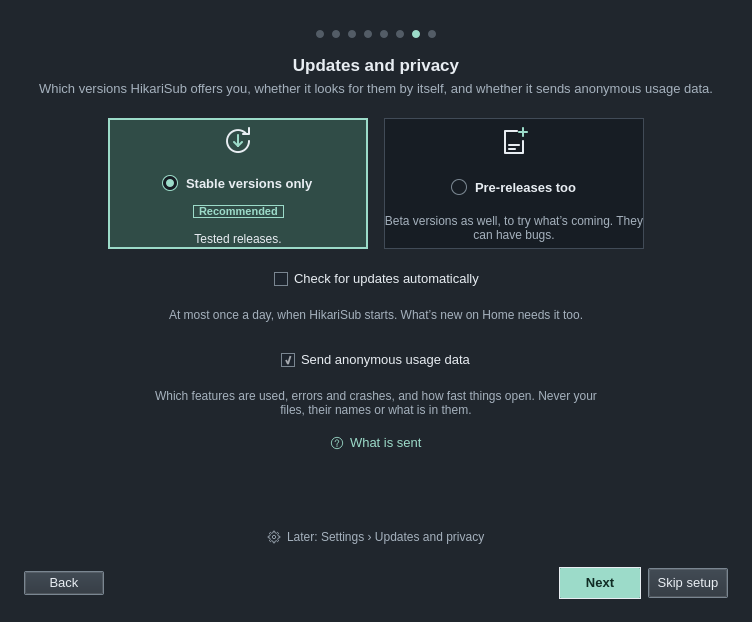
- Stable versions only, chosen at first, offers tested releases.
- Pre-releases too offers beta versions as well.
- Check for updates automatically looks for a new version at most once a day, when HikariSub starts. It is off at first. The release notes on the Home page need it too.
- Send anonymous usage data sends which features are used, errors and crashes, and how fast things open. It is on at first. Untick it to turn it off; What is sent opens the full list, What is sent, in your browser.
Skipping setup leaves it as it is, which at the first start means on.
Later: File › Settings › Updates and privacy. See Updates.
Your files
The last step shows your user folder, which holds your settings, hotkeys, scripts, dictionaries and saved layouts. Open folder opens it in your file manager. Copy it to take your setup to another computer.
Later: File › Settings › General › Folders, or Help › Open user folder.