 HikariSub
Hotkeys
Give any command a key, from Settings, from the menus with Shift+click, or from the Automation panel.
Almost every command can have a key, and most have none at first. The Hotkeys reference lists every command with its default keys. There are three ways to change them, and all three change the same list.
| Where | Takes effect |
|---|---|
| File › Settings › Hotkeys | When you press OK or Apply |
| Shift+click a menu item or button | At once |
| The Automation panel, for macros | At once |
Shift+click
Hold Shift and click a menu item, an item of the Grid's right-click menu, or a button of the Line editor, Video or Audio panels. Instead of running the command, a small window asks for its keys. Menus show each command's key as it is now, so a new key shows there at once. Button tooltips remind you: "Shortcut can be set using Shift + Click".
On an Audio button that has two keys, Ctrl+click sets the second one.
The Hotkeys page
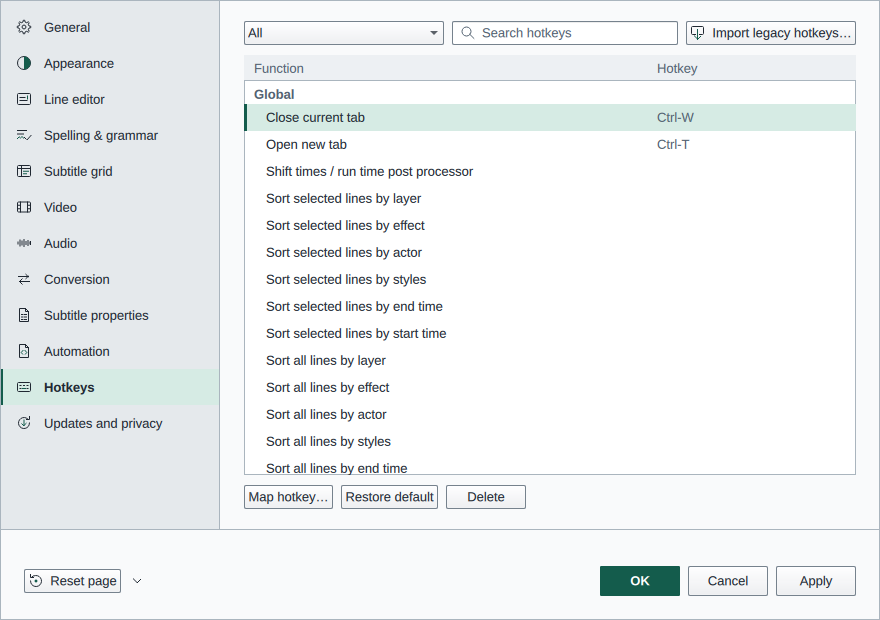
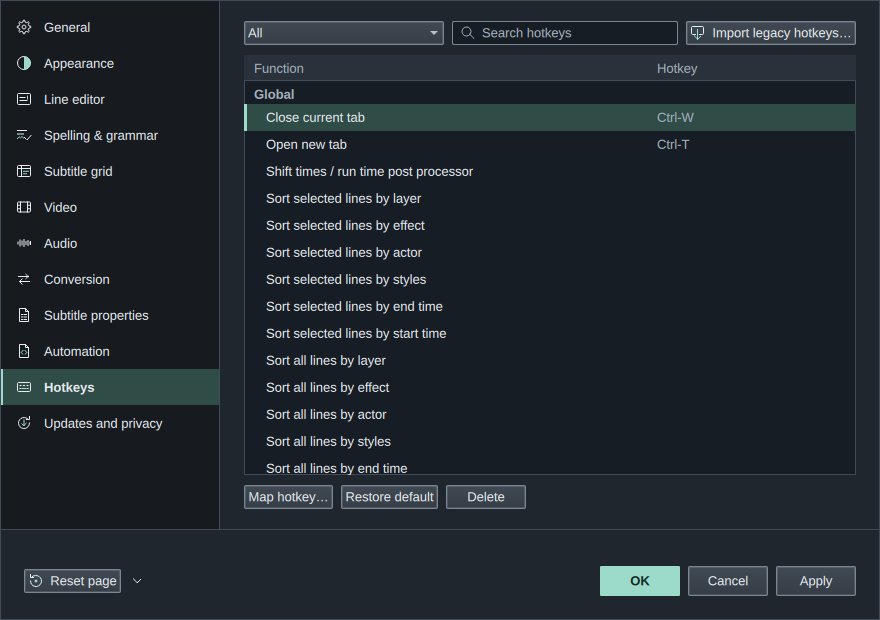
The list has every command, grouped by where its key works. The filter shows only one group, only the commands that have keys, or only macros. Search hotkeys finds commands by name, or by key: type keys as the list shows them, such as ctrl-s.
Select a command, then:
- Map hotkey…, or a double-click, asks for its keys.
- Restore default gives it back its default keys.
- Delete leaves it without a key.
Changed rows show in the warning colour until you press OK or Apply. Cancel drops every change. With the list focused, Ctrl+Z and Ctrl+Y undo and redo your changes. Reset page gives every command its default keys.
Pressing the keys
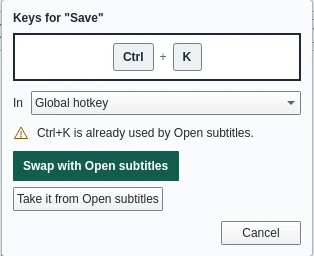
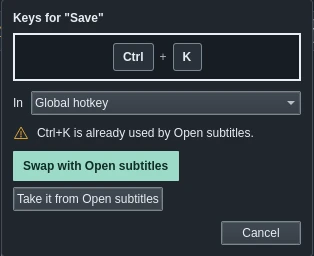
Press the key with any of Ctrl, Alt and Shift. The first key you press is taken: a key is one combination, not a sequence. Esc alone cancels.
In chooses where the key works: Global, the Subtitle grid, the edit box (the Line editor), Video or Audio. Choose it before you press the keys. Choosing another place gives the command a key there too, and keeps the one it had.
Some keys are refused, and the form says why:
- Global and Line editor keys need a modifier with a letter, digit, punctuation or Space, so that they don't get in the way of typing. F-keys, arrows and the like are fine alone.
- Ctrl+C, Ctrl+X, Ctrl+V and Ctrl+Z are kept for copying, cutting, pasting and undo.
- Alt+F4 is kept for closing the program.
F13 to F24, and the Windows or Super key as a modifier, can't be used.
When the keys are taken
If another command has the keys, the form says which, and offers:
- Swap with…: the other command gets this one's old keys.
- Take it from…: the other command loses them.
- Keep both: offered when the other command's key works in another place, so both can have it.
Where keys work
Global keys work everywhere. The others work in their panel: while it has the keyboard, or while the pointer is over it. So you can time with the Audio panel's keys while your cursor stays in the Grid. File › Settings › Audio › Hotkeys follow the panel under the pointer turns the pointer part off. A panel's key wins over a Global key with the same keys.
While you type in a text field, the keys stay with that field's panel, wherever the pointer is. The Line editor's text keeps Enter, the arrows, Delete, Backspace and Ctrl+A, C, V and X for itself, and the keypad digits type digits unless File › Settings › Line editor › Use numpad shortcuts in text fields is on.
Some keys are built in:
- The Video panel's play key, Space at first, plays and pauses from every panel.
- F10 or Alt reaches the menus.
- The Menu key or Shift+F10 opens the right-click menu of whatever has the keyboard focus. See Right-click menus.
- F6 and Shift+F6 move between panels.
- F1 opens this guide at the page for the window you are in.
A Global key you give to F10 or F6 takes their place.
Macro keys
A macro's key is set in the Automation panel. Click Add shortcut on its row, or right-click it and choose Set shortcut…, then press the keys and Enter. Esc cancels. Macro keys always work everywhere, so they follow the Global rules. If the keys are taken, Reassign moves them to the macro.
The Hotkeys page lists macros too, under the Automation shortcuts filter.
Keys from older versions
File › Import legacy settings… brings in the keys of HikariSub 0.0.x, with the rest of its settings. Import legacy hotkeys… on the Hotkeys page brings in only the macro keys of a legacy Hotkeys.txt, at once: macros that already have keys keep them, and keys another macro has are skipped. See Moving from legacy.