 HikariSub
Grid
The list of every line in the file, where you select, insert, join, split, sort, hide and copy lines.
The Grid lists every line of the file, one row each, in file order. The line you click becomes the active line, which the Line editor, the video and the audio follow.
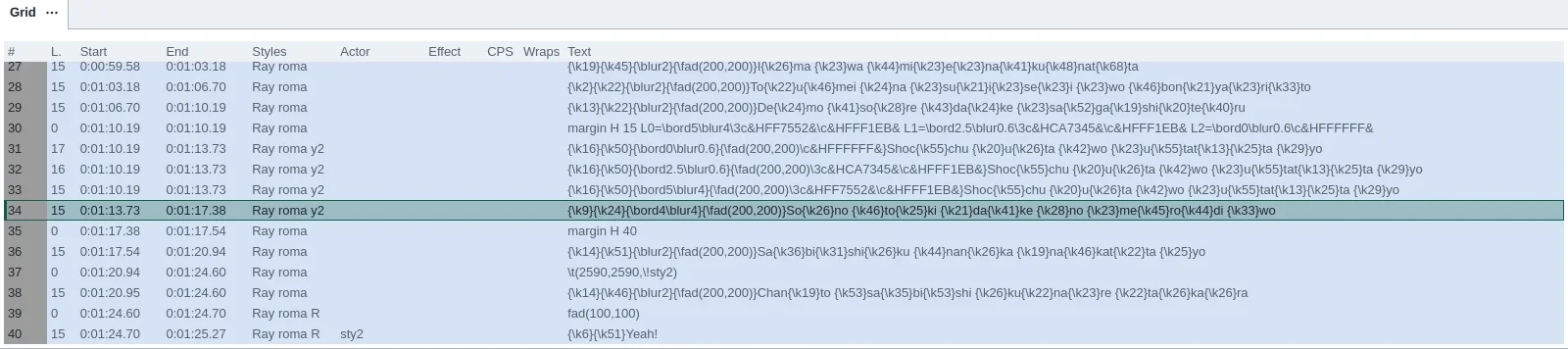
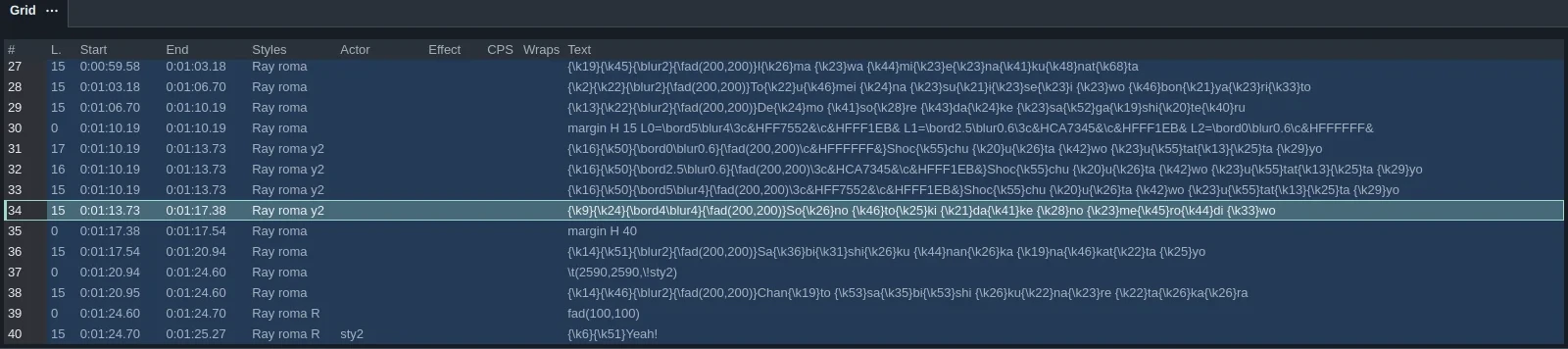
Columns
| Column | Shows |
|---|---|
| # | The line's number |
| L. | Layer: a higher layer is drawn over a lower one |
| Start, End | The times |
| Styles, Actor, Effect | The line's fields |
| Left, Right, Vert. | Margins that replace the style's |
| CPS | Characters per second |
| Wraps | How the text wraps |
| Text | The text |
CPS turns the warning colour above 15 characters per second, and Wraps above 43 characters on a line, or at three lines. Tags and drawings don't count. File › Settings › Subtitle grid › Counting chooses whether spaces and punctuation do.
Columns that have nothing to show hide themselves: Layer when every layer is 0, Actor and Effect when they are all empty, and each margin when it is 0 everywhere. A column comes back as soon as a line uses it. Turn this off with Hide columns › Hide empty columns in the right-click menu, and hide any column by hand in the same menu. SRT and the other simple formats have no layers, styles, actors, margins or effects, so those columns never show for them.
What the rows show
- Comment lines, kept in the file but not shown on the video, have a tinted background.
- A dot in the # column marks a line changed since the file opened, and a ring one changed and saved since.
- A triangle marks the line you are editing in the Line editor but haven't applied yet. The row shows your edit as you type.
Selecting
| Mouse or key | Does |
|---|---|
| Click | Makes the line active, and the only one selected |
| Ctrl+click | Adds the line to the selection, or takes it out |
| Shift+click | Selects from the active line to this one |
| Drag | Selects the rows you pass |
| Double-click | Moves the video to the line's start, or its end in the End column |
| Up Down PgUp PgDn Home End | Move the active line. With Shift, select as they go |
| Ctrl+A | Selects every line |
| Ctrl+Up Ctrl+Down | Previous or next line, from anywhere |
| F2 | Selects the line at the video's time |
The Grid's keys work while the pointer is over it, without clicking it first. To make a single click move the video too, change File › Settings › Video › Move video to selected line on. Edit › Select lines selects lines by their text, style or other fields.
Most commands act on the selected lines. Right-click a line for the Grid's menu.
Making and removing lines
- Insert › Insert before and Insert after add an empty line beside the active one, with its style and fields, timed to fit the gap or 4 seconds long. Insert before with video time and the other video items start it at the video's time.
- Duplicate lines (Ctrl+D) copies the selected lines, and selects the copies.
- Swap swaps two selected lines.
- Delete lines (Shift+Del) deletes the selected lines. Delete text (Alt+Del) empties their text and keeps their times.
Joining and splitting
- Join lines makes the selected lines one, from the earliest start to the latest end, their texts joined with line breaks.
- Join lines and keep first and Join lines and keep last keep only one line's text.
- F4 and F5 join the active line with the line before or after it.
Lines between the selected ones that you didn't select are left alone.
Split lines cuts a line at the video's time, or into one line per frame, character, word or wrapped line. A split into characters, words or wraps gives each piece its own position, so it stays where it was on the video.
Copying and pasting
Ctrl+C, Ctrl+X and Ctrl+V copy, cut and paste whole lines. Pasted lines go before the first selected line.
Copy columns (Ctrl+Shift+C) copies only the fields you tick, such as the times or the text without tags. Paste columns (Ctrl+Shift+V) pastes them into the same fields of the selected lines, in order. Use them to copy the timing of one set of lines onto another.
Sorting
Edit › Sort all lines and Sort selected lines order the lines by start time, end time, style, actor, effect, layer or text. Lines that tie keep their order. Sort selected lines moves the selected lines only among their own rows.
There are two text orders:
- Text sorts by the whole text, tags included.
- Text without tags leaves out the
{…}blocks, so lines sort by their words.
Each sort is one undo step. None of them has a key at first; give one in File › Settings › Hotkeys.
Hiding lines
Hidden lines are still in the file; the Grid just leaves them out, and most commands skip them.
- Hide selected lines hides them.
- Filtering hides the lines of chosen styles, or comments, or shows only unconfirmed or untranslated lines. Reverse filtering shows the opposite, and Turn off filtering shows them all again.
- The marks at the left edge show where hidden lines are. Click one to open or close that run.
- Ignore filtering in some actions lets Replace all and Shift times reach hidden lines too.
View › Hide tags shows tags in the Text column as a single ☀, so the words are easier to read. File › Settings › Subtitle grid › ASS tag replacement sets the character.
Line groups
Make line group groups the selected lines under a description row that opens and closes them like a folder. Right-click the description row to add lines to it, copy it, rename it, select its lines, or delete the group. An edit that would split a group's lines apart asks first, or is refused.
Folding generated lines
The karaoke templater writes its lines with the Effect fx, and Kara Effector writes Effector [fx]. A song can leave hundreds of them in the Grid. To fold them away, turn on Fold generated lines in the menu of the ⋯ button on the Grid panel's header, which a right-click on the header also opens. Each run of generated lines in a row then shows as a single row. The Karaoke layout turns folding on for you. HikariSub remembers the option.
A folded row sits between dashed rules. It shows the line numbers it covers, such as 6–10, the earliest start and latest end, the styles and effects of its lines, and how many lines it holds, such as 5 generated lines.
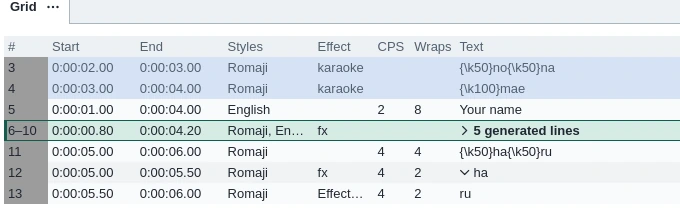
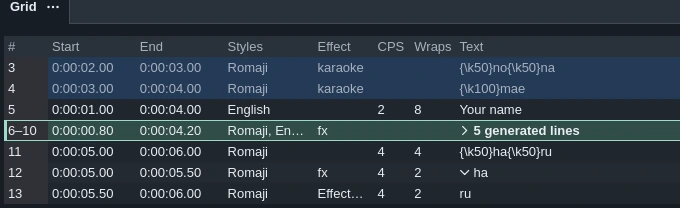
- The arrow at the start of its Text unfolds the run, and the arrow on the run's first row folds it again.
- Right unfolds the run while its row is the active one, and Left on the run's first row folds it. On these rows the keys fold instead of stepping the video a frame; elsewhere they work as usual.
- Clicking a folded row selects every line of the run, so Delete, Copy and Shift times act on the whole run. Ctrl+click takes the run out of the selection.
- Find, or anything else that makes one of a folded run's lines active or selects only part of the run, unfolds it.
Folding only hides rows. The lines stay in the file and play on the video. Unlike hidden lines, they count as selected, and commands act on every line a folded row stands for. A folded row shows while any of its lines passes the filter; the lines the filter hides stay hidden.
Turning the option off shows every line, and turning it on again folds every run.
Other commands
- Make times continuous with the previous line and with the next line close the gaps between lines, as Timing explains.
- Set new FPS and Set FPS from video retime lines from one frame rate to another.
- Select all lines visible on video selects the lines showing at the video's time.
- Show subtitles preview (Ctrl+Q) opens another file beside this one, to compare or translate against.
- Font collector gathers the fonts the file uses.
- Load subtitles from an MKV/OGM file opens a video's subtitle track.
Every Grid command has a place in the Hotkeys reference, and most have no key at first. Shift+click a menu item to give it one.