 HikariSub
Split and join
Time a karaoke line on the audio waveform by splitting it into syllables, dragging their boundaries and joining them, with its karaoke tags written as you go.
In the Audio panel's Karaoke mode, the active line shows on the waveform as syllables. Drag the boundaries between them, click a letter to split a syllable, and middle-click a boundary to join two. Each change writes the line's karaoke tags, \k, \kf, \ko or \K, so you never type a duration by hand.
The syllables always belong to the active line, the one in the Line editor. In Translation mode they come from the line's translation when it has one, and the tags are written there too.
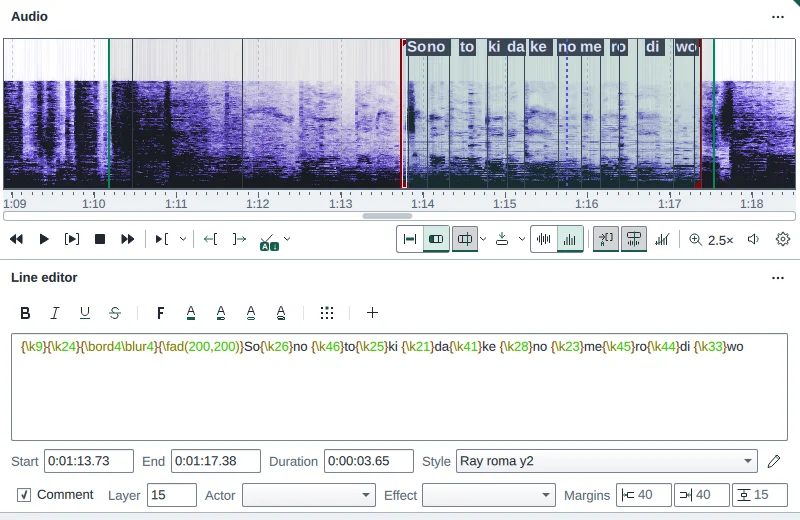
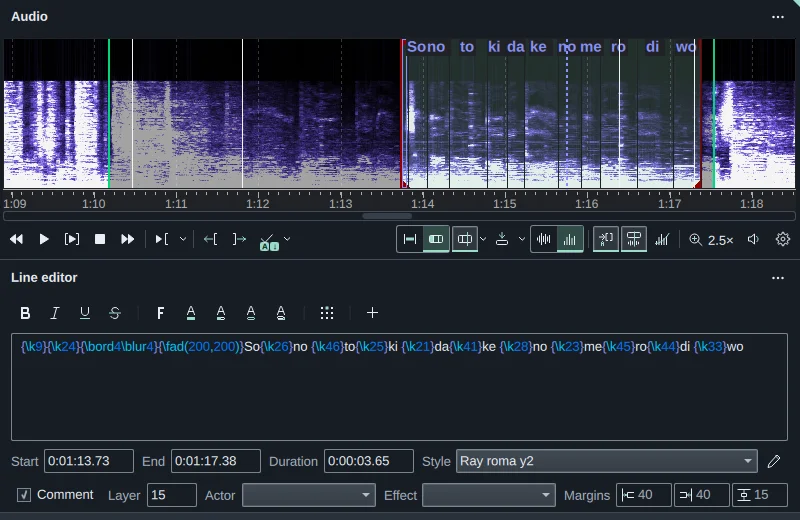
\k tags in the Line editor. Subtitles: Jibrill.Turning Karaoke mode on
The Audio panel's button row has a switch with two halves: Line (Line timing) and Karaoke (Enable / disable karaoke creation). Click Karaoke to turn the mode on, and Line to go back. The row shows only while audio is open. There is no key for the switch, and HikariSub remembers the mode for next time.
Choosing the Karaoke layout turns the mode on too, and choosing another layout afterwards turns it off again if the Karaoke layout turned it on. The switch works in any layout. In the Karaoke layout, the Line editor also applies what you type on its own, so the bar follows your edits as you type.
Turning the mode on splits the active line at once, gives the Audio panel the keyboard and zooms in on the waveform. Going back to Line mode restores the zoom you had.
In Karaoke mode two buttons join the row after the switch: Auto split and Tap. Tap is explained in Tap to time. When the panel is narrow, some buttons fold into the More audio options menu, the ⋯ button: first the three toggles at the end of the row, then Auto split's arrow, and on a very narrow panel the switch, Auto split and Tap too. At the panel's usual width, Auto split's arrow is already folded, and its two commands are the first items of the ⋯ menu.
How a line is split
When you open a line in Karaoke mode, HikariSub splits it like this:
- A line with karaoke tags is read from its tags, with their times.
- Otherwise, with Auto split on, it is split by its language, as below.
- Otherwise it is split at spaces and at each
\N,\hand\n.
A line with nowhere to split is one syllable.
Splitting doesn't change the line. Its text stays as it is until you change a syllable: drag a boundary, split, join, press K or Shift+K, or move the line's start. Pressing Enter to commit applies the times but writes no tags, so a line fresh from Auto split stays plain text until its first syllable edit.
Auto split
Auto split is on by default. Its button turns it on and off, and the line is split again the other way at once. It only applies to a line without karaoke tags; a line that has them is always read from them. To split such a line anew, remove its tags.
| Text | Splits as | Rule |
|---|---|---|
Romaji: karaoke, shinjitsu, Tōkyō | ka|ra|o|ke, shi|n|ji|tsu, Tō|kyō | By mora. Long vowels may be written with a macron or circumflex |
sempai, zen'in, hon | se|m|pa|i, ze|n'|in, hon | A syllabic n is its own mora, but at a word's end it joins the syllable before it |
Kana: きょう, ラーメン | きょ|う, ラ|ー|メ|ン | By mora. A small kana joins the kana before it; the long vowel mark is its own mora. Half-width kana too |
Kanji and Hangul: 東京, 사랑해 | 東|京, 사|랑|해 | One character each |
English: beautiful, happy story | beau|ti|ful, hap|py |sto|ry | By hyphenation, with at least two letters on each side of a break. Short words stay whole |
Mixed: kimi wo love shiteru, 君とdance | ki|mi |wo |love |shi|te|ru, 君|と|dance | A new script starts a syllable. In a romaji line, a word that isn't romaji splits as English |
A line counts as English when its Latin words that aren't romaji outweigh those that are; a tie counts as romaji. A word with an accent other than a macron or circumflex, such as café, isn't romaji. The language is a guess: a line with as many romaji-looking English words, such as take or home, as other English words splits as romaji. Hyphenation is English only.
Spaces, punctuation, \N, \h and \n stay with the syllable before them, so sakura, sakura splits as sa|ku|ra, |sa|ku|ra. An opening quote after a space goes with the word after it, and digits and symbols start the syllable after them: 2kara splits as 2ka|ra. Override blocks go with the syllable that follows them.
A line of more than 4096 visible characters is split at spaces, as with Auto split off.
Two options in File › Settings, on the Audio page under Karaoke, change how Auto split treats Japanese:
| Option | Off | On |
|---|---|---|
| Merge every "n" with the previous syllable | ko|n|ni|chi|wa | kon|ni|chi|wa, and the same for ん |
| Give a double consonant its own syllable (so|ma|t|ta) | so|mat|ta, gak|ko|u | so|ma|t|ta, ga|k|ko|u, and the same for っ |
Both are off by default. They apply the next time a line is split, for example when you go to another line or turn Auto split off and on.
Time for new syllables
New syllables share the line's duration by their letters: spaces and punctuation don't count, and a syllable with no letters counts as one. Each boundary is rounded down to 10 ms, and the last syllable ends at the line's end. For example, sakura saku over one second splits as sa ku ra sa ku, ending at 200, 400, 600, 800 and 1000 ms.
On the waveform
The top 20 pixels of the waveform hold the syllables' letters. Below them you grab boundaries. Each boundary is a vertical line, each syllable's text sits on a bar between its boundaries, and the current syllable has a frame around it.
| Where | Do | What happens |
|---|---|---|
| The letters | Point | A mark shows before the letter under the pointer |
| The letters | Click | Splits the syllable before that letter. The two parts share its time by their letters, and the first part becomes current. The view stays where it is |
| Below the letters, on a boundary | Drag | Moves the boundary. It stays between its neighbours and is rounded down to 10 ms. Dragging the last boundary moves the line's end with it |
| Below the letters, on a boundary | Drag with the right button | Moves the boundary, and every later syllable but the last moves with it |
| Below the letters, on a boundary | Middle-click, or Shift+click | Joins the two syllables around it. A middle-click also takes the video to that time |
| Below the letters, on a syllable | Click | Makes it the current syllable |
| Below the letters, on a syllable | Right-click | Plays it and makes it current |
| Anywhere | Middle double-click | Plays the current syllable |
A boundary is grabbed within 6 pixels. Clicking after a syllable's last letter splits off an empty syllable after it, and clicking before its first letter an empty one before it. A syllable with no letters left can't be split.
With Move the syllable line after a click on, in File › Settings › Audio under Karaoke, a click on the current syllable or a neighbour moves the current syllable's nearer boundary to the click. It is off by default.
Syllable boundaries don't snap to keyframes or to other lines; those snaps apply to the line's start and end only. With Snap to vocal onsets on, a dragged boundary lands on the nearest place where a sung syllable starts: see Onset snap.
Moving the line's start
Drag the line's start, its left edge, and the syllables stay where they are in the audio:
- An earlier start adds an empty lead syllable,
{\k20}, before the first one, or lengthens the one already there. - A later start cuts the syllables it passes to no length, and drops a lead syllable it empties.
Drag the start with the right button to move every syllable but the last with it instead. C, Add lead-in, also puts the time it adds into a lead syllable: {\k20}{\k40}sakura{\k120}hana.
Moving the start in Line mode keeps the syllables in place the same way, when one line with karaoke tags is selected.
Joining
A join gives a syllable the next one's text and end. The joined syllable keeps the first one's kind of tag, and the empty braces left between the two texts are removed:
Before   {\kf20}ka{\ko30}ra{\K50}o
After    {\kf50}kara{\K50}o        (ka and ra joined)
The last syllable can't be joined to anything after it.
Karaoke mode doesn't treat furigana apart: a syllable's | and reading are letters like the others. Joining 君|きみ and の gives 君|きみの, which the templater reads as 君 with the reading きみの.
A # syllable, the extra highlight that the Kanji timer writes, stays a # syllable only when both halves were #. Otherwise the # is dropped: 撃 + # gives 撃, # + 腐 gives 腐, and # + # gives #. A # among other text, such as #b, is joined as text. In Karaoke mode a # syllable is labelled #.
Keys
These keys work while the Audio panel has the keyboard. In Karaoke mode the play and move keys work by syllable:
| Key | In Karaoke mode |
|---|---|
| K | Split syllable at the cursor: see below |
| Shift+K | Switch long syllables between \k and \kf: see below |
| ↓ | Plays the current syllable |
| ↑ | Plays the whole line |
| → | Goes to the next syllable and plays it. After the last, goes to the next line's first |
| ← | Goes to the previous syllable and plays it. Before the first, goes to the previous line's last. With Don't play after changing the line on, it changes the line instead |
| Q W E D | Play 500 ms before or after, the first or the last 500 ms, of the current syllable |
| C | Add lead-in, as a lead syllable |
| B | Brings the current syllable into view |
| Enter or G | Commits the times |
Split syllable at the cursor splits the syllable under the pointer before the letter you point at. Otherwise it splits the syllable under the waveform's cursor, the pointer's line or the playing position, at that time. Otherwise it splits the current syllable in the middle. The view stays where it is.
Switch long syllables between \k and \kf turns every \k syllable at least as long as Long syllables for \kf into \kf, so that it fills as it is sung. When none of the long ones is \k any more, it turns them back into \k. \ko and \K syllables are never changed. The length is set in File › Settings › Audio under Karaoke, 100 cs by default.
Both commands are also in the menu of Auto split's arrow, Syllable commands, or in the ⋯ menu when the arrow is folded. They do nothing while you are tapping. The Karaoke switch and Auto split have no keys. To change the keys, see Hotkeys.
What is written
The line's text comes back as it was, apart from the times you change. Each tag stays where it was, with its number written as it was, until that syllable's time changes. Other tags in the same blocks stay too:
Before   {\k020}ka{\k12.5}ra{\k30}o
After {\k020}ka{\k22}ra{\k20}o (ra made 10 cs longer)- New syllables get
\ktags. - Times are in whole centiseconds, each counted from the end of the syllable before.
\ktisn't a syllable; it stays where it is in the text.- A letter is what you see as one character: a split never separates an accent from its letter, a Hangul syllable from its parts, or an emoji or flag.
When several lines are selected, a change made with the mouse writes the active line's karaoke text into every selected line. K and Shift+K change the active line only. Add lead-in, and moving the start of several lines in Line mode, leave their karaoke tags alone.
Undo
With Automatically apply changes on, as it is by default in the Commit button's menu, every split, join, boundary drag and K or Shift+K is applied at once, as one step named Changing time on audio spectrum. Edit › Undo, Ctrl+Z, takes it back.
With it off, the new text waits in the Line editor with the times, and nothing changes in the subtitles until you commit, with Enter in the Audio panel or from the Line editor.