 HikariSub
Line editor
Edit the active line's text, tags, times, style and other fields, and apply your changes.
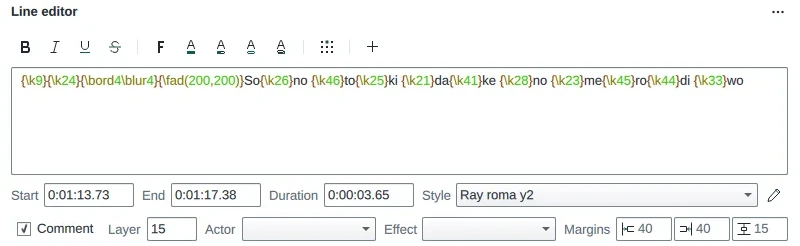
The Line editor shows the active line, the one selected in the Grid. From top to bottom: a strip of tag buttons, the text, and the line's fields.
Applying changes
What you type is a draft until you apply it. The video shows it at once, and the Grid marks the row with a triangle, but the file and its undo history change only when the draft is applied.
| Key | Does |
|---|---|
| Enter | Applies and moves to the next line. On the last line, it adds a new empty line after it, 5 seconds long |
| Ctrl+Enter | Applies and stays on the line |
| Esc | Throws the draft away |
| Shift+Enter | Puts in a line break, \N |
| Ctrl+Z | Undoes your typing first, then earlier steps |
Choosing another line applies the draft too. With several lines selected in the Grid, applying writes every field you changed into each of them, as one undo step.
In the Karaoke layout there is no draft to apply: what you type is applied on its own, 300 ms after you stop typing.
If the end is before the start, or a margin is outside 0 to 9999, nothing is applied: a message under the text says why, and you stay on the line.
The text
The text shows ASS tags in colour: the braces, tag names and their values each have their own. A comment line whose Effect starts with template or code is coloured as template code instead.
Type \ inside a {…} block to get a list of tags. Up and Down choose, Enter puts the tag in, and Esc closes the list. Right-click the list to show each tag's description, or every tag including VSFilterMod's. The ASS tags reference explains them all.
Misspelled words get a coloured background. Right-click one for suggestions or to add it to your dictionary, or put the text cursor in it and press the Menu key or Shift+F10. Every installed dictionary checks the words of its script, so lines that mix languages work. With the grammar check on, grammar findings get a blue wavy underline, and their right-click menu shows Harper's message and suggestions. Comments aren't checked.
View › Hide tags in the line editor hides the tags, so that only the words show. While they are hidden you can't type braces or backslashes, and an edit that would change a tag is refused with a message: show the tags to edit them.
Tag buttons
| Button | Key | Puts in |
|---|---|---|
| Bold | Ctrl+B | \b1 |
| Italic | Ctrl+I | \i1 |
| Underline | \u1 | |
| Strikeout | \s1 | |
| Font selection | \fn and \fs, from the font picker | |
| Primary color, Secondary color for karaoke, Border color, Shadow color | \1c to \4c | |
| Text position | \an1 to \an9 |
With text selected, a tag button applies to the selection and restores the style after it. In SRT the formatting buttons put in <b>, <i>, <u> and <s>.
The colour buttons open a colour picker at the button, with an eyedropper to take a colour from the video. Right-click one to start with the eyedropper. Changes show as you make them; Esc takes them back.
Text position shows a 3 × 3 grid laid out like the numeric keypad. Choose a place with the mouse, the arrows or the keys 1 to 9.
When the panel is narrow, groups of buttons fold into a More menu.
Your own buttons
+ adds a button of your own, up to 20: give it a name or an icon, the tag, such as \blur2, and whether it goes at the cursor, at the start of the text, or as plain text. Right-click a button to edit, move or remove it. File › Settings › Line editor › Tag buttons lists them too.
Every button can have a key: Shift+click it to set one.
Counters
At the end of the strip, Wraps shows how many characters each line of the text has, against the limit of 43, and CPS the characters per second, against 15. Over a limit they turn the warning colour. Tags and drawings don't count.
The fields
| Field | Is |
|---|---|
| Start, End, Duration | The times. Typing a Duration moves the End |
| Style | The line's style. The pencil beside it edits that style |
| Comment | Keeps the line in the file but off the video |
| Layer | A higher layer is drawn over a lower one |
| Actor | A label for who speaks. It doesn't change how the line looks |
| Effect | Marks lines for karaoke templates and some effects |
| Margins | Left, right and vertical margins. 0 uses the style's, shown in grey |
Actor and Effect list the values the file already uses. Picking a value from a list, a style, or ticking Comment applies at once.
SRT and the other simple formats have only the times, so the other fields are greyed out.
Times
Type a time over the old one: each digit replaces the next, skipping the colons. Over a field, the wheel steps the part under the pointer; dragging with the right button held steps it faster. A field stepped with the mouse shows the warning colour until you apply it. Timing has more.
File › Settings › Line editor › Show video frames instead of times shows frame numbers here and in the Grid.
Keys
| Key | Does |
|---|---|
| Ctrl+, | Puts in the time from the line's start to the video's frame, in milliseconds |
| Ctrl+. | Puts in the time from the video's frame to the line's end |
| Tab | Moves to the next field; it never types a tab |
| Space | Types a space. Outside the text, it plays and pauses the video |
| Shift+Delete | Cuts the selected text |
The Hotkeys reference lists every Line editor key, including the ones for Translation mode.