 HikariSub
Line matching
Keep another file beside the one you edit in the Reference panel, following your line by its times, and line up a translation pasted in from a file.
Two tools match the lines of one file to another's:
- The Reference panel shows another file under the Grid, read-only, and finds the lines that play at the same time as the one you edit. Use it to translate from a script with other timing, or to check a new version against the old one.
- Paste translation text brings in the lines of a translation as the Translated text of yours, and the Translation matching options window lines them up where they slip.
The Reference panel
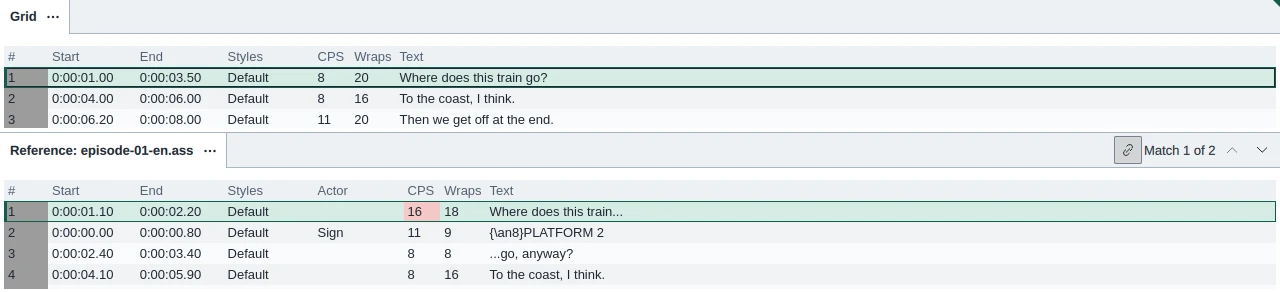
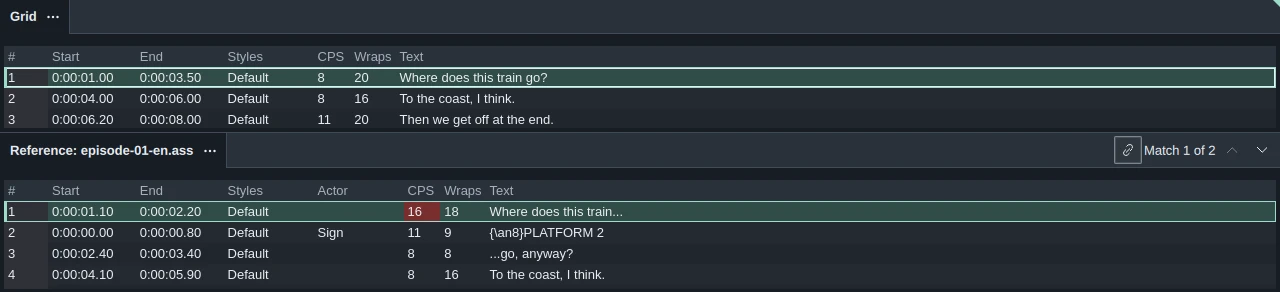
Open the file to compare in a tab of its own, go back to the file you edit, and choose Show subtitles preview in the Grid's menu, or press Ctrl+Q with the Grid focused. It shows the first other tab, in tab order, in the Reference panel under the Grid. That file stays open in its tab, and nothing you do in the panel changes it.
The panel's title names the file: Reference: episode-01-en.ass. It stays open when you switch tabs, and closes when the Grid does.
Show subtitles preview needs a second tab, and does nothing while a reference is open. There is no other menu item to open a reference: to change it, see Other files.
How lines are matched
A line of the reference matches when it plays at the same time as your active line, even for a moment. Lines that only touch, one ending as the other starts, don't match. The text, style and actor play no part, and hidden lines are skipped.
Matching lines next to each other in the reference count as one match. The panel selects the first line of the first match, and its header counts them: Match 1 of 2. Previous match and Next match step through the others; they don't go round.
When nothing matches, the header reads No matching line, and the reference stays where it was. Show nearest line jumps to the line closest in time.
The reference moves when your active line changes to another line: with a click, the arrows, or Enter in the Line editor. Changing the times or text of the line you are on doesn't move it. Moving in the reference never moves your Grid.
Following the line, or not
Follow the editing line, the link button in the panel's header, is on when you open a reference with Ctrl+Q. Turn it off to move around the reference on your own: the header reads Independent navigation. Turn it on again to jump back to your line's match.
If the two files are compared, matching uses the comparison's pairs instead of the times: the match is the line paired with yours, and the reference scrolls with your Grid.
Working in the reference
Click, Ctrl+click and Shift+click select lines in the reference, and Up, Down and Ctrl+A work as in the Grid. Ctrl+C copies the selected lines, to paste into your file. Ctrl+V is refused: "The reference is protected (read-only)."
The Grid's other keys act on the file you edit, even with the reference focused. Ctrl+X cuts your selected lines, not the reference's, and Shift+Delete deletes them.
The reference shows the same columns as your Grid. Find and Replace across all open files searches a reference that is a tab, but never changes it.
Other files
Right-click the reference for a menu of the matches for your active line in every other open file, such as episode-01-en.ass (2 1): the row the match starts at, counted from 0, and how many lines it has. A file with no match gives its nearest line, with 0 lines. Choose one to make that file the reference, on that line.
The ⋯ button on the panel's tab has:
- Compare with reference, which compares your file with the reference, as set in the tab menu's Subtitle comparison.
- Close reference, which closes the panel. The file stays open in its tab.
Choosing the reference's tab makes it the file you edit, and closes the panel. Closing its tab closes the panel too.
A file changed on disk
When another program changes the file you are editing, a bar asks what to do: Reload, Compare or Keep mine. Compare opens the file as it is on disk as the reference, without a tab of its own, and compares it with yours. It starts with Follow the editing line off.
Close reference turns that copy into a tab, so you can still go back to it.
Paste a translation from a file
When the translation is in a file of its own, one line for each of yours, Paste translation text in the Grid's menu brings it in as the Translated text of your lines. Choose the file in Choose subtitle file:
| File | What makes one line |
|---|---|
| ASS | Each Dialogue line. Comment lines are skipped |
| SRT | Each numbered cue, all its lines together |
| TXT, SUB | Each line that isn't empty |
The first entry goes to the file's first line, the second to the next, and so on, whatever is selected; hidden lines are skipped. Entries left over become new lines at the end, with no times. The times come from your file; the pasted file's are not used.
Pasting turns Translation mode on, with the Grid's Original text and Translation columns, and is one undo step. Your file must be a saved ASS file.
The last cue of an SRT file is often left out. Check the end after pasting, and type the last line in if it's missing. On Linux, a blank line in a file with Windows line endings counts as a line: an empty translation.
Line up the translation
A translation from another file rarely has the same number of lines: one line is split in two, or two are joined. Where the lines slip, Dialogue shifting window in the Grid's menu opens the Translation matching options window. It works on a file brought in with Paste translation text.
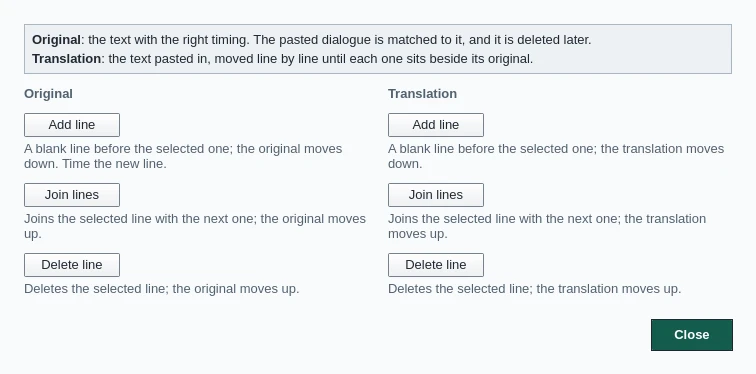
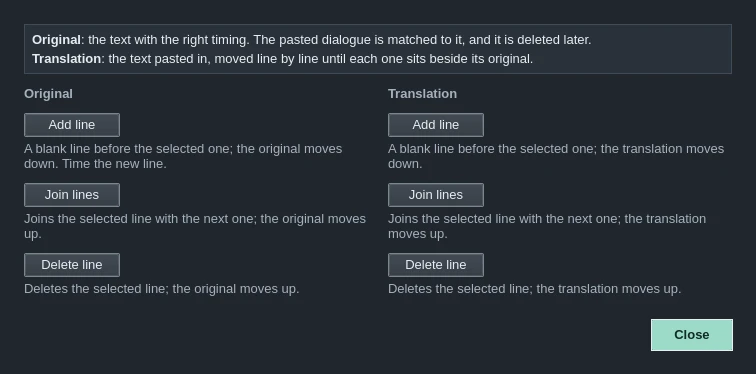
The Original column moves your lines, the ones with the right times. The Translation column moves the pasted translations past them. Select the first line that is off in the Grid, then:
| Button | Original | Translation |
|---|---|---|
| Add line | Adds a blank line before the selected one; the originals move down. Give the new line its times | Adds a blank translation; the translations move down |
| Join lines | Joins the selected line with the next one; the originals move up | Joins the translation with the next one; the translations move up |
| Delete line | Deletes the selected line; the originals move up | Deletes the translation; the translations move up |
Joined texts are separated by a line break, \N. Joining two originals keeps the first one's start.
Each press moves the lines by one. To move by more, select two lines that far apart: selecting lines 5 and 8 moves by 3. Each press is one undo step.
The window stays open while you work in the Grid. Close or Esc closes it. When every translation sits beside its original, the originals can go: turn Translation mode off, and each line keeps its translation.
Keys
| Command | Key |
|---|---|
| Show subtitles preview | Ctrl+Q, with the Grid focused |
| Paste translation text | None |
| Dialogue shifting window | None |
Give them keys in File › Settings › Hotkeys. The Reference panel's buttons and menu items have none.
Translation mode
Translate a file line by line with the original text beside each line, carry its tags into the translation, and mark lines for review.
Spelling
Check the spelling of your lines in the Spellchecker panel, add dictionaries for other languages, and keep your own words in a personal dictionary.