 HikariSub
Themes
Choose a light, dark or high-contrast theme, an accent colour, the interface font and the title bar.
File › Settings › Appearance sets how HikariSub looks. Changes to the theme and colours show across the whole window as you make them; OK or Apply keeps them and Cancel puts back what you had.
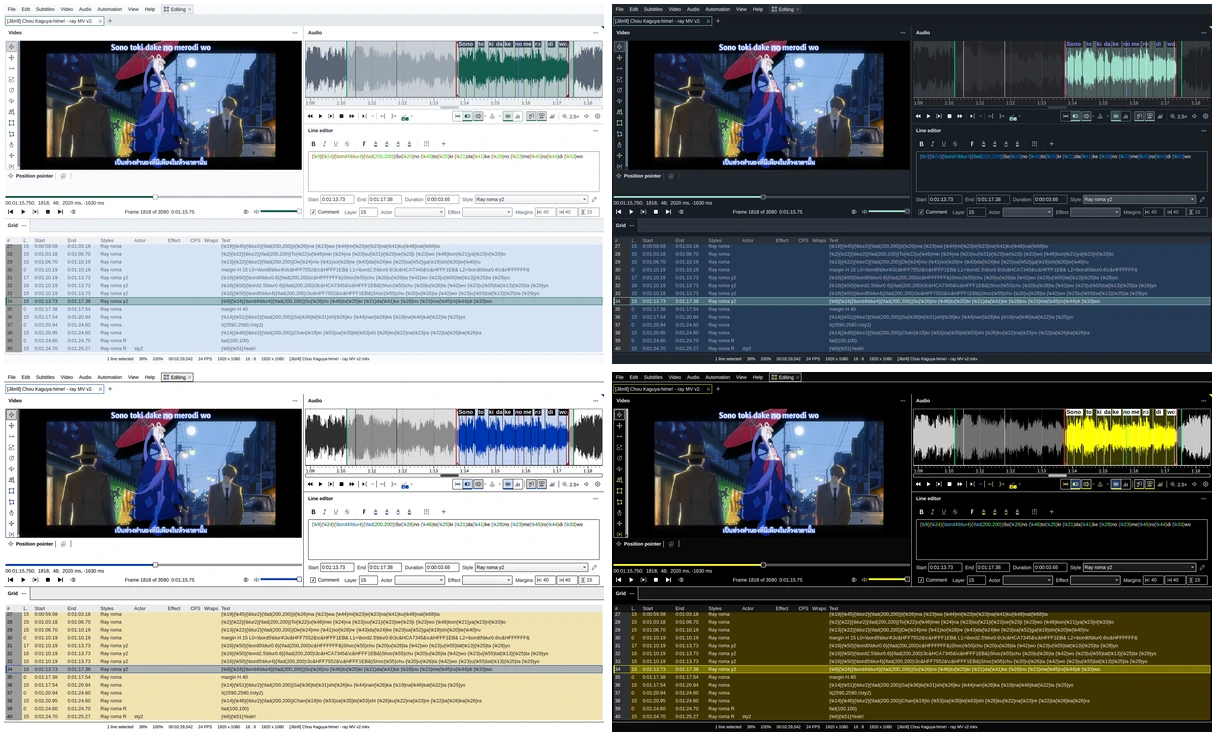
Themes change only HikariSub's window. Your subtitles, their styles and the video look the same in every theme.
Theme
Interface theme offers four: Light, Dark, High contrast white and High contrast black. Each card is a small sample of it.
Follow system theme, on at first, uses Light or Dark as your system's colour scheme does, and changes when it does. With a high-contrast theme chosen, it switches between High contrast white and High contrast black instead. Clicking a card turns it off and keeps that theme.
On Linux desktops that don't tell Qt their scheme, such as sway or Hyprland, HikariSub asks the desktop portal. If the scheme can't be found at all, the chosen theme shows, Dark at first.
Accent color
The accent marks the selection, default buttons, switches that are on and the field you are typing in. Light and Dark offer seven accents each, all readable on their theme: red, orange, gold, green (the default), blue, purple and pink. Hover one to see its contrast.
Light and Dark keep their own accent. To change the other theme's, show that theme first.
High contrast colours
With a high-contrast theme shown, three colours replace the accent: Accent color, Text and icons, and Border color, which outlines every control. Choose… picks one, and Esc in the picker puts back the colour from before. Text on the accent turns black or white by itself to stay readable. Reset to default puts back that theme's three colours.
Font
Program font and its size set the font of the whole interface, 10-point Tahoma at first. A change applies to every window when you press OK or Apply, without restarting. It doesn't change your subtitles' fonts.
Title bar
HikariSub draws its own title bar, with the menus and the layout button in it, on Windows, KDE Plasma and GNOME. Elsewhere, and on tiling window managers such as sway, i3 or Hyprland, it uses your system's title bar, with the menus in the first row of the window.
Use system title bar changes this for the main window and every dialog. On Windows, the system's title bars follow the theme's light or dark side; on Linux they follow your desktop's theme.
Resetting
Reset page, at the bottom of the Settings window on this page, puts back every appearance setting and the font. Reset all settings… leaves the appearance alone.
Themes from older versions of HikariSub are not imported.