 HikariSub
Template editor
Write karaoke templates in a panel that previews them on the current line as you type, then apply them to the whole song.
Karaoke templates are comment lines whose Effect starts with template or code. The karaoke templater turns each karaoke line into new lines from them. The Template editor lists a file's templates, edits one at a time, and shows what the templates make of the current karaoke line while you type. Nothing is generated in the file until you press Apply.
The templates are stock Karaoke Templater syntax, as Aegisub 3.2.2 reads it, so the same templates work in Aegisub.
Opening the panel
Choose View › Panels › Template editor › Show. The panel opens as a tab beside the Line editor; like any panel, you can drag it elsewhere or float it. It has no key of its own. The Karaoke layout shows it beside the video, in front of the Line editor.
The panel works once the karaoke templater script, kara-templater.lua, is loaded. HikariSub ships it and loads it at start. The preview runs only while the panel is showing, so it costs nothing on a hidden tab.
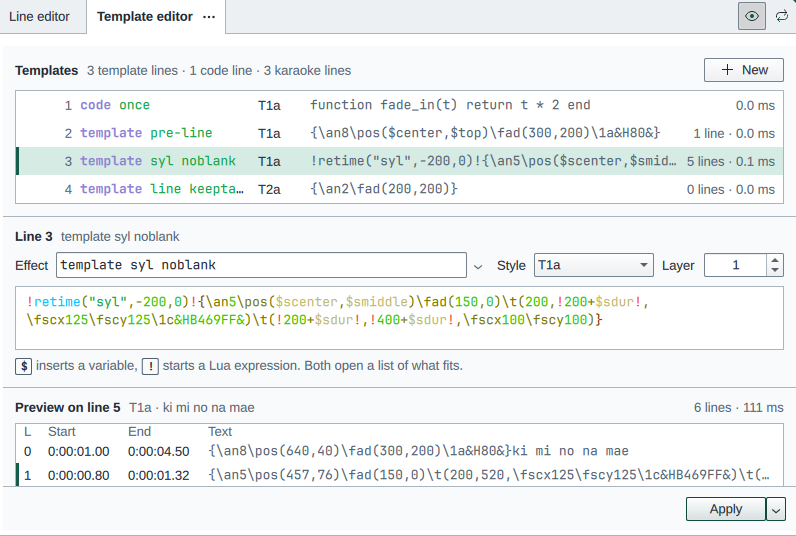
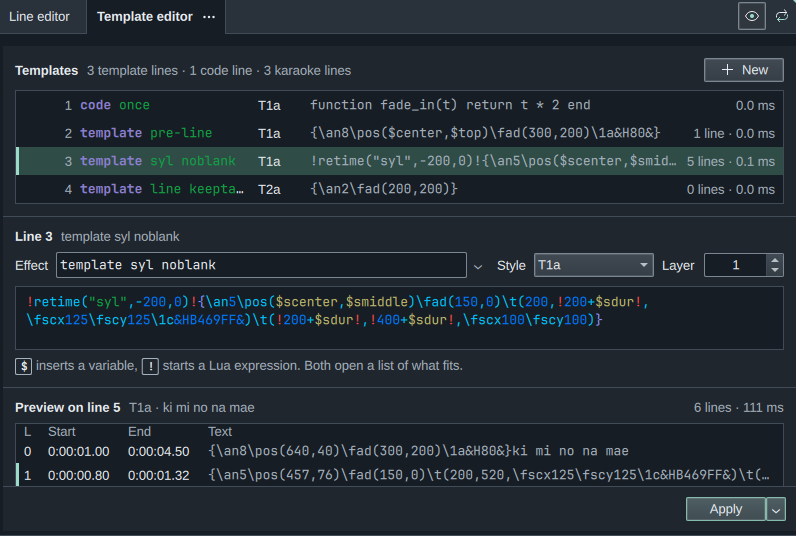
From the top, the panel has:
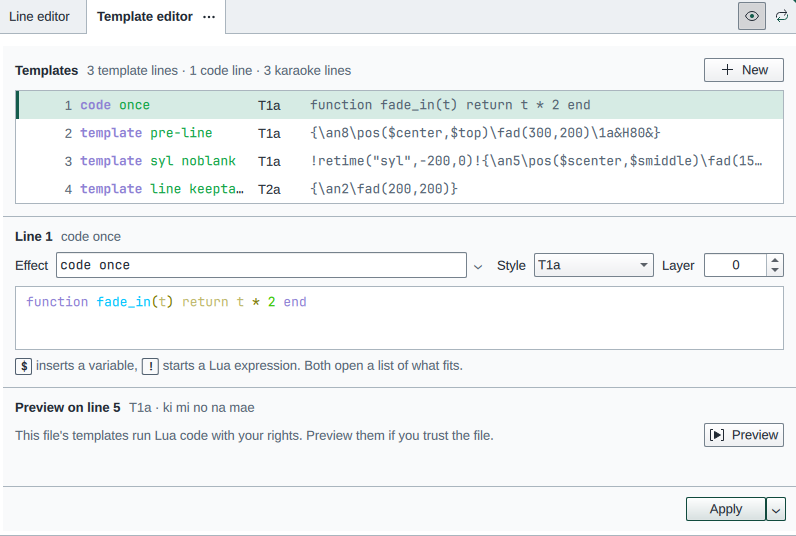
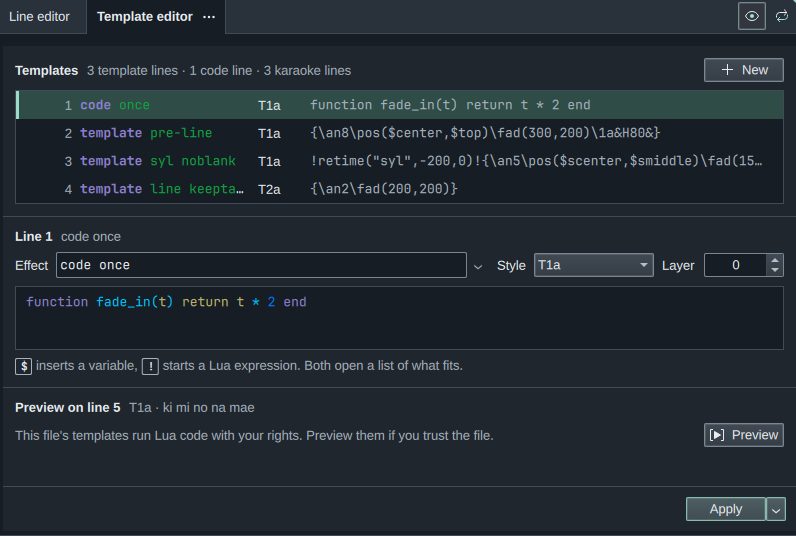
- Templates: every template and code line of the file in file order, with its number, Effect, Style and text. The right-hand column gives the lines it made and the time it took in the last preview, or Problem. A dot marks a template changed since the last Apply. Click a row to edit it; selecting a template line in the Grid does the same.
- Line N: the current template's Effect, Style, Layer and text.
- Preview on line N: the lines the templates make from the karaoke line, with their layer, start, end and text. The current template's own lines have a bar at their left.
- Apply, with the state of the generated lines beside it.
Two buttons sit at the right of the panel's tab. Preview on the video (the eye) turns the preview on the video on or off. Loop the line plays the karaoke line over and over while you edit; pausing, stopping or seeking ends the loop.
Adding a template
New adds a template or code line:
| Item | Writes the Effect |
|---|---|
| Template for each syllable | template syl |
| Template for each line | template line |
| Template before each line | template pre-line |
| Template for each character | template char |
| Template for each furigana syllable | template furi |
| Code run once | code once |
| Code for each line | code line |
| Code for each syllable | code syl |
| Code for each furigana syllable | code furi |
The new line is an empty comment, placed above the first karaoke line with that line's style, and it becomes the current template. The furigana kinds run for the readings written as 漢|かん: see Furigana.
From a preset, at the bottom of the menu, inserts one of the ten built-in effects instead, as template lines you can edit: see Presets.
Editing a template
Type in the Effect field, or press the arrow beside it, Choose what the template runs for, to pick in plain words:
- Runs for each: the class, such as Syllable (
syl) or Line, before its syllables (pre-line). A code line offers Once, Line, Syllable and Furigana syllable. - Modifiers:
| Modifier | Writes | Code lines too |
|---|---|---|
| Skip blank syllables | noblank | Yes |
| Keep the line's override tags | keeptags | No |
| Every Style, not only the line's style | all | Yes |
| Repeat | loop 2 | Yes |
| Only syllables marked with an effect | fx name | No |
| No text, tags only | notext | No |
The picker only writes the Effect text; you can type the same words yourself, in any order the templater accepts. multi and fxgroup are not in the picker: type them. multi runs a syllable template once for each highlight of a syllable, such as the # syllables the Kanji timer writes.
Style and Layer set the template's style and layer; the layer can be negative.
The text box colours the template as the Line editor does. Type $ for a list of the variables, each with its value on the first syllable of the previewed line, or ! inside an expression for the template functions, such as retime and relayer. Use ↑ ↓ to choose, Enter or Tab to insert, and Esc to close the list.
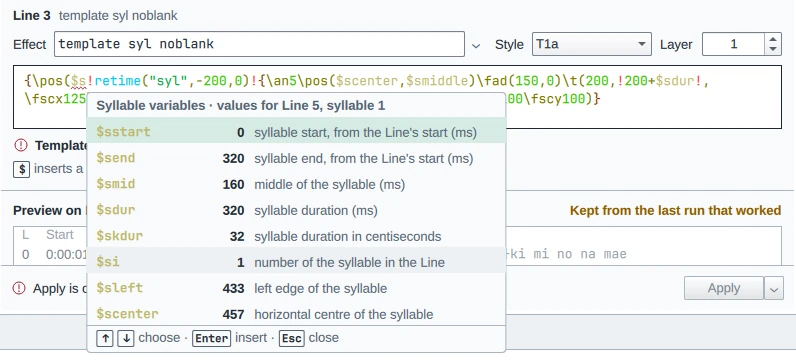
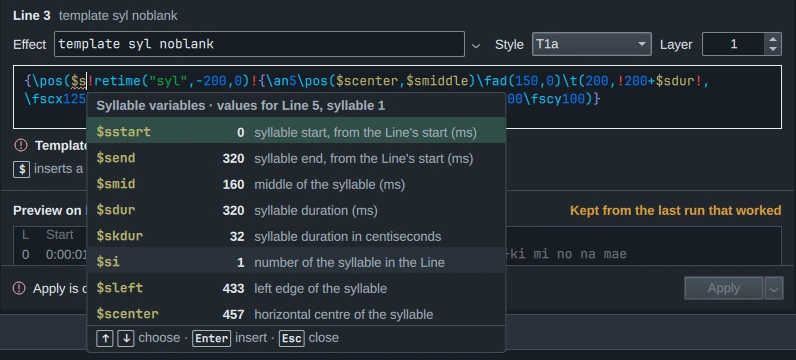
Your edits go straight into the template line: typing goes in after a pause of 0.8 s, and a style or layer change at once. Each goes in as one undo step named Edit template, New template for a new line, and New template from preset for a preset. Only the generated lines wait for Apply.
The preview
The preview runs the templates on one karaoke line each time you change something, without changing the file:
- the active line, when it is a karaoke line, as the Line editor has it;
- the karaoke line that a generated line came from, when you select one of those;
- otherwise the karaoke line last previewed, or the file's first.
It also runs again when the styles, the script's properties, the video or the audio selection change.
On the video, the preview's lines take the place of the line's generated lines, and a badge says so. The eye button turns this off.
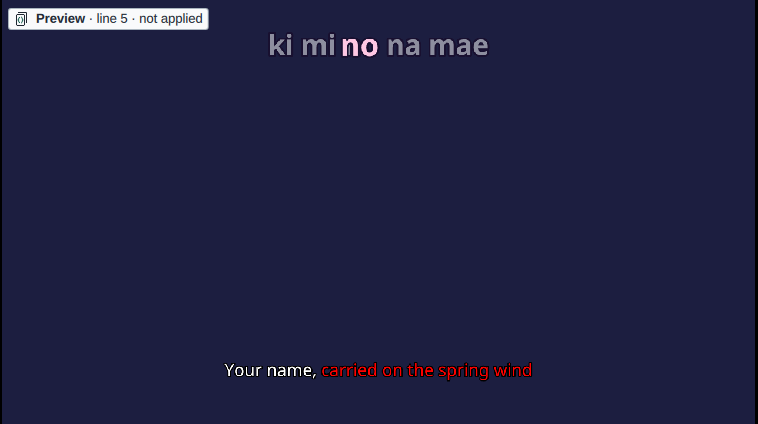
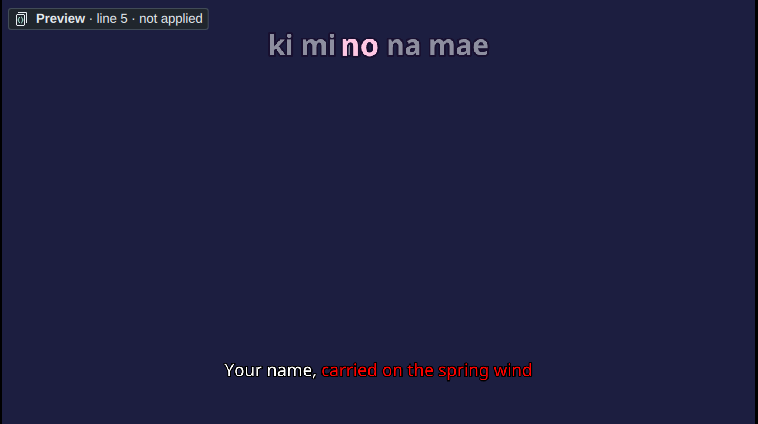
Anything code lines carry from one karaoke line to the next, such as a counter or a value kept with remember, starts afresh in the preview, because the preview runs one karaoke line on its own. Apply runs the whole file as usual.
Trusting a file
Templates run Lua code with your rights. So when you open a file that has templates, the preview waits, and says: This file's templates run Lua code with your rights. Preview them if you trust the file. Press Preview to run them, or apply them.
The choice lasts while the file is open; reloading it from disk asks again. Templates that change other than in this panel, for example pasted or typed in the Line editor, bring the notice back. Your own edits in the panel do not.
Problems
When a template fails, its row says Problem, and the expression is underlined in red. The message under the text names the line and the expression, such as Template Line: 3, in !math.rnd(1,5)!: Runtime error in template expression: attempt to call field 'rnd' (a nil value). When the message is longer than a line, hover it to read the rest.
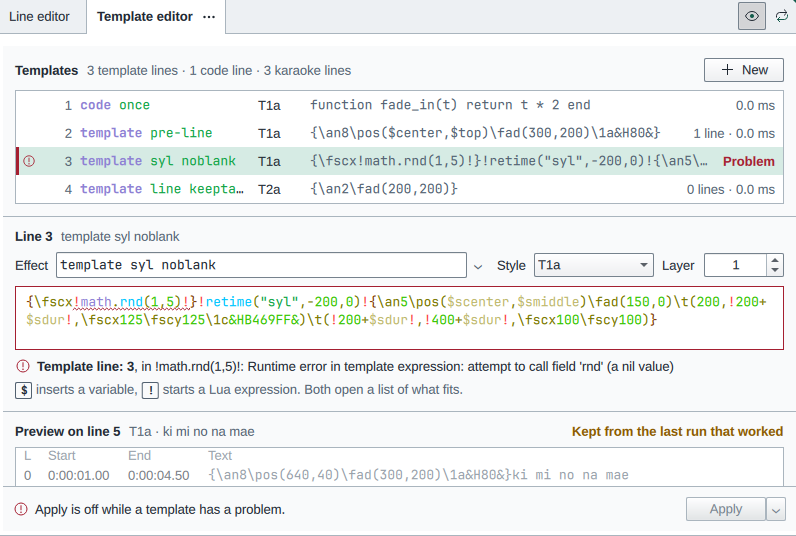
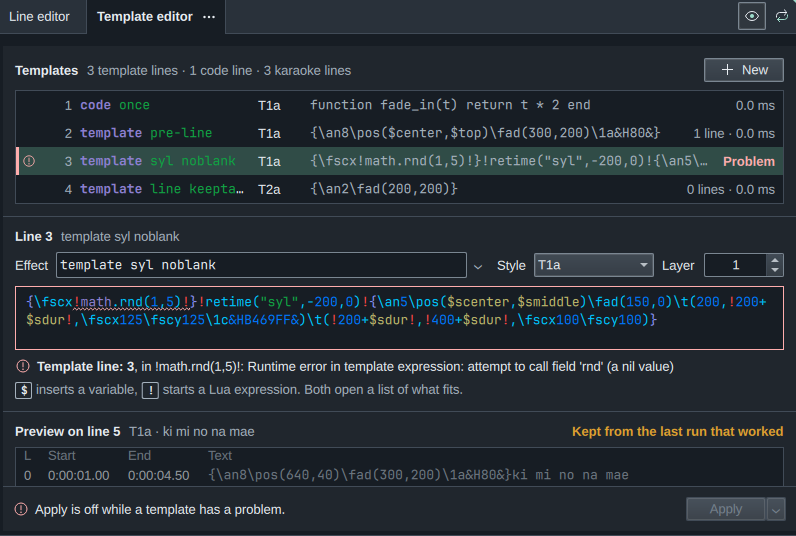
math.rnd is not a Lua function; math.random is.The preview keeps the last run that worked, dimmed and marked Kept from the last run that worked, and so does the badge on the video. Apply is off until the problem is fixed.
Applying
Apply runs Apply karaoke template, the same macro as in the Automation menu, on every karaoke line. It replaces the lines generated earlier, and turns each karaoke line it used into a comment with the Effect karaoke. The arrow beside it offers Apply to the selected lines, which regenerates only the karaoke lines selected in the Grid and leaves the others' lines as they are.
Afterwards the panel says how many lines came from how many karaoke lines. Each Apply is one undo step, so Edit › Undo takes all the generated lines back at once.
When you change a template after applying, the panel says the generated lines are older, until the next Apply to every karaoke line.
A narrow panel
Below 520 pixels wide, the fields stack, the list shows only the number, Effect and status, and the preview folds into one row: click it to unfold. The panel can be as narrow as 360 pixels.