 HikariSub
Grammar
Check the grammar of English lines with Harper as you type and across the whole file, fix or skip each finding, and choose the rules it uses.
HikariSub can check the grammar of English lines with Harper. It finds mistakes such as a apple, I has or their going, and also wordy phrasing, wrong capitals, punctuation and more. The Line editor underlines what it finds as you type, and the Spellchecker panel goes through the whole file one finding at a time.
Grammar check is off at first. It checks English only: US, UK, Canadian or Australian English. Spelling is a separate check, with its own dictionaries; see Spelling and Spelling and grammar together.
Harper
Harper comes with HikariSub, in every package: there is nothing to install. It runs as a separate program, harper-ls, beside HikariSub, and only while grammar check is on. HikariSub hands it the text through a pipe on your computer. Nothing goes over the network.
Help › Credits lists Harper and its licence, the Apache License 2.0.
Turning it on
Choose an English in File › Settings › Spelling & grammar › Grammar › Grammar check: English (US), English (UK), English (Canada) or English (Australia). Off turns it off again and ends the harper-ls program. The change applies on OK or Apply.
The Getting started window offers the same choice on its Editing step, under Spelling. It is saved when you press Finish.
In the Line editor
While grammar check is on, the Line editor's text is checked 300 ms after you stop typing. Each finding gets a blue wavy underline. In translation mode, the Translated text is checked instead of the original.
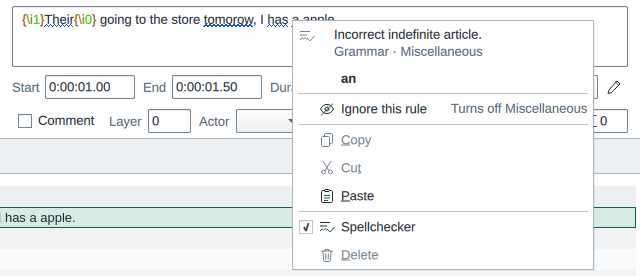
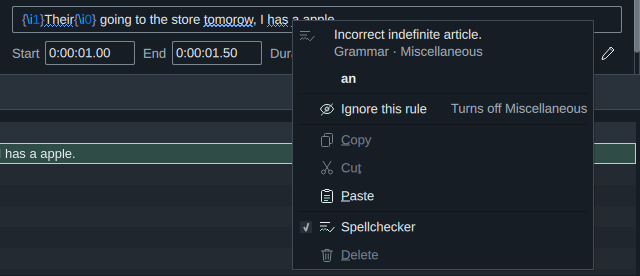
Right-click an underlined word to see what Harper found:
At the top of the menu:
- Harper's message, with the finding's rule group below it, such as Grammar · Miscellaneous. Text that Harper quotes in its message is shown in quotation marks.
- Harper's suggestions, in bold. Click one to put it in. A suggestion is one undo step, Correcting grammar errors in the text field, and the tags in the text stay where they were.
- Ignore this rule turns off the finding's whole rule group: see below.
- Add “…” to dictionary, for a misspelt word. This shows only while Harper checks spelling, that is while Check spelling is off.
The usual items follow. Where there is no finding, the menu is the usual one.
The Grid doesn't mark grammar findings.
Checking the whole file
Open the Spellchecker panel with Subtitles › Check spelling or View › Panels › Spellchecker, and choose Grammar at its top. Spelling goes back to the spelling check. While grammar check is off, the panel says so and offers Grammar settings…, which opens the Settings page.


The check reads the whole file in the background, starting at the active line and going round to the line before it. While it reads, the panel shows Checking line … of … with a progress bar and Cancel. The first finding shows as soon as it is found, and you can work on it while the rest are read.
For each finding, its line is selected in the Grid and the finding in the Line editor, and the panel shows:
- Harper's message
- the line's number and the rule group
- the text around the finding, without tags, with the finding underlined. At most 40 characters show on each side, cut at a whole word, with … where text is left out
- Replace with, filled with the first suggestion, and the list of suggestions
| Button | Does |
|---|---|
| Replace | Puts Replace with in place of the finding, as one undo step |
| Ignore | Skips this finding |
| Ignore this rule | Turns off the finding's rule group, and skips every finding of that group |
| Add to dictionary | Adds the word to your dictionary, and skips the other findings of that word. Only for a misspelt word |
Each button moves on to the next finding. When none are left, the panel says No more grammar findings in and the file's name, with the number of lines checked. Check again starts over from the active line.
Comment lines are never checked, nor are template and code lines.
Ignore this rule
Harper has 936 rules, sorted in 15 groups. Ignore this rule, in the Line editor's menu or the panel, turns off the whole group the finding belongs to, not the one rule. It is saved at once.
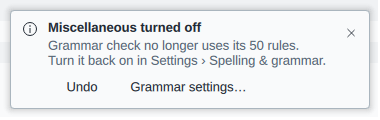
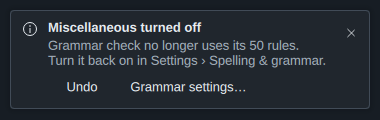
A notice says which group was turned off, and how many rules it has:
- Undo turns the group back on.
- Grammar settings… opens File › Settings › Spelling & grammar, where every group has its own switch.
Like any information notice, it fades after 5 seconds. The Log keeps its text, without the buttons.
Settings
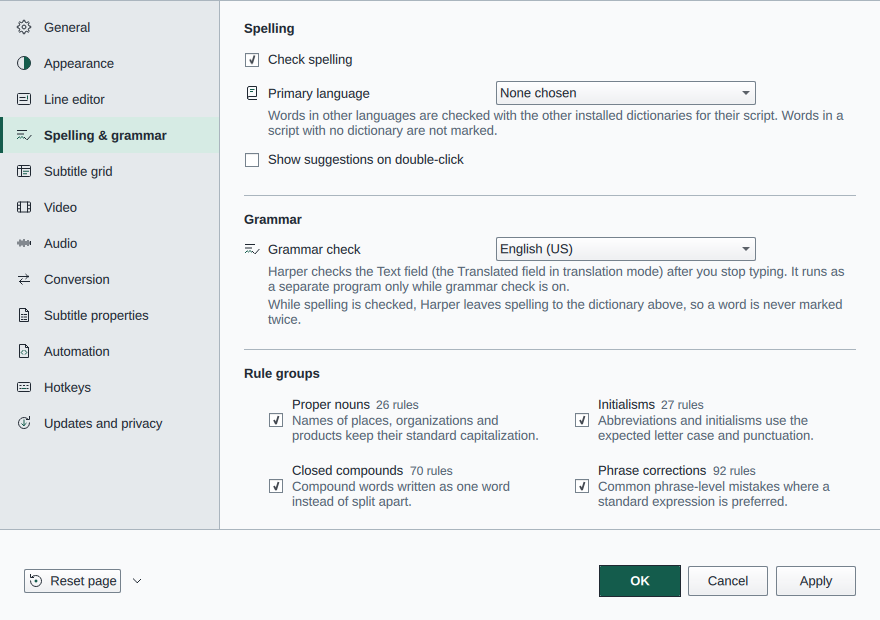
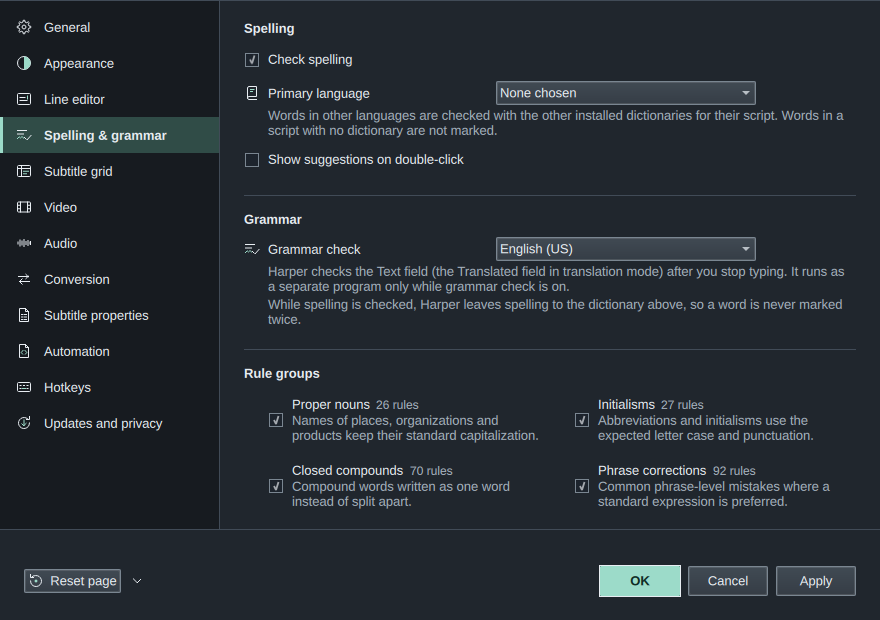
The Spelling & grammar page of File › Settings has three sections: Spelling, described in Spelling, Grammar and Rule groups.
| Setting | Does | Default |
|---|---|---|
| Grammar check | Off, or the English to check | Off |
| Rule groups | A switch for each of Harper's 15 groups, with its number of rules | All on |
The groups are:
| Group | Checks |
|---|---|
| Proper nouns | Names of places, organisations and products keep their standard capitalisation |
| Initialisms | Abbreviations and initialisms use the expected letter case and punctuation |
| Closed compounds | Compound words written as one word instead of split apart |
| Phrase corrections | Common phrase-level mistakes where a standard expression is preferred |
| Capitalisation and case | Personal pronouns, titles, brands and other case-sensitive text |
| Punctuation and spacing | Punctuation marks, apostrophes, quotation marks, commas and spacing |
| Numbers and units | Numbers, dates, times, decades and units of measurement |
| Pronouns and possession | Pronouns, contractions, possessives and their agreement |
| Compounds and hyphenation | Multi-word compounds that should be open, closed or hyphenated |
| Spelling and orthography | Misspellings and word forms spelled the wrong way |
| Style and redundancy | Wordy, repeated or weak phrasing that can be tightened |
| Grammar and agreement | Agreement, articles, prepositions, verb forms and sentence structure |
| Word choice and usage | More standard or idiomatic wording for understandable phrases |
| Regionalisms and dialect | Wording that may not fit the chosen English |
| Miscellaneous | Rules that fit none of the groups above |
A group's switch turns on only the rules Harper itself has on; a few are off in Harper by default. While Grammar check is Off, the switches are greyed out and keep their state.
One rule is always off: Harper's check that a sentence starts with a capital. A subtitle line is often the middle or end of a sentence, so it would mark most lines that continue one. No setting turns it on: the Capitalisation and case switch turns only that group's other rules on and off.
Spelling and grammar together
- While Check spelling is on, Harper leaves spelling to the dictionary, so a word is never marked twice. Misspellings keep their coloured background; grammar findings get the blue underline.
- While Check spelling is off, Harper checks spelling too, in its Spelling and orthography group. Its misspellings are underlined like the other findings, and their menu has Add “…” to dictionary.
- Add to dictionary adds the word to your personal dictionary, and Harper uses it too. Words you add or remove there reach Harper at once.
- Where a grammar finding and a misspelling overlap, the right-click menu shows the grammar finding.
What is checked
Harper gets only the words of a line:
- Override tags in
{…}, karaoke tags included, are left out, soha{\k20}rureads as haru. \N,\nand\hread as spaces, so a sentence broken over two lines is read as one.- Drawings are left out.
- In SRT files,
<…>tags are left out. In TMPlayer, MicroDVD and MPL2 files,{…}is left out and|reads as a space.
Since the tags are left out, a suggestion goes in around them: the tags stay in their order.
A line longer than 4096 characters isn't checked.
Speed
- Nothing runs while grammar check is off.
harper-lsstarts at the first check after you turn grammar check on. The first findings take a moment, about half a second, while Harper loads its dictionary.- Any change to the grammar settings, and turning Check spelling on or off, restarts
harper-ls, so the next findings take that moment again. - While it runs,
harper-lsuses memory of its own, about 150 MB. - The panel's check reads the file in small steps, so the window keeps answering, and Cancel stops it at once.
When something goes wrong
| Problem | What to do |
|---|---|
| No underlines | Check that Grammar check isn't Off, and that the line isn't a comment. In translation mode, only the Translated text is checked |
| Too many findings of one kind | Right-click one and choose Ignore this rule, or turn its group off in File › Settings › Spelling & grammar › Rule groups |
| Harper marks names or made-up words | Turn Check spelling on, so your dictionary checks spelling instead, or add the words to your dictionary |
| A Grammar check notice says "The grammar checker (harper-ls) stopped" | harper-ls ended or couldn't start. The next check starts it again, and the notice doesn't repeat until a check has worked. If it keeps stopping, report the problem with the message |
| The panel says "The grammar checker stopped." | The check of the file stopped with it. Press Check again |
| The panel says "Another file is open in the editor." | The check stops when you switch to another file's tab. Go back and press Check again |
| A replace says "The line changed since it was checked." | The line was edited after it was read. Press Check again |
| A replace says "The text there cannot be replaced." | The finding touches a drawing or a broken tag, or the replacement contains tag characters. Edit the line by hand |
F1 in the Spellchecker panel opens this page while the panel is in Grammar mode, and Spelling while it is in Spelling mode.