 HikariSub
Tap to time
Time a karaoke line's syllables by tapping Space in time with the song, line after line, with slowed playback and a latency calibration.
Tap to time times a karaoke line by ear. While the song plays, press Space as each syllable is sung, and HikariSub writes the line's \k tags from your taps. Each line you finish is applied, and tapping goes on with the next line without stopping the song.
There are two ways to tap, set in the Tap menu under Each syllable:
- Hold the key: releasing it leaves a gap. This is the default. Pressing Space starts a syllable and releasing it ends it. The time between a release and the next press becomes a gap, written as an empty syllable.
- Press the key: no gaps. Each press starts the next syllable and ends the one before.
Your first press sets the line's start, and the end of its last syllable sets the line's end. The syllables come from the line's split: see Split and join. Times are measured in the song, so tapping at a slower speed gives the same result.
Starting
Tap to time works in the Audio panel's Karaoke mode, with audio open. The Karaoke layout turns the mode on. Then:
- Click the Tap button, after Auto split in the Audio panel's button row. It stays pressed while you tap.
- Or press Y while the Audio panel has the keyboard.
- Or choose Start tapping in the menu of Tap's arrow, Tap options.
When the panel is narrow, Tap folds into the ⋯ menu as Tap to time and Tap options. Shift+click the Tap button to give it another key.
Tapping starts on the active line. The Audio panel takes the keyboard, and the audio plays from one second before the line's start to the end of the audio.
The tap bar
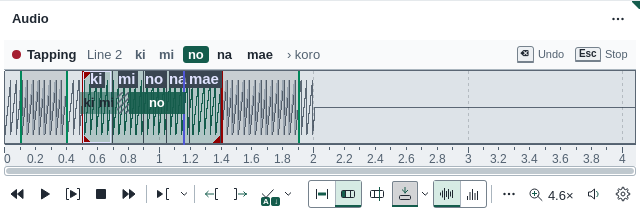
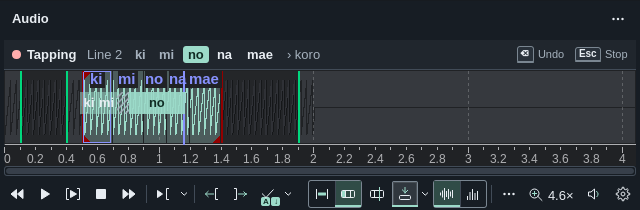
While tap mode is on, a bar over the waveform shows, from the left:
- The state: Tapping with a red dot, Stopped with a square, or Ready with a ring.
- Line and the line's number.
- The line's syllables. Tapped ones are dimmed, the one you are holding is filled, and the next one is outlined.
- After ›, the next line's text.
- A message, when there is one.
- On the right, what you can do next: Undo and Stop while tapping, Resume and Revert line when stopped.
On the waveform, each tapped syllable shows as a block with its text, under the letters. The syllable you are holding grows at the playhead, and a gap is hatched.
Keys
While tap mode is on, the Audio panel takes Space, Backspace and Esc before any other key, including the video's Space. Held keys don't repeat.
| Key | Tapping | Ready or Stopped |
|---|---|---|
| Space | Taps: see above | Starts, or resumes |
| Backspace | Takes back the syllable you are holding and the last tapped one, and plays again from two seconds before | The same, without playing |
| Shift+Backspace | Takes back the whole line's taps, and plays from two seconds before the line | The same |
| Esc or H | Stops, keeping the taps | Esc leaves tap mode |
| Y | Leaves tap mode | Leaves tap mode |
| [ ] | Slower, faster | Slower, faster |
Only Space taps. While you are tapping, the Audio panel's other keys wait, and so do its Commit, Previous line, Next line, Add lead-in and Add lead-out buttons and the syllable commands. If the Audio panel loses the keyboard while you hold Space, for example because you click in the Grid, the syllable ends at that moment.
How taps become times
- A tap stands for the playing position, less the calibrated latency, rounded to 10 ms.
- A gap shorter than 30 ms joins the syllable before it.
- A syllable lasts at least 10 ms.
- Time never runs backwards: a press before the last boundary, for example while the audio replays after an undo, lands on that boundary.
- Each syllable keeps its own kind of tag,
\k,\kfor\ko. A gap becomes an empty syllable with the tag of the syllable before it.
For example, tapping ki, mi and no (a \kf) with a short gap after mi:
Taps     ki 1.20–1.50 s, mi 1.50–1.80 s, no 1.90–2.25 s
Line     0:00:01.20 to 0:00:02.25
Text     {\k30}ki{\k30}mi{\k10}{\kf35}no
In Hold mode a line is done when you release its last syllable. In Press mode it is done at the press after the last syllable's start; that press also starts the next line's first syllable.
Switching between Hold and Press while you hold a syllable drops that syllable.
Line after line
Each finished line is applied as one step named Tap timing. The next line becomes active, the bar shows its syllables, and you go on tapping while the song plays. After the last line the audio stops and the bar says Every line is tapped.
Choose another line while tapping, in the Grid or with Previous line and Next line, and tapping starts on that line afresh, one second before it.
If a line can't take the new times, for example because the Line editor holds an edit that isn't valid, nothing is written. The audio stops and the bar says Not applied: the line cannot take these times as it is.
When the audio reaches its end, a syllable you are holding ends there.
Stopping and correcting
- Stop, Esc, drops a syllable you are holding, keeps the tapped ones and stops the audio. The bar says how far you got, such as 3 of 5 tapped.
- Resume, or Space, plays again from two seconds before the end of the last tapped syllable, or from one second before the line if nothing is tapped.
- Revert line drops every tap on the line. The line itself is unchanged, since nothing was written yet.
- Backspace takes back the syllable you are holding, if any, and the last tapped one, and says which, such as Undid “mi”. The audio plays again from two seconds before the earliest of them. Shift+Backspace takes back the whole line and says Undid the line. Neither goes back before the start of the audio.
These keys only change the line you are tapping. Lines already applied are undone with Edit › Undo: each is one Tap timing step.
Leaving tap mode
Press Y or the Tap button again, choose Stop tapping, or press Esc when the bar says Ready or Stopped. The line you were tapping keeps its old timing, and the audio stops. Leaving Karaoke mode, or closing or replacing the audio, leaves tap mode too.
What you tap
Tap to time taps the syllables of the line's split, with two changes:
- Empty syllables are skipped, so tapping a line again replaces the gaps of the last time.
- A syllable of only spaces joins the syllable before it.
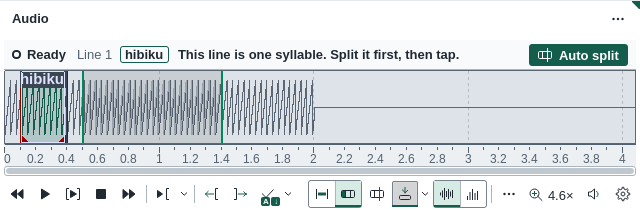
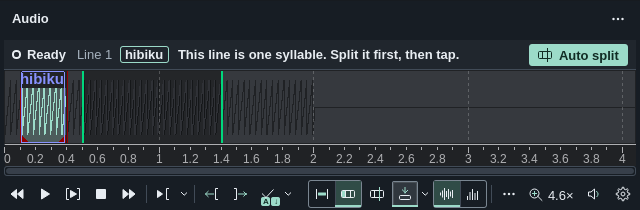
A line of one syllable can't be tapped: a tap would only set its start and end. The bar says This line is one syllable. Split it first, then tap. Press Auto split on the bar to split it, then Space to start.
Slower playback
Play the song at 25, 33, 50, 75 or 100% while you tap; the pitch stays the same. The speed applies to everything the Audio panel plays, in Line mode too, and HikariSub remembers it.
- In the Speed submenu of the Tap menu.
- In the Audio panel's speaker menu, Volume and output device, on the Speed row.
- With [ for Slower and ] for Faster, which work while you tap.
When the speed is below 100%, the speaker button shows it, such as 50.
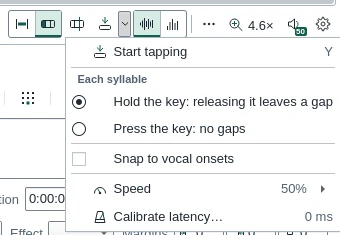
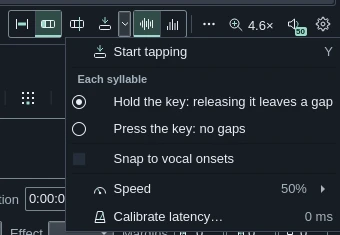
The Tap menu also has Snap to vocal onsets, which moves each press onto the nearest place where a syllable starts: see Onset snap.
Calibrating the latency
Between the moment you hear a syllable and the moment your tap arrives, there is a small delay, from your reaction and from your sound device. Measure it once, and HikariSub takes it off every tap.
Choose Calibrate latency… in the Tap menu; the menu shows the current value. The Calibrate tap latency window plays 16 beeps at 100 BPM at once. Press Space on each beep. The first four are practice and don't count.
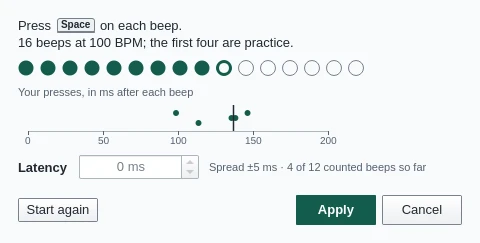
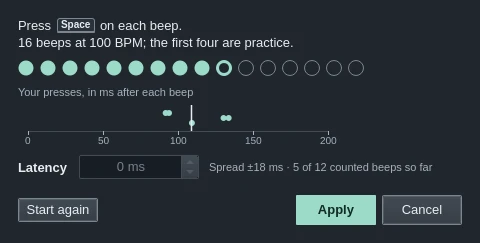
Each press is shown on the strip by how many milliseconds it came after its beep. Presses far from the others are left out, and the Latency is the middle value of the rest. Once six beeps have counted, the field takes the result, unless you have typed a value yourself. The note beside it gives the spread.
Apply, or Enter, keeps the value. Cancel, or Esc, leaves the latency as it was, and Start again plays the beeps again. You can also type a value from −200 to 500 ms when the beeps have stopped. The latency starts at 0 ms.
Split and join
Time a karaoke line on the audio waveform by splitting it into syllables, dragging their boundaries and joining them, with its karaoke tags written as you go.
Kanji timer
Copy the karaoke timing of romaji lines onto their kanji lines, one group of syllables at a time, for the whole song at once.