 HikariSub
Spelling
Check the spelling of your lines in the Spellchecker panel, add dictionaries for other languages, and keep your own words in a personal dictionary.
HikariSub checks spelling in two places. As you type, the Line editor and the Grid mark misspelled words with a coloured background. The Spellchecker panel goes through the file one misspelled word at a time, so that you can fix, skip or keep each one.
Only the text is checked: tags in {…} and drawings are left out, and so are numbers. A stray { or }, or a bracket that isn't closed, is marked too.
The Spellchecker panel
Open it with Subtitles › Check spelling, or from View › Panels › Spellchecker. It docks under the Grid, and starts checking at once. Spelling and Grammar at its top switch between this check and the grammar check.
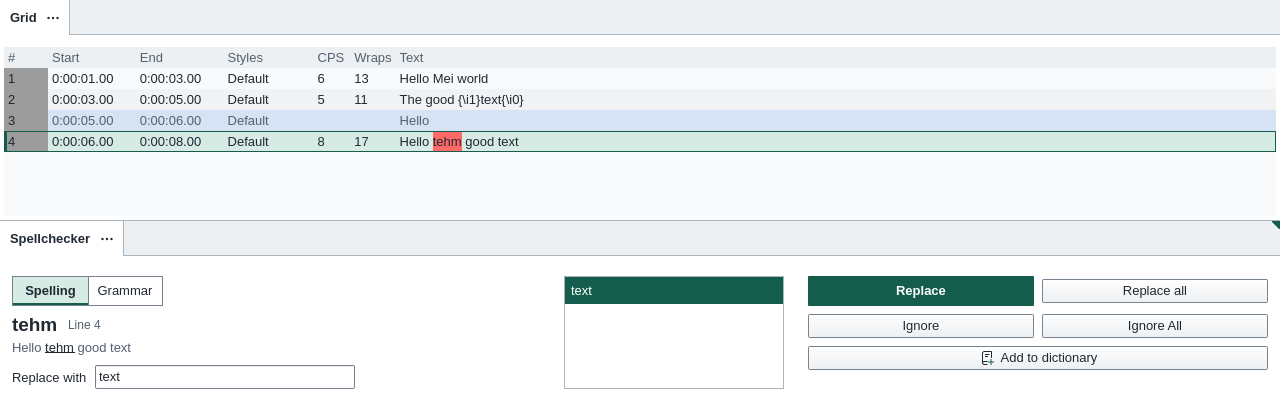
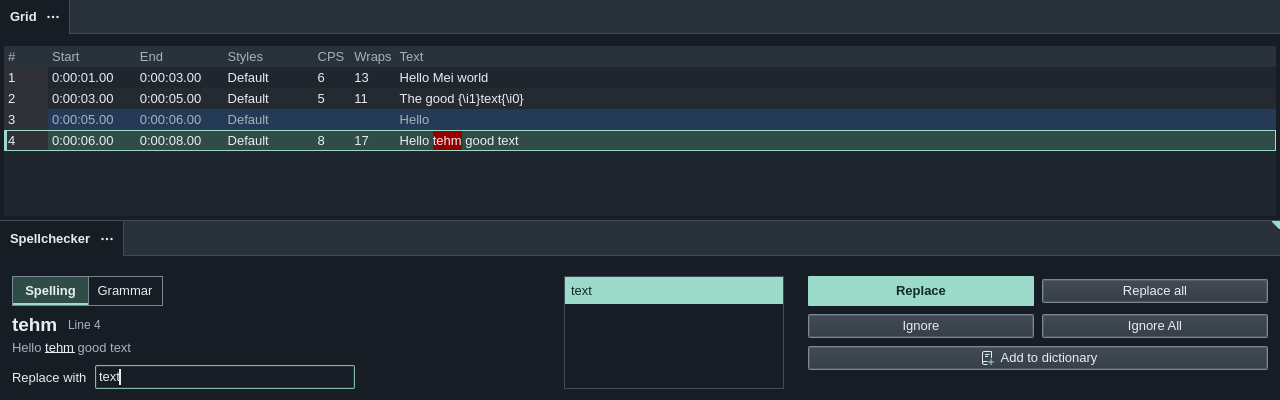
The check starts at the active line and goes down to the end of the file. To check the whole file, select the first line before you open the panel. Each word it stops on is selected in the Grid, and the panel shows:
- the word, and the number of its line
- the text around it, with the word underlined. At most 40 characters show on each side, cut at a whole word, with … where text is left out
- Replace with, filled with the first suggestion, and the list of suggestions
Click a suggestion to put it in Replace with, or double-click it to replace at once. Then:
| Button | Does |
|---|---|
| Replace | Replaces this word with Replace with. Enter in the field does the same |
| Replace all | Replaces the word in every line of the file, keeping each one's capitals |
| Ignore | Skips this word, here only |
| Ignore All | Skips the word everywhere, until the check starts over |
| Add to dictionary | Adds the word to your personal dictionary |
Each button moves on to the next misspelled word. Ignore All and Replace all match the word in any case.
Replace and Replace all can be undone with Ctrl+Z; Replace all is a single step. If a replace isn't possible, for example while a macro is running on the file, a notice says why.
When no word is left, the panel says so, and a notice reads "No spelling errors were found". Check again starts over from the active line. Closing the panel stops the check, and opening it again starts a new one, which forgets the words you ignored.
In Translation mode, the translated text is checked and replaced instead of the original.
Options
The panel's ⋯ menu has two options. They last until you close HikariSub.
- Ignore comments skips comment lines.
- Ignore words in capitals skips words written all in capitals.
In the Line editor
Right-click a marked word in the Line editor's text for:
- suggestions to replace it with, at the top
- Spellchecker, which turns spell checking on or off
- Add word "…" to dictionary
Where the grammar check also found something, the menu shows the grammar finding instead.
With Show suggestions on double-click on, double-clicking a marked word opens the Fix suggestions list instead. Click a suggestion or press Enter to replace the word; Esc closes the list.
Dictionaries
HikariSub uses Hunspell dictionaries. A dictionary is a pair of files with the same name: en_US.dic and en_US.aff, for example. Every package, on Windows and Linux, comes with English (US), Korean, Polish, Tamil and Thai.
Every installed dictionary checks, not only one. Each word goes to the dictionaries of its own script: a Hangul word to Korean, a Tamil word to Tamil, a Thai word to Thai, and a Latin word to English and Polish. A word is marked only when none of them accepts it, so an English line with Korean or Polish words marks only real misspellings. A word in a script with no installed dictionary, such as Cyrillic without a Russian one, is not marked.
To add a language, put its two files in the dictionaries folder of your user folder. It shows in Settings › Spelling at once, and checks words from the next time HikariSub starts, or after you change the primary language. Help › Open user folder opens it. The dictionaries that come with HikariSub are copied there too. HikariSub looks there first, then in the Dictionary folder that comes with the program. Dictionaries made for LibreOffice use the same files.
The Primary language, in File › Settings › Spelling & grammar › Spelling or on the Editing step of Getting started, comes first in the suggestions; the other dictionaries of the word's script follow. There is no switching between dictionaries. Changing it checks the text again.
| Setting | Does | Default |
|---|---|---|
| Check spelling | Marks misspelled words in the Line editor and the Grid | On |
| Primary language | The language whose suggestions come first | English (US) |
| Show suggestions on double-click | Double-clicking a marked word opens the suggestions | Off |
On a Polish system, the primary language is Polish at first. A profile from an earlier version, and settings you import from legacy, keep their dictionary as the primary language.
If no dictionary is found, HikariSub turns Check spelling off and a notice names the folder it looked in. The Spellchecker panel then offers Spelling settings…, which opens the page above.
Your personal dictionary
Words you add go to your personal dictionary, so that they are never marked again: names, places, made-up words. There is one personal dictionary for all languages, kept as UserDic.udic in the dictionaries folder of your user folder.


To remove words, choose Words added to dictionary… in the Spellchecker's ⋯ menu. Type in Filter to find a word, tick the words to remove, and press the button that counts them, such as Remove 2 words. The words go at once and the window closes; this has no undo.
Keys
Check spelling has no key at first. Give it one in File › Settings › Hotkeys; see Hotkeys.
| Key | Does |
|---|---|
| Enter in Replace with | Replace |
| Tab | Moves past the suggestions list |
| F1 | Opens this page while the panel is in use in Spelling mode; in Grammar mode it opens Grammar |
Line matching
Keep another file beside the one you edit in the Reference panel, following your line by its times, and line up a translation pasted in from a file.
Grammar
Check the grammar of English lines with Harper as you type and across the whole file, fix or skip each finding, and choose the rules it uses.