 HikariSub
Video
Open a video, play and step through it, follow your lines on it, and watch the result full screen.
The Video panel shows the frame your subtitles are timed against, with the subtitles drawn on it as they will look. Each tab keeps its own video, audio, keyframes and position.
Opening a video
Use File › Open video… (Ctrl+Shift+O), Video › Recently opened videos, or drop a video file on the window. The picker lists MKV, MP4, AVI, MOV, WebM, TS, M2TS and WMV files; choose All files to open another kind.
Every video is indexed first, so that each frame has an exact time, variable frame rates included. While it indexes, a strip over the picture shows the progress and Cancel; the rest of the window stays usable.
HikariSub may ask first:
- Subtitles with the same name beside the video: Open both or Video only.
- A different resolution from the subtitles: Resample scales the subtitles to the video, Change resolution only sets the new size without moving anything, and Keep as is leaves them. Resample and stretch appears when the aspect ratios differ. You can resample later with Subtitles › Resample subtitles.
When you open subtitles that name a video, audio or keyframes file, a bar over the picture offers to load them: Load associated, or No.
Video › Unload video empties the panel. The file itself is not touched.
The panel
Below the picture are the visual tools' bar, the seek bar, the times field and the transport buttons: Previous file, Play, Play line, Stop, Next file, the frame buttons and the volume.
The times field shows the frame's time and number. With an active line, it adds how many frames and milliseconds the frame is from the line's start and end. It turns the warning colour on a keyframe.
The panel's ⋯ menu switches the editor between Show times and Show frames, and sets how the video follows the Grid: Seek on (for example Every line change) and Then play (for example Video and audio to the line end time).
The tools on the left of the picture are the visual tools.
Playing and moving
| Key | Does |
|---|---|
| Space | Play or pause. Alt+Space works from anywhere |
| Left Right | Previous or next frame, while paused |
| ; L | 5 seconds back or forward |
| Down Up | 1 minute back or forward |
| N M | Previous or next chapter |
| , . | Previous or next video in the folder, after asking |
The keys without Alt work while the Video panel has the keyboard. The Hotkeys reference lists them all, including the commands without a default key, such as Go to next keyframe.
Play line plays the active line from its start to its end. The seek bar can be clicked or dragged, and the wheel below the picture sets the volume. Video › Streams chooses the audio track, and Video › Chapters jumps to a chapter.
Your lines and the video
- Video › Insert start time from video (Ctrl+Left) and Insert end time from video (Ctrl+Right) set the selected lines' times to the current frame, as one undo step. A line next to them that is joined to one of them stays joined.
- Video › Shift by frames to video moves the selected lines, or the active line and every line that starts at or after it, by whole frames, so that the active line starts or ends on the current frame. See From the video.
- Video › Go to start time of line and Go to end time of line move the video to the active line.
- F2 selects the line at the video's time.
Timing covers snapping times to keyframes.
Keyframes
The video's own keyframes come from indexing. Video › Open keyframes loads a keyframes file instead: Aegisub keyframes, XviD or x264 two-pass stats, or DivX. It needs a video open. Keyframes show in the times field and as lines on the audio waveform.
HikariSub has no timecodes files to open or save: frame times always come from the indexed video.
Zoom and aspect ratio
With the Position pointer on, the wheel over the picture zooms around the pointer, up to 1000%. Video › Zoom video shows a zoom frame you can drag and resize; Return ends it. Video › Turn off video zoom, or Ctrl+Shift+Z over the video, shows the whole frame again.
Change aspect ratio in the right-click menu stretches the picture between Taller and Wider. Reset gives back the video's own ratio, and Esc the ratio you started with. The change lasts until the next video opens.
Full screen
Double-click the picture, or press F over it. Esc, F or a double-click leave full screen, and leaving pauses the video.
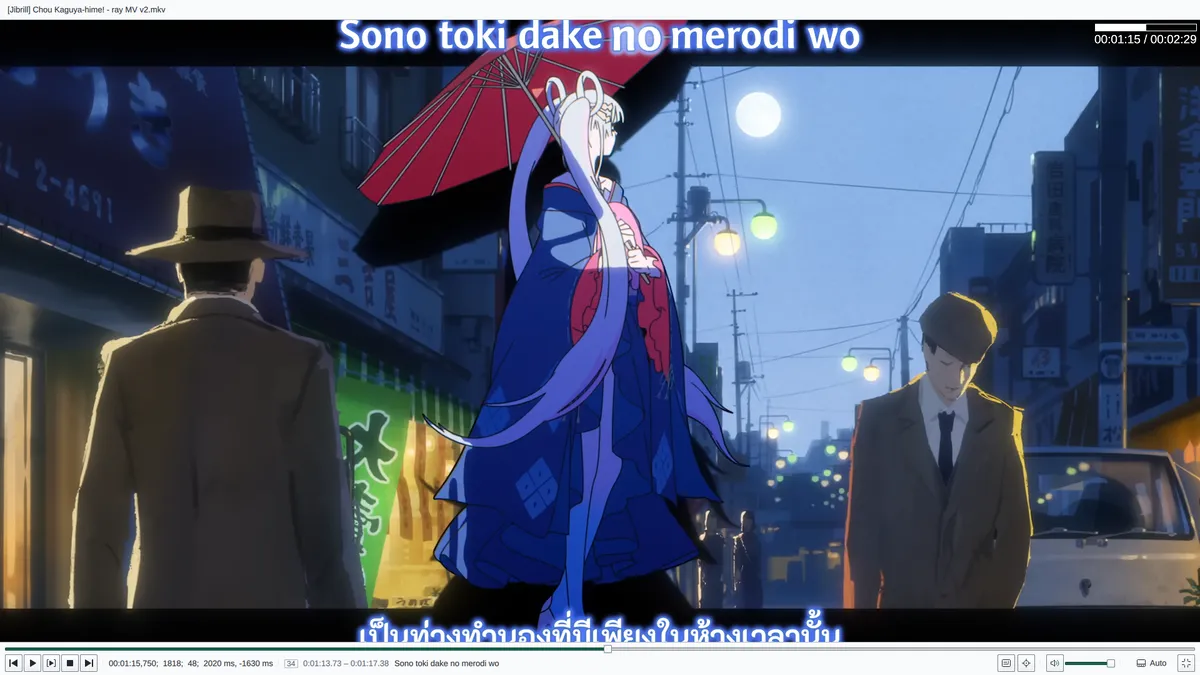
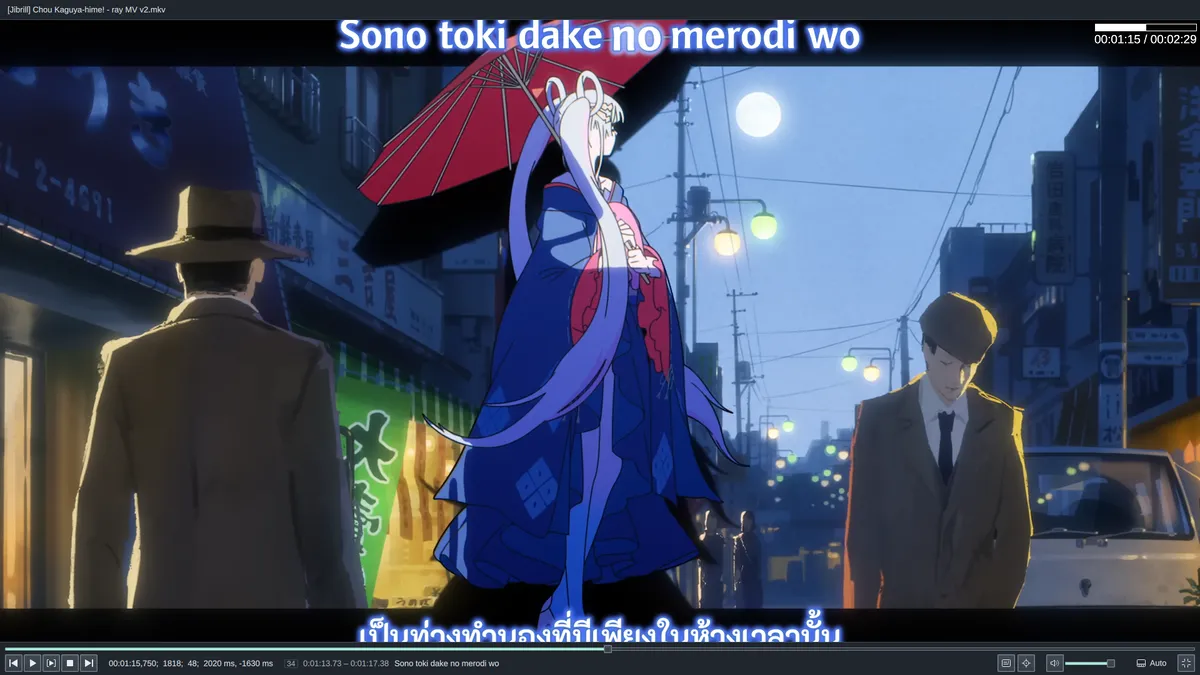
The bar along the bottom has the transport buttons, the times, the current line, Open editor, the visual tools, mute and volume. Its mode button, or Tab, switches between:
- Auto: the bar shows when you move the pointer, and hides after a moment of playback.
- Always: the bar stays, and the picture ends above it.
- Never: the picture only.
From 0.1.0-beta.3, the video's right-click menu also has a Full screen bar submenu with Auto, Always and Never, in the Video panel and in full screen. The bar's mode button and the submenu set the same mode.
Open editor leaves full screen, selects the line at the video's time and shows the Line editor. With more than one monitor, the right-click menu offers Open in full screen on monitor 2 and so on. Show / hide progress bar toggles the progress bar in the corner.
Dummy video
Video › Open dummy video makes a blank video to time against without the real one: choose a resolution, a colour or a checkerboard, a frame rate from 15 to 120 and a duration. It brings its own silent audio as long as itself, so the audio box works too.
Subtitles on the video
HikariSub draws subtitles with libass. On Windows, VSFilterMod can be chosen under File › Settings › Video › Subtitles on video › Subtitle display filter, for scripts that use its tags.
Preview subtitles at chooses how they are drawn:
- Video resolution (as encoded), the default: at the video's size, then scaled with the picture, as most players do.
- Screen size (sharp): at the size the picture takes on your screen, so they stay sharp on large and high-DPI screens.
The layout is the same either way. The setting also applies to full screen and to the previews in the Style manager, the font picker and the Template editor. It is not available with VSFilterMod.
Saving a frame
While paused, the right-click menu can Save frame as PNG or Copy frame to clipboard, with or without the subtitles. Saved frames go beside the video, named after it and the frame's time, and never replace an earlier file. They are always at the video's size.
Settings
File › Settings › Video holds the rest: whether a click pauses, the seeking method, GPU colour conversion, the preferred audio language, the start zoom and the resolution warnings. The Settings reference lists them with their defaults.