 HikariSub
Timing
Set when each line shows, from the audio, the video or by hand, and shift or tidy many lines at once.
Each line has a start and an end time. You can set them from the audio, from the video, or by typing them, and then shift or tidy many lines at once with Shift times.
From the audio
The Audio panel is the usual way to time dialogue:
- Select a line. Its times show as the bright range on the waveform.
- Click to set the start, right-click to set the end, or drag the boundaries. Hold Alt as you let go to move the neighbouring line's boundary to the same place.
- Play it back: R plays the line, Q the 500 ms before it and W the 500 ms after it.
- With Automatically apply changes on, as it is at first, the times are already in the line. Otherwise press G or Enter to commit them.
- X moves to the next line and plays it. Commit moves there too.
In (C) and Out (V) add a lead-in of 200 ms before the start and a lead-out of 300 ms after the end, so a line shows a moment before the voice and stays a moment after it. File › Settings › Audio › Lead-in and lead-out changes the amounts.
Audio › Join with previous line using the audio selection gives the active line the times of the audio selection, and makes the line before it in the file end where the selection starts. Both change as one undo step. It needs audio, and has no key at first.
From the video
Video › Insert start time from video (Ctrl+Left) sets the selected lines' start to the frame on screen, and Insert end time from video (Ctrl+Right) their end to that frame's end. A start after the end moves the end along, and the other way round. Step through the frames with Left and Right to find the frame where a sign appears or a shot changes.
A neighbour that is joined to a selected line stays joined, even when it isn't selected. With Insert start time from video, the line before in the file, if it ended exactly where the selected line started, now ends at the new start. With Insert end time from video, the line after, if it started exactly where the selected line ended, now starts at the new end.
Video › Shift by frames to video moves lines by whole frames, so that the active line lines up with the frame on screen:
| Command | Moves | So that the active line |
|---|---|---|
| Selected lines, start at video | The selected lines | Starts on the frame on screen |
| Selected lines, end at video | The selected lines | Has its last frame on the frame on screen |
| Following lines, start at video | The active line and every line that starts at or after it | Starts on the frame on screen |
| Following lines, end at video | The active line and every line that starts at or after it | Has its last frame on the frame on screen |
Every start and end moves by the same number of frames, so each line keeps its length in frames. Each shift is one undo step. The commands need a video, and have no keys at first.
Start frame offset and End frame offset, under File › Settings › Subtitle grid › New lines, add a fixed amount to these times.
In the Line editor
The Line editor's Start, End and Duration fields take typed times, h:mm:ss.cc. A typed digit replaces the next one and skips the colons, and a pasted time must be whole. Over a field, the wheel steps the part under the pointer, and dragging with the right button held steps it faster.
Enter applies the times and moves to the next line; Ctrl+Enter applies them and stays. Stay on the line when editing times, under File › Settings › Line editor, makes Enter stay in a time field too. Start and End turn the warning colour while the start is after the end.
Show video frames instead of times, in the same place, shows frame numbers in the fields and the Grid.
Snapping to keyframes
A keyframe usually starts a new shot. Lines that start or end on one look tidier than lines that cross a cut by a frame or two.
- Shift+Left moves the active line's start to the nearest keyframe or line boundary, up to 5 seconds away, and Shift+Right its end. They need a video and the audio open.
- In the Audio panel, Snap to keyframes and Snap to other lines under File › Settings › Audio › Snapping make a dragged boundary jump to a keyframe or line near it. Hold Shift while dragging to snap only this once, or to not snap when they are on.
- Video › Go to previous keyframe and Go to next keyframe move the video there. They have no key at first; give them one in Settings › Hotkeys.
Keyframes come from the video. Video › Open keyframes loads them from a file instead, as the Video guide explains.
Shift times
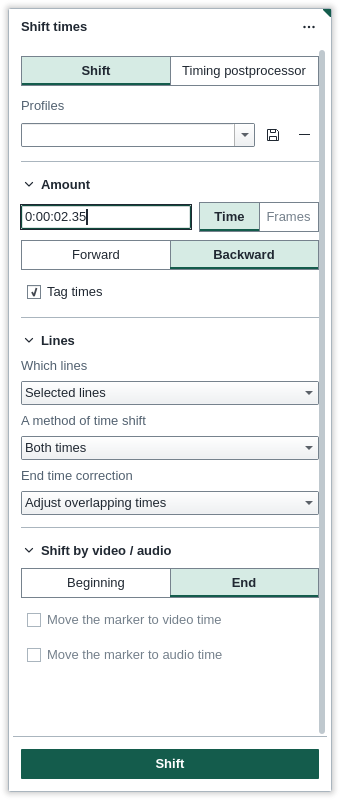
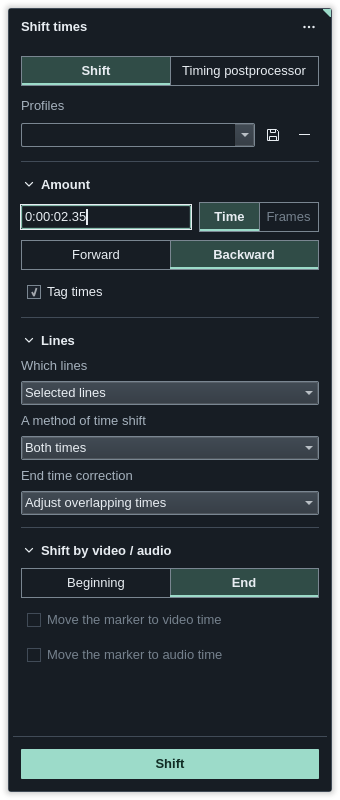
Subtitles › Shift times… (Ctrl+I) shows the Shift times panel (see Where a panel opens). It moves many lines at once, for example to fit subtitles to a version of the video that starts two seconds later. Its Shift button, or Subtitles › Shift times / run timing postprocessor, runs it as one undo step.
Shift mode
- Amount: the time to move by, or a number of frames with Frames (with a video open), and Forward (later) or Backward (earlier). Tag times keeps
\move,\tand\fadin step with the video when the shift lands between frames. - Which lines: all lines, the selected lines, the lines from the selected one on, the lines starting at or after it, at or before it, or the lines of the styles you list. The + button picks the styles.
- A method of time shift: both times, or only the start or the end. Shifting only one asks first, because a line can end up ending before it starts.
- End time correction: Adjust overlapping times ends each line where the next one starts, if it would overlap it. New times also gives each line that doesn't overlap the next a new end: Time per letter in File › Settings › Conversion, 110 ms at first, for each character of its text, tags included, and at least one second. Both need a video open; without one, the shift runs and the correction is skipped.
- Shift by video / audio: with Move the marker to video time, the active line's Beginning or End moves to the video's frame, and every other line moves by the same amount. Move the marker to audio time does the same with the mark you set on the audio ruler. The amount in the field is added on top.
Profiles saves the current choices under a name, to use again.
Times never go below zero. Hidden lines, filtered out of the Grid, are left alone.
Timing postprocessor mode
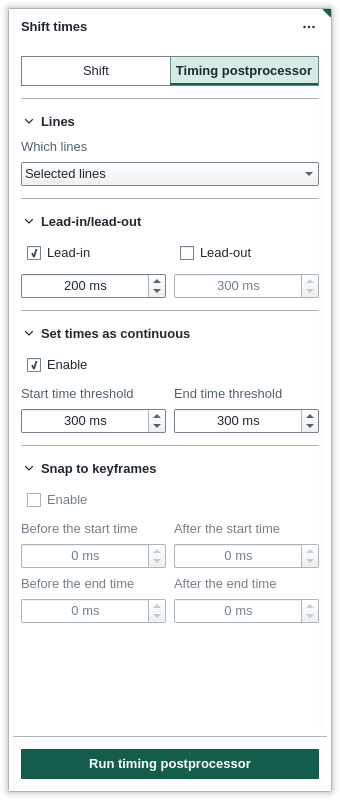
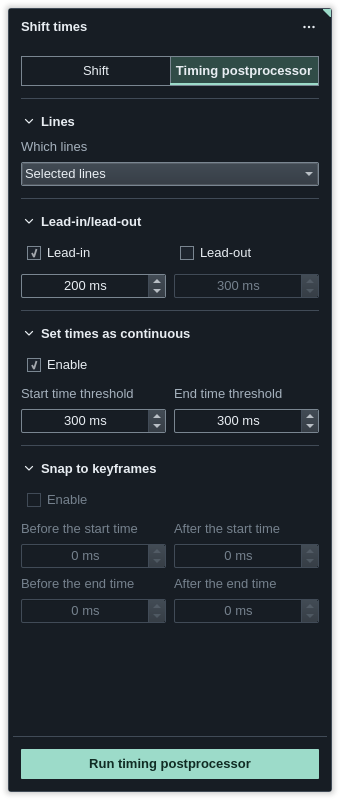
The timing postprocessor tidies the lines' times rather than moving them. It needs a video open.
- Lead-in/lead-out adds time before each start and after each end.
- Set times as continuous closes small gaps between lines: when the gap is no larger than the two thresholds together, the earlier line's end and the later line's start meet in it.
- Snap to keyframes moves starts and ends to a keyframe within the distances you set before and after them. It leaves a line alone if snapping would make it 600 ms long or less.
They run in that order, on the lines Which lines chooses.
Lines next to each other
Make times continuous with the previous line and with the next line, in the Grid's right-click menu, make each selected line start where the line before it ends, or end where the next one starts.
Keys
| Key | Does |
|---|---|
| Ctrl+I | Shift times panel |
| Ctrl+Left Ctrl+Right | Start or end time from the video |
| Shift+Left Shift+Right | Start or end to the nearest keyframe |
| Ctrl+Up Ctrl+Down | Previous or next line |
| C V | Lead-in or lead-out, in the Audio panel |
| G or Enter | Commit, in the Audio panel |
Inside the Line editor, Ctrl+I is italic instead. The Hotkeys reference lists them all.