 HikariSub
Translation mode
Translate a file line by line with the original text beside each line, carry its tags into the translation, and mark lines for review.
In Translation mode each line of a file has two texts: the Original text it already had, and a Translated text you type beside it. The file keeps both until you turn the mode off, so you can translate, check against the original, and come back to it later.
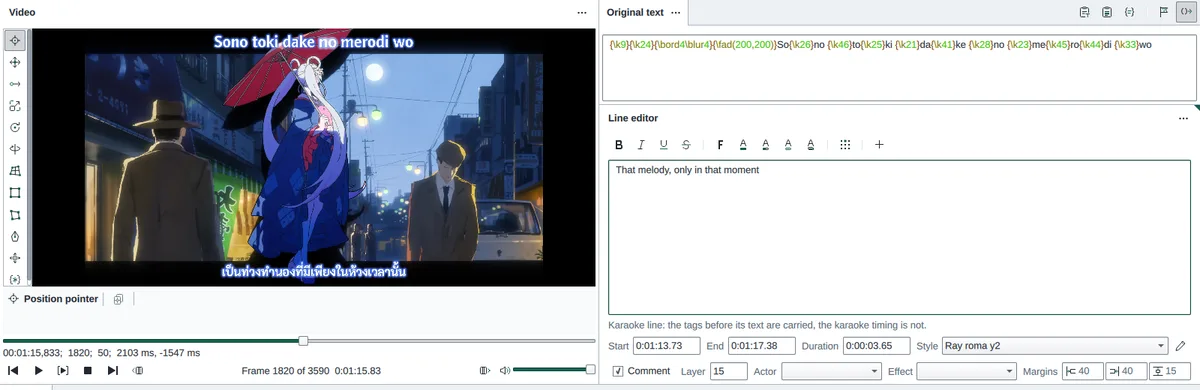
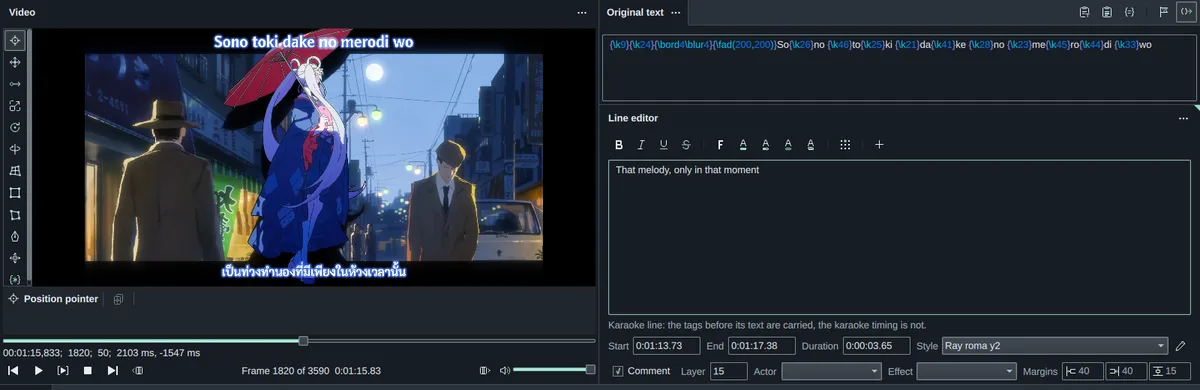
Translation mode works on ASS files that have been saved, so save a new file first. SRT, plain text and the other simple formats can't store two texts, so the mode is greyed out for them: convert the file to ASS first.
Turning it on
- Subtitles › Translation mode turns it on at once. It has no key at first: Shift+click the menu item to give it one.
- Choosing the Translation layout, from View › Layout or the layout switcher in the title bar, asks Turn on Translation mode for this file? Turn on does; Not now keeps the layout without the mode, and isn't asked again for that file until you restart HikariSub.
- Paste translation text in the Grid's menu turns it on as it brings in a translation from another file. See Line matching.
A file saved in Translation mode opens in the Translation layout, with the mode on. Choosing another layout later leaves the mode on.
The Translation layout is the Editing one with the Audio panel closed: the video, the Original text panel above the Line editor, and the Grid.
Turning it off
Choose Subtitles › Translation mode again. It asks Turn off Translation mode? first:
- Turn off keeps each translated line's Translated text and deletes its Original text. Lines with no translation keep their text.
- Keep it on changes nothing.
Ctrl+Z brings the originals back.
File › Save translation turns the mode off without asking, then opens the Save dialog, so the file you save has only the translations. Ctrl+Z turns the mode back on.
The Original text panel
While the mode is on, the Original text panel shows the active line's Original text, and the Line editor's text becomes the Translated text. The panel opens and closes with the mode, above the Line editor.
You can edit the Original text too. Tab and Shift+Tab move between it and the Translated text. The Line editor's tag buttons act on whichever of the two you were in last.
The buttons in the panel's header:
| Button | Does |
|---|---|
| Paste all | Replaces the Translated text with the Original text |
| Paste the selected text | Puts the text selected in the original at the cursor in the translation |
| Comment out original | Wraps the Original text in braces, {…}, so that it doesn't show |
| Not confirmed | Marks the selected lines for review: see Reviewing |
| Tags from original | Turns carried tags on and off: see below |
When the panel is narrow they fold into a More menu. If you close the panel, the Line editor shows the Original text above the Translated text, with their captions, and the buttons move into its tag strip.
Paste all, Paste the selected and Comment out original change the line like typing does: they are applied with the rest of your changes, They have no keys at first; give them some in File › Settings › Hotkeys, where Comment out original is listed as Hide original.
Tags from original
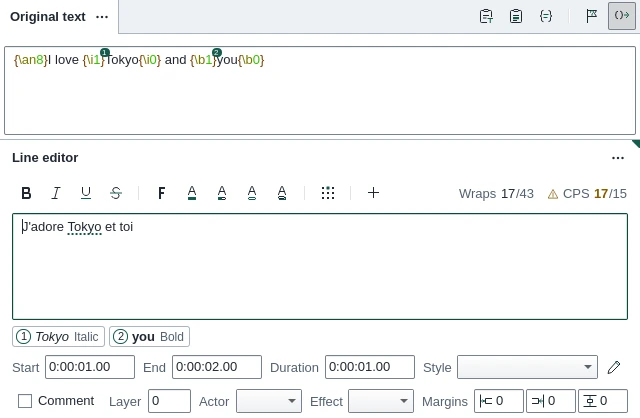
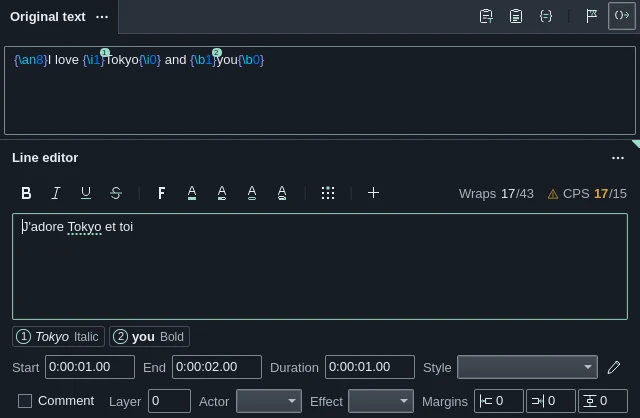
With Tags from original on, as it is at first, you type only the words. The tags stay in the Original text, and HikariSub writes them into the translation for you:
- Every tag before the first word, such as a
\posor a fade, and the tags that apply to the whole line wherever they are:\pos,\move,\org,\fad,\fade,\clip,\iclip,\an,\aand\q. - When you change one of those in the original, the translation changes with it.
The Translated text doesn't show these carried tags. Turn Tags from original off to see and edit the whole translation, tags included. The button is the only place to change it; it isn't in Settings.
Runs
Formatting that changes inside the line, such as an italic word, is a run. Each run has a numbered badge in the Original text, and a chip under the Translated text with its number, its text and its kind, such as Italic or Colour. Since the words move in a translation, you show where each run goes:
- Select the words in the Translated text.
- Click the run's chip, or press Alt+1 to Alt+9 for runs 1 to 9. Ctrl+B, Ctrl+I and Ctrl+U place a bold, italic or underline run.
A placed run's chip fills with the accent colour, and its words are underlined in the translation. Place it on the same words again to take it off, or on other words to move it.
When the translation has a run's words unchanged, once, as a whole word, they get a dotted underline: Tab places every suggestion, and Esc dismisses them for that line.
Runs you don't place don't stop you applying the line. They are left out of the translation, and the Grid marks the line with a triangle in the corner of its text until you place them.
What isn't carried
- Comments in braces and line breaks,
\N. - Karaoke timing. A karaoke line gets its leading tags without the
\ktags, and a note under the text says so. - Anything from drawings, or from lines whose tags can't be read. Paste all copies them whole.
- A translation that has leading or closing tags of its own, different from the original's, is left as it is.
Reviewing
Mark lines you are not sure of, then come back to them:
| Key | Does |
|---|---|
| Alt+Down | Marks the line as unconfirmed, or clears the mark, and goes to the next line |
| Ctrl+D | Goes to the next unconfirmed line |
| Ctrl+R | Goes to the next line with no translation |
Not confirmed in the panel's header marks or clears every selected line. An unconfirmed line's number in the Grid is coloured. The searches skip hidden lines and go round to the start once.
In the Grid's menu, Filtering › Show unconfirmed and Show untranslated hide every other line.
In the Grid and on the video
The Grid's Text column shows each line's translation, or its original while it has none. With File › Settings › Line editor › Show the original on, it shows two columns instead, Original text and Translation.
The video shows both texts: the translation in the line's own style, and the original at the top centre, in a copy of the Default style named TLmode that HikariSub adds when the mode is turned on. File › Settings › Line editor › Hide the original on the video leaves the original out.
Spelling and grammar are checked in the Translated text only.
The visual tools edit the translation, or the original while the translation is empty. With Tags from original on, a tag a tool writes for the whole line, such as \pos, goes into the original and is carried into the translation.
Automation scripts see a translated line's translation as its text, and its original as text_translation.
How it's saved
The file stays a normal ASS file. Script Info gets TLMode: Yes and TLMode Style:, the name of the TLmode style. Each translated line is saved as two lines: the original in the TLmode style, then the translation with the line's own style and fields. A line with no translation is one line.
With Hide the original on the video on, the originals are saved as Comment lines, so other players don't show them either. An unconfirmed line keeps its mark in the Effect field of its original.
Other programs don't know about Translation mode, so they show both lines unless the originals are Comment lines. To hand over a file with only the translations, turn the mode off or use File › Save translation.
Settings
| Setting | Default | Does |
|---|---|---|
| Show the original | Off | Shows the Original text and Translation columns in the Grid |
| Hide the original on the video | Off | Leaves the original off the video, and saves it as Comment lines |
Both are in File › Settings › Line editor, under Translation mode.
Keys
| Key | Does |
|---|---|
| Tab, Shift+Tab | Move between the Original and Translated texts. With suggestions, Tab places them |
| Alt+1 to Alt+9 | Place run 1 to 9 on the selected words |
| Alt+Down | Mark as unconfirmed and go to the next line |
| Ctrl+D | Next unconfirmed line |
| Ctrl+R | Next untranslated line |
The Hotkeys reference lists the rest. Translation mode, Save translation, the header buttons and Place the next run have no key at first.