 HikariSub
Styles and the Style manager
Apply styles from the Styles panel, edit them in the Style manager, and keep the ones you reuse in catalogs.
A style sets how a line looks by default: its font, size, colours, border, shadow, position and margins. Every line of an ASS file has one, and tags in its text change the look from there. SRT and the other simple formats have no styles.
There are two places to work with them: the Styles panel, to see and apply the file's styles, and the Style manager, to edit them and share them between files.
The Styles panel
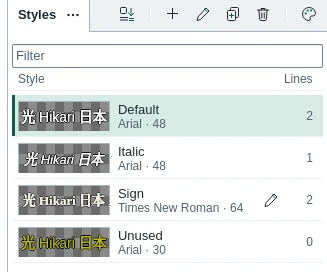
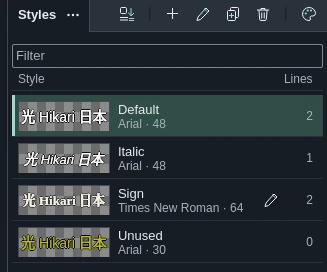
The panel lists the file's styles, each with a sample of the preview text in its font and colours, and the number of lines that use it. The active line's style is marked. Type to filter the list.
To give the selected lines a style, double-click it or press Enter. The buttons above the list add, edit, copy and delete styles, and open the Style manager. Right-click a style to also select every line that uses it, or copy it to a catalog.
In the Editing layout the panel is a tab beside the Line editor; open it from View › Panels. The Typesetting layout shows it beside the video.
The Style manager
Subtitles › Style manager (Ctrl+M) opens it on the active line's style. The pencil beside the Line editor's Style field opens it too. You can keep working in the main window while it is open.
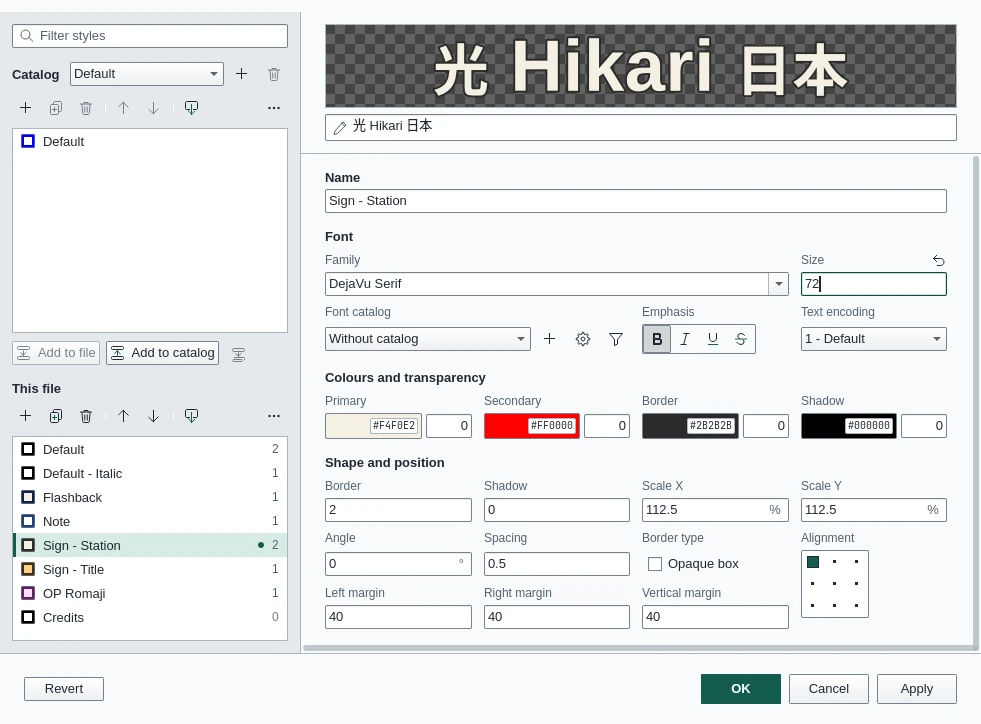
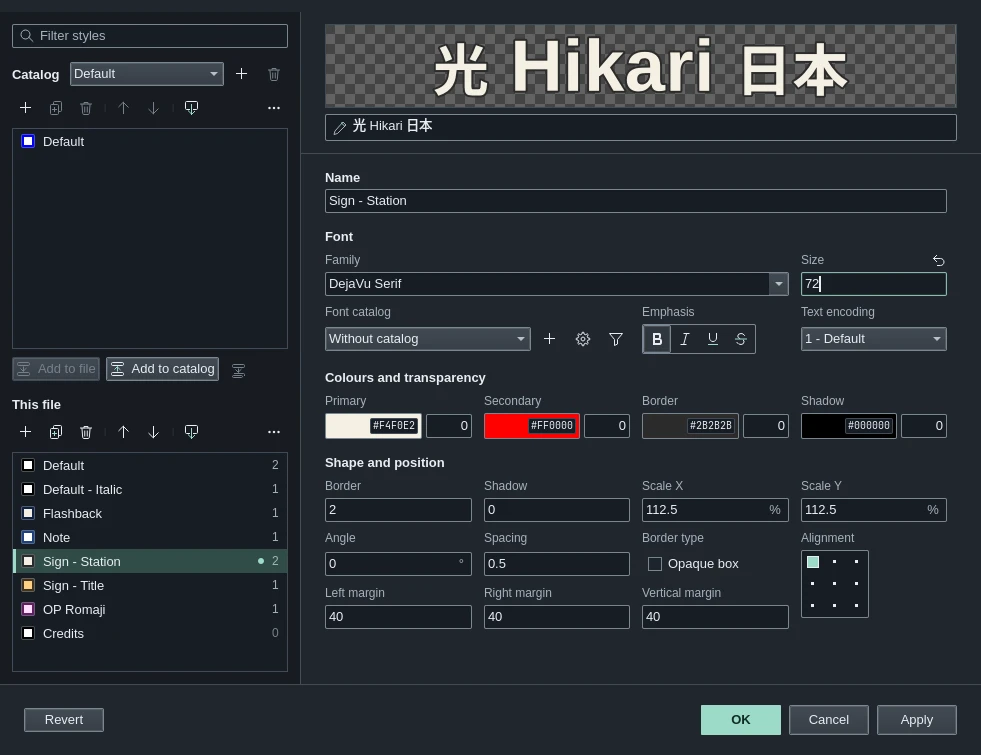
On the left are two lists: the styles of a Catalog, and those of This file. On the right is the editor for the style you select, under a preview drawn as the video would draw it.
Editing a style
| Section | Fields |
|---|---|
| Name | The style's name |
| Font | Family, size, font catalog, bold, italic, underline, strikethrough and text encoding |
| Colours and transparency | Primary, secondary (for karaoke), border and shadow, each with a transparency from 0 (opaque) to 255 |
| Shape and position | Border width, shadow distance, scale, angle, spacing, opaque box, alignment and the three margins |
Click a colour to open the colour picker. Each field's reset button puts back the value it had. To change the preview's text, edit the field under it. This is the Preview text setting, so every style and font sample changes with it.
OK or Apply writes the changes as one undo step, so Ctrl+Z in the main window takes them back. Revert throws them away. If you move to another style with changes not applied, the manager asks whether to apply them.
Renaming a style that lines use offers to rename it in those lines too, as part of the same step.
Select several styles to edit them together. Fields where they differ read Multiple values, and only the fields you change are written to all of them.
Catalogs
A catalog is a collection of styles kept outside any file, to reuse in the next episode or project. Catalog chooses one; the buttons beside it make a new catalog or delete one. The Default catalog always exists.
To copy styles, select them in one list, then:
- Add to file copies catalog styles into this file.
- Add to catalogue copies this file's styles into the catalog.
- Add to all open files copies catalog styles into every open tab.
If some names are taken, one window lists them all with what differs, and lets you Replace, Rename or Skip each.
Load from a file… copies styles from another ASS file. Changes to a catalog have no undo.
The lists' tools
Each list's buttons add, copy and delete styles, and move them up and down (Alt+Up and Alt+Down). Its ⋯ menu moves them to the top or bottom and sorts them by name. For the file, it also has Delete unused styles, which deletes every style no line uses; Ctrl+Z puts them back.
| Key | Does |
|---|---|
| Ctrl+F | Filter the styles |
| Ctrl+A | Select every style in the list |
| Delete | Delete the selected styles |
| Enter | Go from the list to the editor |
| F6 | Move between the two lists and the editor |
A new style starts as Garamond 40, white with a blue border, at the bottom centre.