 HikariSub
The user folder
Find the one folder that holds your settings, scripts, dictionaries and catalogues, how bundled scripts are copied into it, and how to back it up.
Everything of yours is in one folder, the user folder: your settings and hotkeys, automation scripts and modules, dictionaries, catalogues, saved layouts and autosaves. Copy it, and you have your whole setup. Uninstalling or updating HikariSub never deletes it.
For scripts, the user folder is ?user, as in Aegisub.
Where it is
| Copy | User folder |
|---|---|
| Windows setup | %APPDATA%\HikariSub |
| Linux: AppImage, deb, rpm | ~/.config/hikarisub, or $XDG_CONFIG_HOME/hikarisub when that is set |
| Portable zip or tar.gz | user, in the folder you unpacked |
To open it:
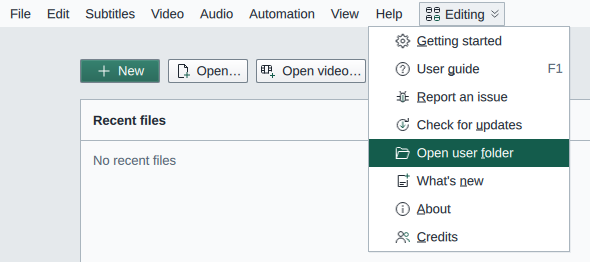
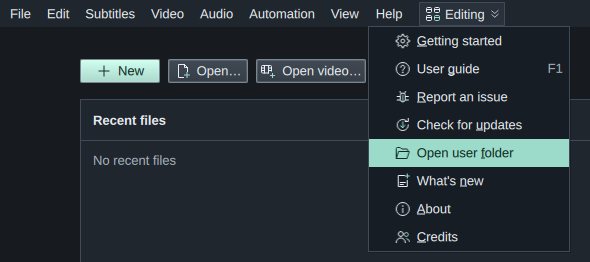
- Help › Open user folder opens it in your file manager.
- File › Settings › General › Folders › User folder shows where it is; Open opens it.
- The last step of the Getting started window, Your files, shows it with an Open folder button.
The index files of your videos and the audio cache are not in the user folder. HikariSub can make them again, so they go to a cache folder instead: %LOCALAPPDATA%\HikariSub\cache on Windows, ~/.cache/hikarisub on Linux. Portable copies use these too. The same folder holds crash and freeze reports and the usage data waiting to be sent.
To use another folder, start HikariSub with the environment variable HIKARISUB_USER_DIR set to it.
What's in it
settings.toml           your settings
hotkeys.toml            your hotkeys
state.json              what HikariSub remembers: window places, recent files and more
layout.json             the current panel layout
last-session.json       the last session
rules.toml              the Fix minor errors rules
shapes.toml             your shapes from Edit shapes
tags.toml               your tags from Edit tags
automation/
  autoload/             scripts that load at start: the bundled ones and yours
  include/              modules that scripts require
dictionaries/           spelling dictionaries (.dic and .aff) and UserDic.udic
Harper/                 the grammar checker's dictionary and data, kept by harper-ls
Import/                 the legacy settings import's snapshots, for Roll back…
ReplaceBackup/          copies of files made before Replace in subtitles changes them
catalogs/               style catalogues (.sty) and fonts.toml, your font catalogues
presets/                layouts.json, your saved layouts
recovery/               autosaved copies of your files
config/  cache/         what scripts keep, DependencyControl's settings and feeds among them
log/  temp/  autosave/  folders scripts write to
.bundled-files          which bundled version each copied file came from
.old-folders            hidden: the earlier folders were moved in, so it isn't done again
Some files appear only once you use what they belong to. If you used a HikariSub version from before these files, the old ones are there too, with .old added: hikari.ini.old, Rules.txt.old and so on.
Roll back… uses Import, and Replace in subtitles writes to ReplaceBackup; delete old copies there when you no longer need them. .old-folders records that the earlier folders were moved in; leave it in place.
To add a script that loads at start, put it in automation/autoload. To add a spelling language, put its .dic and .aff files in dictionaries. See Writing scripts and Spelling.
Settings files
Your settings are in three files. Each holds only what differs from the defaults, so a new user folder starts with almost nothing in them.
| File | What it holds |
|---|---|
settings.toml | What you choose: everything in Settings, the tag buttons, the toolbar and the presets of script dialogs |
hotkeys.toml | The hotkeys you changed, one table per window: [global], [grid], [editor], [video] and [audio], and [automation] for scripts |
state.json | What HikariSub remembers by itself: window and dialog places, the folders pickers open in, recent files, finds and colours, the last answers in script dialogs, the skipped update and the usage data ID |
Each file starts with version = 1 ("version": 1 in state.json). In settings.toml a setting's name is split at its dots, so audio.cacheFilesLimit is cacheFilesLimit under [audio]. In hotkeys.toml each line names a command and its keys, with the command's name in a comment after it:
[global]
GLOBAL_SAVE_SUBS = "Ctrl+Shift+S"  # Save
"" takes a default hotkey away. A command has one hotkey in each window: if you give it a list, only the first is used, and the Log names the rest as ignored. The Hotkeys page of Settings is the easier way to change them.
Editing them by hand
Edit the files only while HikariSub is closed. A running HikariSub writes them from what it has in memory, over your changes, and comments you add are not kept. Keys it doesn't know are kept.
If a file can't be read, because of a mistake in it or a version that is missing or newer than 1, HikariSub never writes over it. It renames the file settings.toml.broken (or .broken-2 and on), uses the defaults for what was in it, and shows a notice: "settings.toml could not be read, so its settings are back at their defaults. The file is kept as settings.toml.broken: fix it while HikariSub is closed and give it its name back to use it again." The notice's details name the line and column. Close HikariSub, fix the file, and rename it back.
From hikari.ini
HikariSub versions before these files kept settings and hotkeys in hikari.ini. The first time a newer version starts without a settings.toml, it converts hikari.ini into the three files, once, and renames it hikari.ini.old. The Log says "Your settings moved from hikari.ini to settings.toml, hotkeys.toml and state.json." hikari.ini.old is never read or written again: delete it once you're happy with your settings.
File › Import legacy settings… still brings in HikariSub 0.0.x settings, and writes them into these files.
List files
The lists you build up are TOML files too, each starting with version = 1:
| File | What it holds | Was |
|---|---|---|
rules.toml | The Fix minor errors rules, one [[rule]] each | Rules.txt |
shapes.toml | The shapes of Edit shapes, one [[shape]] each | ShapesSettings.txt |
tags.toml | The tags of Edit tags, one [[tag]] each | AllTagsSettings.txt |
catalogs/fonts.toml | The font catalogues, one [[catalog]] each, with its safety copies fonts.autosave-0.toml to fonts.autosave-2.toml | FontCatalogs.txt and FontCatalogsAutosave0.txt to 2.txt |
When one of these files is missing, HikariSub converts the old file at start, once, and renames it with .old added, as Rules.txt.old. It is never written again. The Log says, for example, "Rules.txt moved to rules.toml. The old file is kept as Rules.txt.old." An old file that can't be read is left as it is: its list is at its defaults, nothing is written over it, and the next start tries again.
Edit them only while HikariSub is closed, as the settings files. A list file that can't be read gets the same .broken name and the same kind of notice: "rules.toml could not be read, so its list is back at its defaults." If the file goes bad while HikariSub is running, for example because you edited it, the next save keeps it as .broken and saves the list HikariSub has in its place, with a notice: "rules.toml could not be read, so it is kept as rules.toml.broken and a new one is saved."
Bundled scripts and dictionaries
The scripts, modules and spelling dictionaries that come with HikariSub are copied into your user folder, so you can edit them and DependencyControl can update them. Each time HikariSub starts, it compares its bundled files with the copies:
- A file that is missing is copied in. A bundled file you delete comes back at the next start. To turn off a bundled script, untick its box in the Automation panel instead.
- A file that is unchanged since it was copied is replaced when HikariSub brings a new version of it.
- A file that you changed, or that DependencyControl updated, is kept. HikariSub's new version is not copied over it, and the Log says so once: "Kept your changed …; the new bundled version was not copied over it."
- A file that a new version no longer brings is removed while it is unchanged. If you changed it, it stays, and is yours from then on.
To go back to the bundled version of a file you changed, move your copy out of the user folder and restart HikariSub.
HikariSub also reads the program's own copies, after yours, so the bundled scripts load even without them. A file in your user folder is used instead of the program's copy with the same name. The furigana dictionary is not copied: it stays with the program.
Moving in from earlier versions
HikariSub versions before the user folder kept your files in two folders:
| Windows | Linux | |
|---|---|---|
| Settings | %LOCALAPPDATA%\HikariSub\HikariSub | ~/.config/HikariSub/HikariSub |
| Data: autosaves and scripts | %APPDATA%\HikariSub\HikariSub | ~/.local/share/HikariSub/HikariSub |
The first time HikariSub starts with a user folder that has no settings (no settings.toml, hikari.ini or hikari.ini.old), it moves their contents in, once. A notice says "Your settings and files moved to …", with the folder; Details lists the folders they came from.
- Everything goes into the layout above, and
hikari.iniis converted as above:Dictionaryintodictionaries,Catalogand the font catalogues intocatalogs, saved layouts intopresets,Recoveryintorecovery, and the Automation folder's contents to the top, withautomation/AutoloadandIncludemerged intoautoloadandinclude. - The index files and the audio cache go to the cache folder.
- A file with the same name as one already in the user folder stays where it was. The notice counts these, and Details lists them under Not moved.
- The old DependencyControl stays behind, because HikariSub brings a newer one. The notice says "The old DependencyControl stayed behind: HikariSub brings a newer one."
- Empty folders are removed. What stays behind is not used any more: once you have checked it, delete it. On Windows the old data folder is inside the new user folder, so a
HikariSubfolder there can hold what stayed behind.
A portable copy, or a start with HIKARISUB_USER_DIR, moves nothing. HikariSub 0.0.x's folders are never moved or changed: bring its settings over with File › Import legacy settings…, as Moving from legacy explains.
Backing up and moving to another computer
- Close HikariSub.
- Copy the whole user folder, hidden files included.
- On the other computer, close HikariSub, and put the copy where that computer's user folder is, replacing it.
Keep .bundled-files with the rest. Without it, copies of bundled files from another HikariSub version count as your changes and are not updated.
A portable copy's user folder is inside its own folder. When you unpack a new version beside the old one, copy the old user folder into it.
When something goes wrong
| Problem | What to do |
|---|---|
| After an update, your settings are the defaults | A portable copy doesn't move files in from the folders earlier versions used, and nothing is moved into a user folder that already has settings. Copy the files across by hand while HikariSub is closed |
| A notice says "settings.toml could not be read" (or another of the files above) | The file has a mistake in it. See Editing them by hand |
| The notice says some items stayed where they were | Your user folder already had items with those names. Details lists them under Not moved; compare them and copy across what you want |
| A bundled script you edited doesn't get HikariSub's fixes | Your changed copy is kept. Move it out of the user folder and restart to get the new version |
| A bundled script you deleted is back | Each start copies in missing bundled files. To keep a script from loading, untick its box in the Automation panel |
| The Log says "Could not copy the bundled … into the user folder." | HikariSub couldn't write the file, for example because the disk is full or the folder is read-only. It tries again at the next start |