 HikariSub
A tour of the window
The parts of HikariSub's window, its menus and layouts, and the keys you need first.
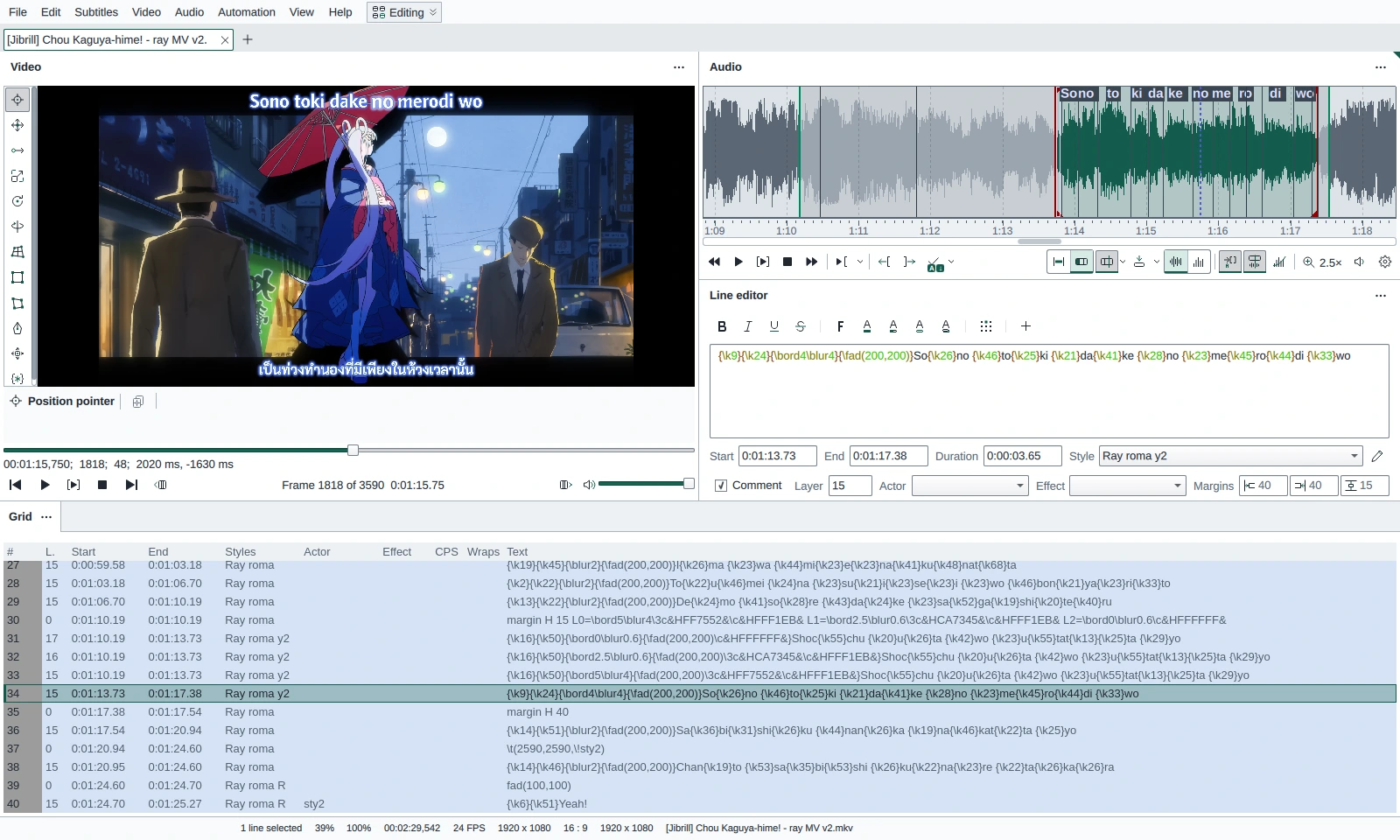
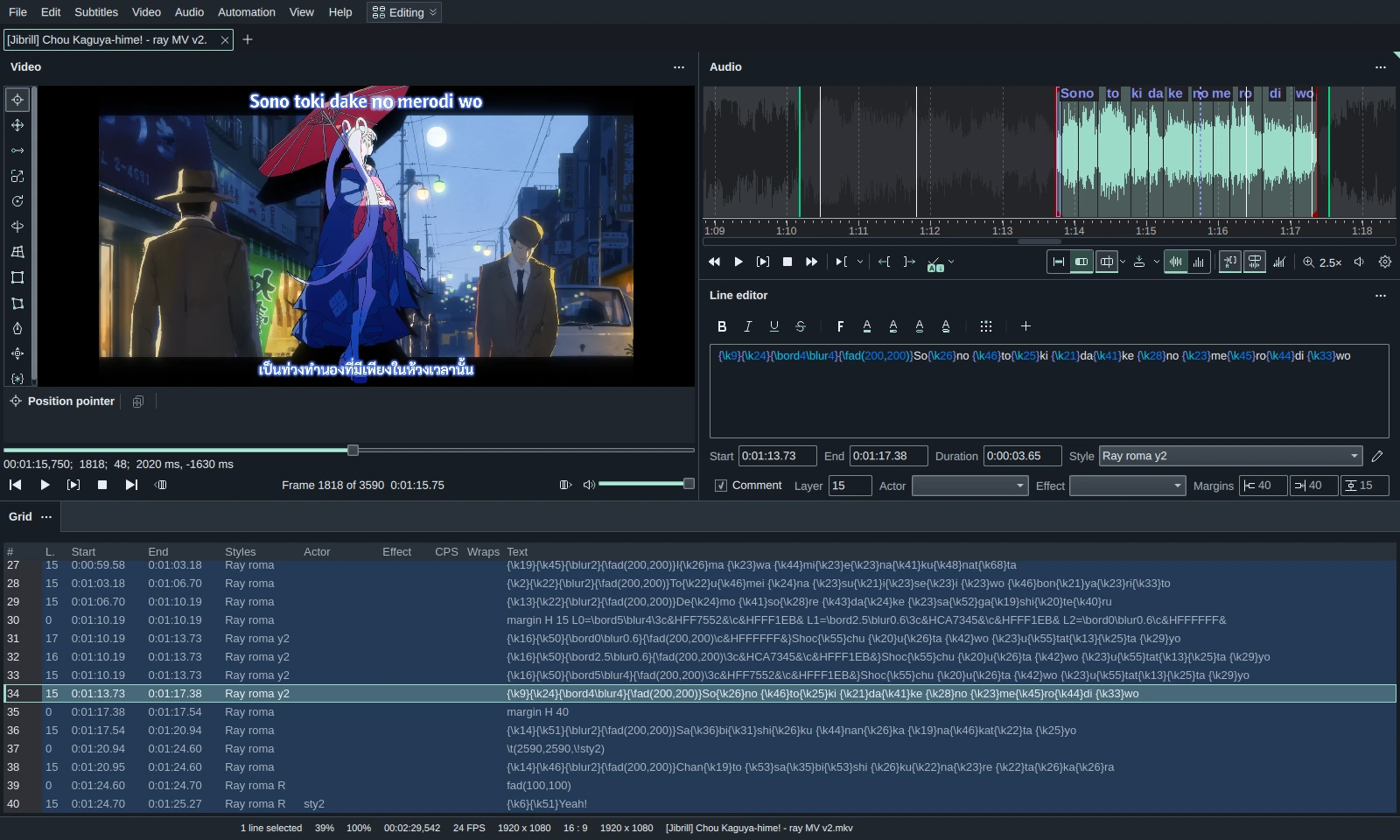
From top to bottom
- Title bar: the menus, the layout switcher (it shows the current layout, Editing above) and the window title. Press Alt or F10 to reach the menus from the keyboard. On a tiling window manager the system's title bar is used instead; File › Settings › Appearance › Use system title bar switches between the two.
- Document tabs: one tab per open subtitle file. + or a double-click on the empty bar opens a new tab, a middle-click closes one, and tabs can be dragged into another order. A tab with unsaved changes shows a mark.
- Notice bars appear under the tabs only when there is something to act on, such as a file changed on disk or an update ready to install.
- Panels: the video, audio, Line editor, Grid and the other tools. See below.
- Status bar: the number of selected lines and whether the file is saved, then the video's scale, zoom, duration, frame rate, resolution and aspect ratio, the subtitles' resolution and the video file name. The video and subtitles resolutions turn to the warning colour when they differ.
The panels
The Editing layout shows four panels:
- Video, with the visual typesetting tools down its left side, their options below the picture, the seek bar, and playback buttons from Previous file to Next frame.
- Audio, the waveform of the audio (or of the video's audio), with its own play and timing buttons.
- Line editor, the line you are working on: its tag buttons (bold, italic, font, colours and more), the text, and the line's Start, End, Duration, Style, Comment, Layer, Actor, Effect and Margins.
- Grid, every line of the file. Right-click it to insert, split, filter or hide lines and columns.
Ten more panels open from the menus: Original text (in translation mode), Reference, Shift times, Search, Automation, Spellchecker, Styles, Template editor, Log and Fix minor errors. View › Panels shows, hides, floats or docks any of them. Shift times, Search and Automation open in a column to the right of the Grid; see Where a panel opens.
Every panel can be moved. Drag a panel by its header to dock it elsewhere or into another panel as a tab, or double-click the header to float it in a window of its own. The ⋯ button on the header has the same actions, plus Move panel… for the keyboard. F6 and Shift+F6 move the focus from panel to panel.
Layouts
A layout is an arrangement of panels. HikariSub has five:
| Layout | Panels |
|---|---|
| Editing | Video, Audio, Line editor and Grid. The default. |
| Timing | Editing without the Video panel, for timing to audio. |
| Translation | Editing without the Audio panel. It also offers to turn on translation mode. |
| Typesetting | A large video with the Styles panel beside it, a short Grid and the Line editor. |
| Karaoke | The video beside the Template editor, the Audio panel across the whole width and a short Grid. It also turns on the Audio panel's Karaoke mode. |
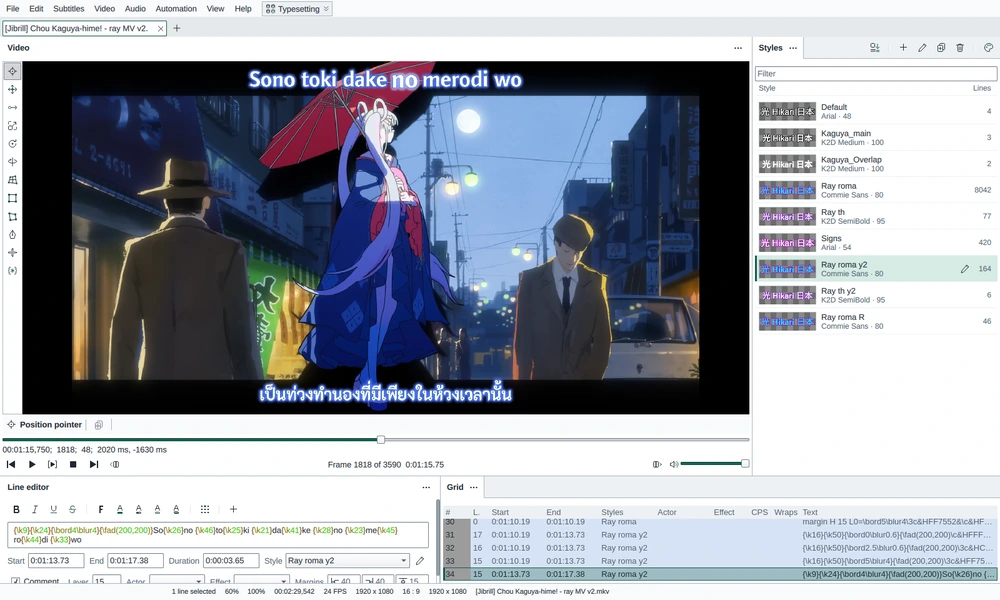
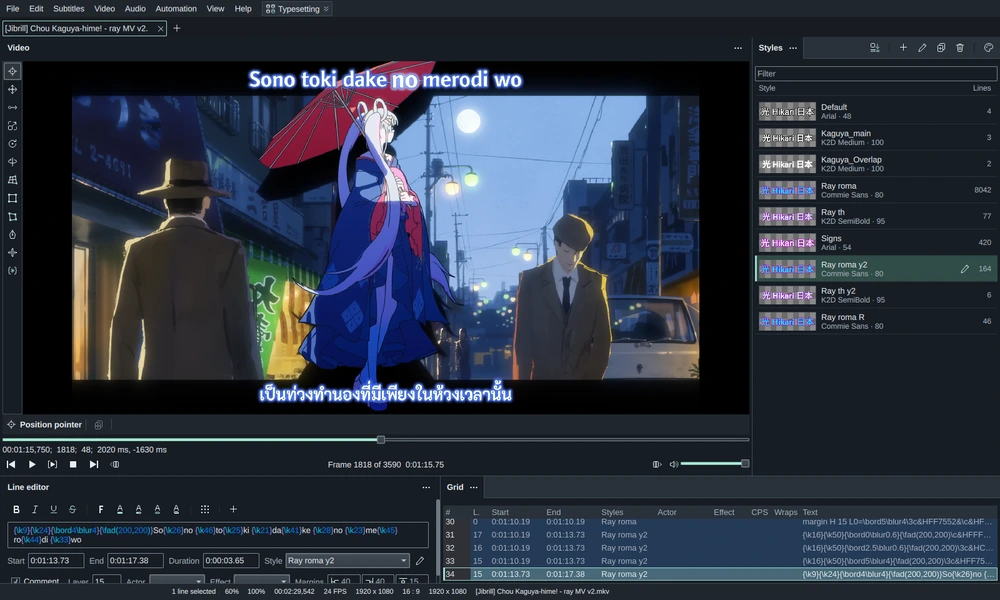
Switch with the layout switcher in the title bar or with View › Layout. Layouts covers each one. Each tab keeps its own layout, so a file you typeset and a file you time can sit side by side. When you save as ASS, the tab's layout is saved in the file and comes back with it.
Move panels around as you like, then save the arrangement with Save layout as… in the same menu. Reset this layout returns the tab to the layout it started from, and Manage layouts… looks after the ones you saved.
Menus
| Menu | What is there |
|---|---|
| File | Open, save and close subtitles; recent files; the last session and autosaves; Settings; Import legacy settings… |
| Edit | Undo, redo and history; sorting; find and replace; select lines; fix minor errors |
| Subtitles | Shift times, the Style manager, ASS file properties, conversion, the font collector, resampling, spelling and karaoke checks, the Kanji timer, translation mode |
| Video | Open video, keyframes or a dummy video; set times from the video; frame by frame and keyframe to keyframe; play; streams and chapters; zoom |
| Audio | Open audio, or the audio of the loaded video; close audio; set the audio position or marker to the video time |
| Automation | Load and reload scripts, run macros, the Automation panel |
| View | Layouts and panels, Move panel…, the Log, and hiding tags in the Grid and the Line editor |
| Help | Getting started, the user guide, reporting an issue, checking for updates, opening your user folder, what's new, About, Credits |
Shift+click a menu item to give its command a hotkey.
Right-click menus
Right-click the Grid, the video, a document tab or a row in Home, Styles or the Automation panel for a menu of what you can do there.
From the keyboard, the Menu key or Shift+F10 opens the menu of whatever has the keyboard focus:
- in a text field, below the text cursor;
- in the Grid and the reference tray, below the active row;
- in Home, Styles and the Automation panel, below the current row;
- in the Video panel and in full screen, at the video cursor.
Document tabs, the title bar, the tag buttons, the full-screen speaker and the tag list never take the keyboard focus, so their menus open only with a right-click.
Menus show each command's key on the right: the key it has now, so a key you change in File › Settings › Hotkeys shows there too. A value that isn't a key, such as a chapter's time or the tap speed, is dimmed and in italics.
Text fields
Every text field, time and number fields included, has the same right-click menu: Undo, Redo, Cut, Copy, Paste, Delete and Select all. Each row does what its key does in that field. In the Line editor, Undo undoes the subtitles' last change, as Ctrl+Z does there. In a time field, Paste fits what you paste into the time, as typing does.
The Line editor's menu also has the spelling and grammar rows for the word under it; see The text. Drop-down lists you can type in keep their usual menu.
The keys you need first
| Action | Key |
|---|---|
| Open subtitles | Ctrl+O |
| Open video | Ctrl+Shift+O |
| Save, Save as | Ctrl+S, Ctrl+Shift+S |
| New tab, close tab | Ctrl+T, Ctrl+W |
| Play or pause the video | Space (outside text fields), or Alt+Space anywhere |
| Previous, next frame | Left, Right |
| Previous, next line | Ctrl+Up, Ctrl+Down |
| Apply the edit and go to the next line | Enter (on the last line it adds a new one) |
| Apply the edit and stay | Ctrl+Enter |
| Undo, redo | Ctrl+Z, Ctrl+Y |
| Find, find and replace | Ctrl+F, Ctrl+H |
| Style manager | Ctrl+M |
| The user guide, at the page for the window you are in | F1 |
There is no Apply button: edits in the Line editor are applied with Enter or Ctrl+Enter, and the editor marks a line whose changes are not applied yet. To open the audio of the loaded video, use Audio › Open audio from video.
The Home page
With no file open, the Home page covers the panels. It has New, Open… and Open video…, the last session with Restore, and your recent files, which you can filter by name. After a crash it also offers to restore the session or open an autosave. When a new version has release notes, they show on the right.
Light and dark
HikariSub follows the system's light or dark scheme by default. To choose for yourself, open File › Settings › Appearance: there are Light, Dark, High contrast white and High contrast black themes, seven accent colours, and the program font and size. Picking a theme turns off Follow system theme.