 HikariSub
Using plugins
Install a HikariSub plugin from a .hikariplugin file, see what it asks for and who signed it, turn it on or off, and run its commands.
A plugin adds commands to HikariSub itself, through the Hikari API. It comes as a single .hikariplugin file. Plugins are separate from Automation scripts, which work as before.
Automation › Plugins… opens the plugin manager, where you install, turn on or off, and uninstall plugins.


Installing a plugin
- Choose Automation › Plugins…, then Install from file….
- Pick the
.hikaripluginfile. - HikariSub checks the package and asks, for example, Install “Line tools” 1.2.0? It shows:
- who signed it, if anyone (see Trust);
- what the plugin asks for: reading and editing every open subtitle file, connecting to network hosts, or a folder to read or to read and write, each with the plugin's reason. A plugin that asks for none of these works only on the active subtitle file.
- Full trust: it may run native code outside HikariSub's limits, for an unrestricted plugin. Install one only if you trust its author completely.
- Press Install plugin, or Trust and install when the signature needs your trust.
The same steps update a plugin: HikariSub asks Update “Line tools” from 1.2.0 to 1.3.0?, and asks before it reinstalls a version or replaces one with an older version. A package HikariSub can't use, such as one with a broken manifest or a missing file, is not installed, and a message says why.
Plugins need a user folder. A copy without one can't install them.
Trust
Every plugin installed from a file shows as Unverified, because HikariSub can't check where the file came from:
- Unverified, unsigned: the package isn't signed, so HikariSub can't tell who made it.
- Unverified, signed by key and a 16-digit key id: the author signed it. Updates must be signed by the same key.
When an update is signed by a different key, or comes unsigned over a signed install, HikariSub asks again before it installs it. A package that was changed after it was signed is always refused, whatever you choose.
A signed marketplace for plugins, at marketplace.hikarisub.org, is coming.
Managing plugins
The plugin manager lists each installed plugin with its name, version and trust, and Full trust for an unrestricted one.
- The check box on each row turns the plugin on or off. A plugin that is off doesn't run, and its commands leave the menu.
- Uninstall removes the plugin after asking. If it has saved data, choose Uninstall, keep its data, to use it again if you reinstall, or Uninstall and remove its data.
A plugin's settings are kept when you update it, as long as they still fit the new version.
Running a plugin's commands
While a plugin runs, its commands sit in the Automation menu after Plugins…, in a submenu named after the plugin.
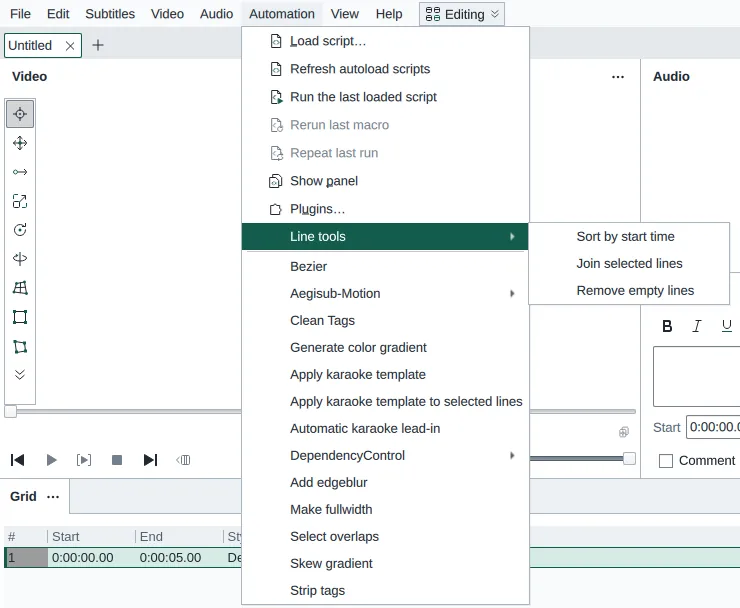
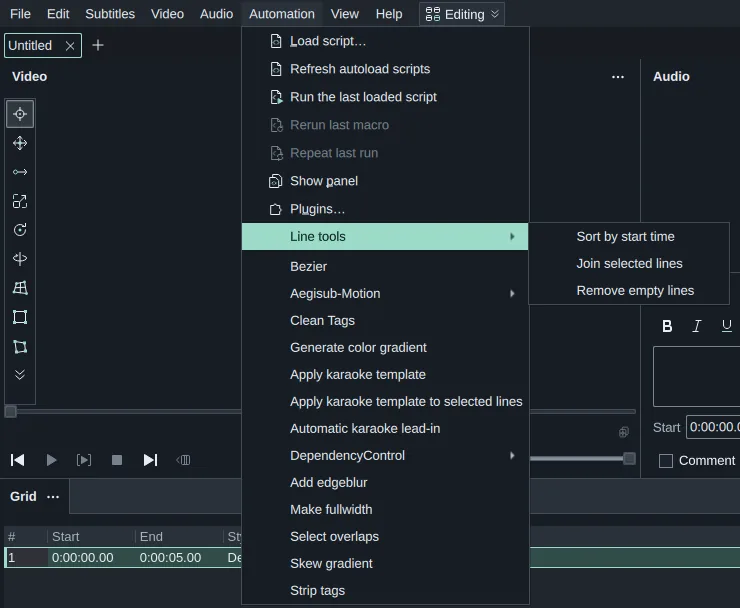
To give one a shortcut, open File › Settings › Shortcuts and choose the Plugin shortcuts filter. A plugin command's shortcut works everywhere. A shortcut for a plugin that is uninstalled or turned off stays listed with a note, ready for when the plugin comes back.
Safety and limits
- Each plugin runs in a process of its own, so a plugin that crashes ends only itself. HikariSub and your other plugins keep running. The plugin's next command starts it again.
- A command that runs longer than 10 seconds is stopped, and a notice says so. The plugin's next command starts it again.
- A plugin may use up to 256 MB of memory. A command that needs more fails, and the plugin keeps running.
- An ordinary (restricted) plugin can't load native libraries or compiled Lua bytecode, and has no access to files, programs or the system beyond what HikariSub gives it.
These limits come from running each plugin in its own process. They are not an operating-system sandbox, so install plugins only from authors you trust.
When something goes wrong
- When a command fails, a notice shows its error. Its details say more.
- When a plugin fails to start, a notice says it didn't start, and its details hold the error.
- Errors in a plugin's background handlers go to the Log panel.
Writing plugins
The plugin format, the manifest, signing and the hikari API for plugin authors are in docs/plugins.md in HikariSub's repository.